Blog
-
Mandatory requirement Instagram connect channel
Before you can add Instagram channel, you have to make sure that you fulfill the following requirements.
[wpdreams_ajaxsearchlite][mobile_menu]- Help Center
- Support Channels
-
Instagram
[left_menu]Mandatory requirements to add Instagram as a Digital Connect channel
Before you can add Instagram channel, you have to make sure that you fulfill the following requirements.
- Your Instagram account must be registered as a Business account
- The Instagram account must be connected to a Facebook page
- You must allow access to Messages of Connected Tools
How to link your Instagram profile to a Facebook Page
- Log into your Instagram Business profile on a mobile phone.
- If you haven’t already, convert your Instagram profile to a Professional Account — and set it to Business.
- Click Edit Profile, then click Switch to Professional Account and follow wizard by tapping on Continue
- Select Category that best describes your business and press OK to confirm.
- Click Connect or Create.
- You can choose to connect an existing Facebook page or create a new one.
- If you aren’t already logged into your Facebook account, do it now.
- You’ll be prompted to set up your Accounts Center.
- Click Yes, Finish Setup.
- Select the page that you want to connect the profile to, or create a new one.
- Click Done to complete the process.
[feedback_form] [related_articles]How to allow ‘Access to Messages’ on Instagram
- Log into the Instagram profile on a mobile phone.
- If you haven’t already, convert your Instagram profile to a Professional Account — and set it to Business.
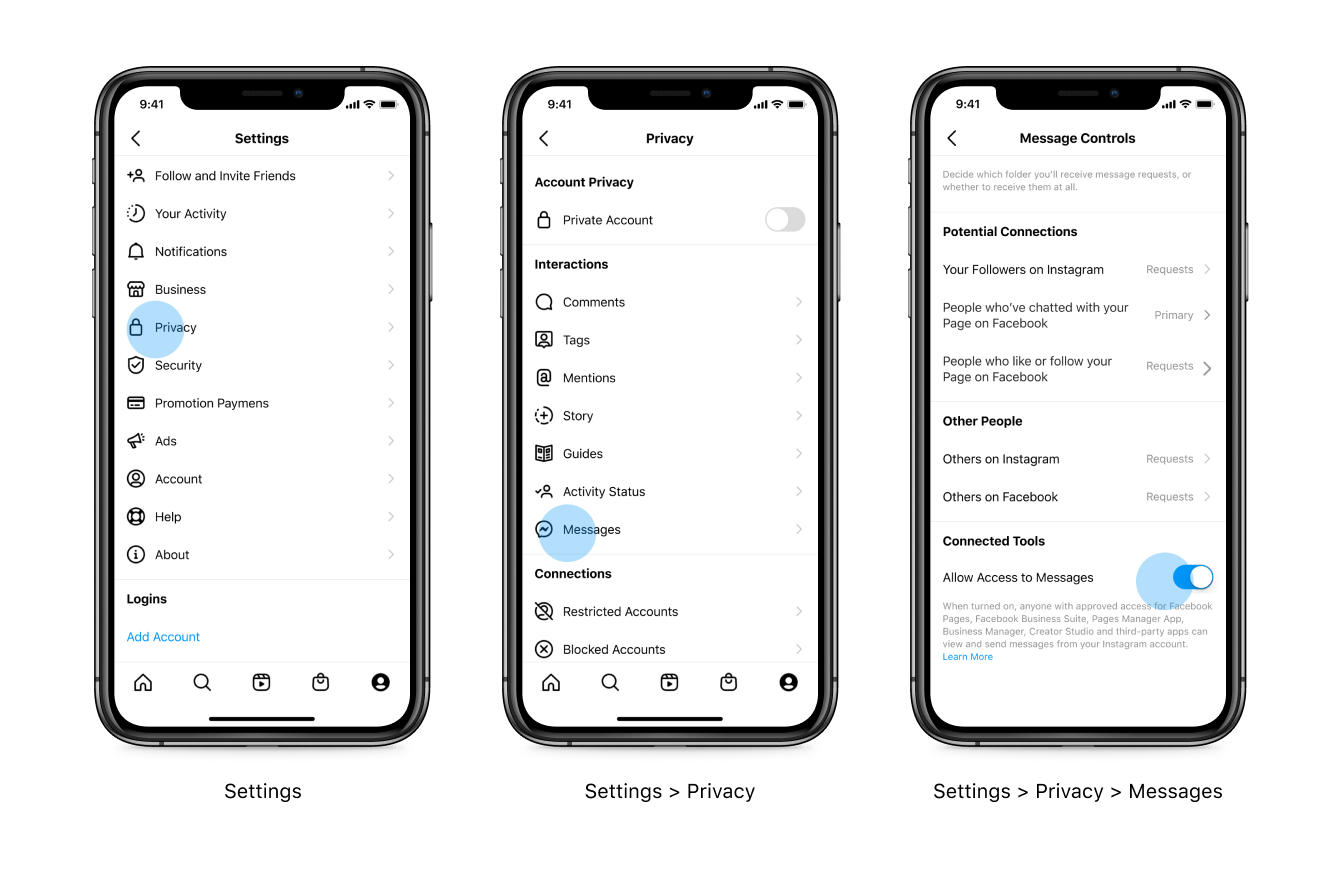
- Go to Settings then click Privacy.
- Click Messages.
- Click the toggle so that Allow Access to Messages is enabled.
-
Managing Agent Status
The Agent Status Toggle Control feature in Digital Connect allows Administrator to control whether agents can mark themselves as “Available” or “Away” directly within the chat window.
[wpdreams_ajaxsearchlite][mobile_menu]- Help Center
-
Getting Started
[left_menu]Managing Agent Status Toggle Control
The Agent Status Toggle Control feature in Digital Connect allows Administrator to control whether agents can mark themselves as “Available” or “Away” directly within the chat window.
Administrators can now choose to display or hide the Agent Status Toggle (Available/Away) in the agent chat window.
- In your Digital Connect account, Click on Settings and navigate to Agent Chats.
- Enable or disable the Agent Status Toggle as needed.
Once the toggle is set to “hidden,” agents must re-login to the system to see the update, ensuring their access aligns with the admin’s configuration.
How It Works
Toggle Visibility Control: When the Available/Away toggle is hidden from agents, they won’t be able to adjust their status manually. Instead, agents will default to Available status.
Re-login Requirement: To enforce the visibility change, agents must re-login after the admin adjusts the settings. This step ensures the feature update applies immediately to the agent’s chat window.
[feedback_form] [related_articles]Scenarios
Agent Has Not Re-logged In:
If an admin has hidden the toggle but an agent hasn’t re-logged in, the agent can still switch to “Available” or “Away” as before. The system will only enforce the new setting after the agent completes a re-login.Agent Has Re-logged In:
After re-logging in, the agent will operate under the updated settings. If the toggle is hidden, the agent won’t see the option to change their availability status and will default to Available status -
Google Business Messages GBM
You can now enable your potential customers to contact your business directly from Google Search and Google Maps. Once installed, Business Messages will be available as customer support channel to start live chat between your agents and customers.
[wpdreams_ajaxsearchlite][mobile_menu]- Help Center
- Support Channels
-
Google’s Business Messages
[left_menu]Setup Google’s Business Messages (GBM) as a Digital Connect channel
You can now enable your potential customers to contact your business directly from Google Search and Google Maps. Once installed, Business Messages will be available as customer support channel to start live chat between your agents and customers.
Note: For now, Google’s Business Messages are only available for people that search on their mobile phones (Android and IOS) and only supports text messages and images. For the best interaction experience, follow the Google’s Business Profile messaging guidelines
To set up access to Business Messages, you must have the following checklist ready:
- A Google My Business account.
- The Channel name in Digital Connect.
- The URL of your company’s website.
- The URL of your company’s privacy policy.
- The name and email address of a suitable contact person. Make sure that the email address uses your company’s domain and that you have access to it, as Google may send information to it during the verification process.
- The URL of your company’s logo. Make sure that the dimensions are 1024px x 1024px, and that the file is in .png or .jpg format. It also needs to look good when cropped to a circle! You won’t be able to change your logo later.
- Copy for the automated welcome message, e.g. ‘Thanks for reaching out to abc company, an agent will be with you shortly.
- Your business’s hours of operation.
- The locations where you want GBM to be displayed.
To get started with Business Messages, you must have a Google My Business profile attached to your Digital Connect account. If you do not have a Google My Business Account then first create your Google Business Profile and watch the video tutorial for assistance then continue with the on-boarding process below.
Access to Google Business Messages
Once you have everything ready on your checklist, follow the steps below.
- Click on Channels on left side navigation, and then click on Google Business Messages.
- Click on the Add (+) icon.
- Since you already created the Google Business Profile and have the checklist ready hence, Click on I have a Google My Business account.
- You will redirected to google sign in page and select the account where you have created your business profile.
- Select both the checkbox otherwise you will not be able integrate Business Messages.
- You will now be redirected to the Digital connect to be setup your company’s business profile.
- Enter your Channel name, Agent Name, Website URL, Privacy Policy URL, and the Name and Email Address of your company’s contact person and then click Next.
- Now, you’ll set up your conversation settings. Enter the URL of your company’s logo, the Welcome message and Offline message that you would like to send to customers when they reach out to you via GBM, up to five Conversation Starters, and select your Local Language. A preview, including your logo, brand name, and the welcome message will be displayed on the right-hand sign of your screen. When you’re happy with how it looks, click Next.
- On this screen, you’ll configure your Timezone and Business Hours. You can adjust the exact times and days that you’ll be available to accept messages via GBM. Once you’re done, click Next.
- Now, to enable GBM on Google Maps, select your business locations from the Locations list. Check the boxes next to every location that you want to include. Once you’re done, click Next.
- Finally you are ready to launch! Choose Web, Android Maps or iOS Maps, (depending on your smartphone’s OS), and scan the QR code to send your first message to start testing GBM.
- If you’re happy with your test, click Launch on Google. One you launch, the GBM chat button will appear on Google in a few hours and your customers will be able to start messaging you!
[feedback_form] [related_articles]Note: If you wish to have multiple brands on Google Business Messages, we advise you to create a separate channel per Brand.
-
google business messages faqs
Business Messages is a mobile conversational channel that business to quickly reach new customers searching for you on the Google Search or Maps.
[wpdreams_ajaxsearchlite][mobile_menu]- Help Center
- Support Channels
-
Google’s Business Messages
[left_menu]Google’s Business Messages – FAQs
What is Google’s Business Messages?
Business Messages is a mobile conversational channel that business to quickly reach new customers searching for you on the Google Search or Maps.
Does Google’s Business Messages support rich media format?
Google’s Business Messages support rich media like images, rich cards and carousels.
How quickly should I respond to Business Messages
Google expects you to respond to each message within 24 hours, 95% of the time. This may promote trust and encourage engagement with your business. To support timely responses, Google may deactivate Business message feature for your business if you don’t respond within the time frame.
[feedback_form] [related_articles]Is there a time limit on restarting a conversation with Business Messages?
Google now requires that all Business Messages be responded to within 30 days of the user’s last message. In the Digital Connect Inbox, Google Business Messages that have not been responded to within 30 days will be marked as Expired. Agents can filter to Expired conversations in order to see Google messages for which responding is disabled.
-
Getting Started with Chatbot Builder Blocks
In Digital Connect, you can build your bot using Blocks. A Block is an action that the bot performs, like sending a message, collecting an input, etc. A bot is made up of multiple action blocks connected in a conversation flow.
[wpdreams_ajaxsearchlite][mobile_menu]- Help Center
-
ChatBot Builder
[left_menu]Getting Started with Chatbot Builder Blocks
In Digital Connect, you can build your bot using Blocks. A Block is an action that the bot performs, like sending a message, collecting an input, etc. A bot is made up of multiple action blocks connected in a conversation flow.
Digital Connect Chatbot Builder consists of 8 blocks consisting of Text, Pictures, Videos, Documents, Audio, Interactive Buttons, Interactive list and Template.
Let’s explore each Block type.
Text Block
You can send a text message to users and create a text message to make the bot become more natural by clicking the Text tab on the trigger tray and enabling Bot Response text editor. You can also make the text bold / italic in the text editor.
- WhatsApp: Supported
- Messenger: Supported
- Instagram: Supported
Google’s Business Messages: Supported
Interactive Buttons
This block allows you to send a message with buttons (max. 3 buttons are allowed) with button’s text not to exceed more than 20 characters. Users can click the button in order to receive a bot response.
- WhatsApp: Supported
- Messenger: Supported
- Instagram: Supported
Google’s Business Messages: Not Supported
Interactive List
This block allows you to send a list message as radio buttons (max. 10 options are allowed) and option’s text cannot exceed more than 24 characters. This block is suitable for displaying a list of options for users to make a selection when interacting with your WhatsApp bot .
- WhatsApp: Supported
- Messenger: Not Supported
- Instagram: Not Supported
- Google’s Business Messages: Not Supported
Image Block
This block allows you to upload an image from the computer and send it as a bot response
Supported file types: PNG, JPEG, GIF
- WhatsApp: Supported up to 5MB
- Messenger: Supported up to 5MB
- Instagram: Supported up to 5MB
- Google’s Business Messages: Supported up to 5MB
Video
This block allows you to upload a video from the computer and send it as a bot response.
Supported file types: MP4, AVI
- WhatsApp: Supported up to 16MB
- Messenger: Not Supported
- Instagram: Not Supported
- Google’s Business Messages: Not Supported
Document
This block allows you to upload a document from the computer and send it as a bot response.
Supported file types: PDF, DOC, DOCX, PPTX, XLSX
- WhatsApp: Supported up to 25MB
- Messenger: Not Supported
- Instagram: Not Supported
- Google’s Business Messages: Not Supported
Audio
This block allows you to upload audio from the computer and send it as a bot response.
Supported file types: MP3
- WhatsApp: Supported up to 16MB
- Messenger: Not Supported
- Instagram: Not Supported
- Google’s Business Messages: Not Supported
[feedback_form] [related_articles]Template
This block allows you to send WhatsApp approved templates by providing the template name. The template name must exactly be the same as the one approved by WhatsApp.
- WhatsApp: Supported
- Messenger: Not Supported
- Instagram: Not Supported
- Google’s Business Messages: Not Supported
-
get your business verified on Facebook
Business Verification allows you to verify that a Facebook Business Manager account is owned by an authentic business. Facebook Business Verification is mandatory for you to get approved for WhatsApp Business API.
[wpdreams_ajaxsearchlite][mobile_menu]- Help Center
-
WhatsApp Business Platform
[left_menu]How to get your business verified on Facebook?
Business Verification allows you to verify that a Facebook Business Manager account is owned by an authentic business. Facebook Business Verification is mandatory for you to get approved for WhatsApp Business API.
We have compiled this article to help you get through this process smoothly. Learn more about business verification here.
To apply for Facebook Business Verification, you need to submit valid documents that support the registered business’ legal name, address and phone number. Facebook cross checks with the respective authorities records to validate any information you submit to them. Hence, it is absolutely essential to submit the most up-to-date and correct documents because any discrepancy can lead to rejection or further questions.
The ‘Start Verification’ button in your business verification section will be greyed out unless your business needs access to certain features. If the ‘Start Verification’ button is greyed out, please contact our team for assistance.
We will help you to unlock it and you can continue with the sending of the required documentation from the Security Center of your Facebook Business Manager account.
Now, let’s watch our video tutorial to go through the steps required to submit the application for verifying your business.
Video Not Available
A review of your application by Facebook usually takes about 3 business days but in some cases, it can take up-to a few weeks. If your application has been approved, you will receive a confirmation email. You can also check the status of your application in the Security Center.
You may not receive a confirmation immediately. In case Facebook requires additional documentation, you will receive a notification about it. You will then need to respond to the same support ticket from Facebook and submit necessary documentation.
What are the different categories of template messages?
[feedback_form] [related_articles]What you should do in case of a rejection?
- Your verification can be rejected for a couple of reasons. You can always appeal to Facebook’s decision and submit the necessary information to complete your verification.
- For your convenience, you can refer to the Facebook documentation for the top reasons why your Facebook Business Verification might be failing and what you can do to correct it. So before you appeal to Facebook, make sure to check it out so you know what to do for a successful Facebook Business Verification.
-
Get an Official Business Account for WhatsApp
The Green Tick next to a WhatsApp business name indicates that the entity has been approved as an Official Business Account. The business name will also be displayed in contacts, along with a green tick to show the business is verified.
[wpdreams_ajaxsearchlite][mobile_menu]- Help Center
-
WhatsApp Business Platform
[left_menu]How to get an Official Business Account (“Green tick”) for WhatsApp
The Green Tick next to a WhatsApp business name indicates that the entity has been approved as an Official Business Account. The business name will also be displayed in contacts, along with a green tick to show the business is verified.
Approval of your WhatsApp business account however does not automatically mean that you are an Offical Business Account and users will see a Green Tick next to your name. To become an Official Business Account you need to go through a second approval process and E ocean can help you apply for Green Tick.
If your request is approved, your WhatsApp Business account will automatically be upgraded to an Official Business account and show a verified green tick right beside your profile picture
This brings us to the next section – the different types of business accounts!
Types of Business Accounts
There are two types of WhatsApp business accounts:
Name Description Official Business Account WhatsApp has verified that an authentic, notable brand owns this account.
An official business account has a green checkmark badge in its profile and chat thread headers. The name of the business is visible even if the user hasn’t added the business to their address book.
Very few businesses will be official business accounts.Business Account By default, any account using the WhatsApp Business API or WhatsApp Business App is a business account.
WhatsApp verifies the authenticity of a brand for every account on the WhatsApp Business API.Eligibility criteria for a Green Tick on WhatsApp
- You must be using WhatsApp API Approved Business Account
- You must enable 2 Step Authentication
- The facebook business verification should be completed on your FB Business Manager
- Must be a business (Individuals are not allowed as of now)
- Recommended you are in Tier 2 or above messaging level
- Must be a notable and reputed brand
How long does the Green Tick Application decision take?
Green Tick application decision normally takes about 1-2 business days. In some cases, it may take up to a week.
Which businesses are not eligible for WhatsApp Green Tick Verification?
WhatsApp disallows certain business categories for WhatsApp API and hence for WhatsApp Green Tick Verification. Businesses dealing in the following products/services cannot be approved for using WhatsApp Business APIs:
- Drugs
- Tobacco Items
- Gambling Businesses
- Alcohol Brands
- Weapons & Ammunition Businesses
- Live Animals
- Adult Product/Services
- Medical & Healthcare Products
- Dating Services
- Cryptocurrencies
To get the full list and updated details about WhatsApp’s prohibited categories, please refer to this article.
[feedback_form] [related_articles]Approval for a WhatsApp Verified Business Account is not guaranteed, and is subject to approval by WhatsApp. WhatsApp does not disclose their criteria for approving Official Business Accounts. To learn more, click here
-
enable live chat translation feature
Live-chat translation allows customers and agents to converse with each other seamlessly in their native languages. With the flip of a switch, your agents can provide support in multiple languages.
[wpdreams_ajaxsearchlite][mobile_menu]- Help Center
-
Chat Manager
[left_menu]How to enable live-chat translation feature for customer support in non-native languages
Live-chat translation allows customers and agents to converse with each other seamlessly in their native languages. With the flip of a switch, your agents can provide support in multiple languages.
How does live-chat translation work ?
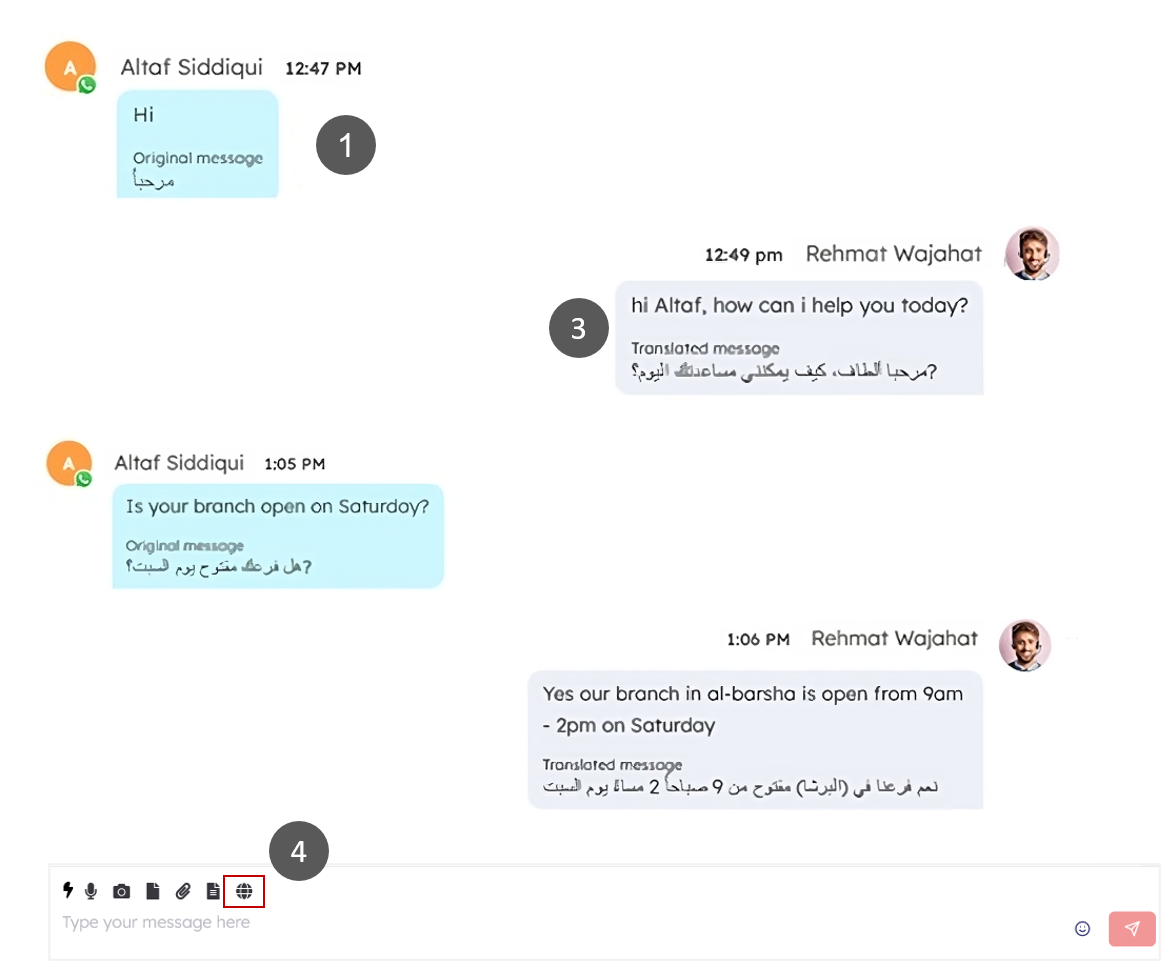
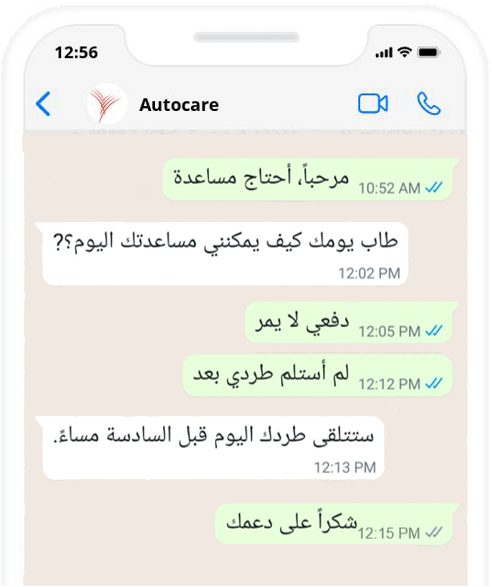
Example: If a customer chats in Arabic while the agent only speaks English, the customer’s message will be automatically translated from Arabic to English. The agent can respond in English, and the message will be instantly translated to Arabic for the customer.

Let’s break down how this works:
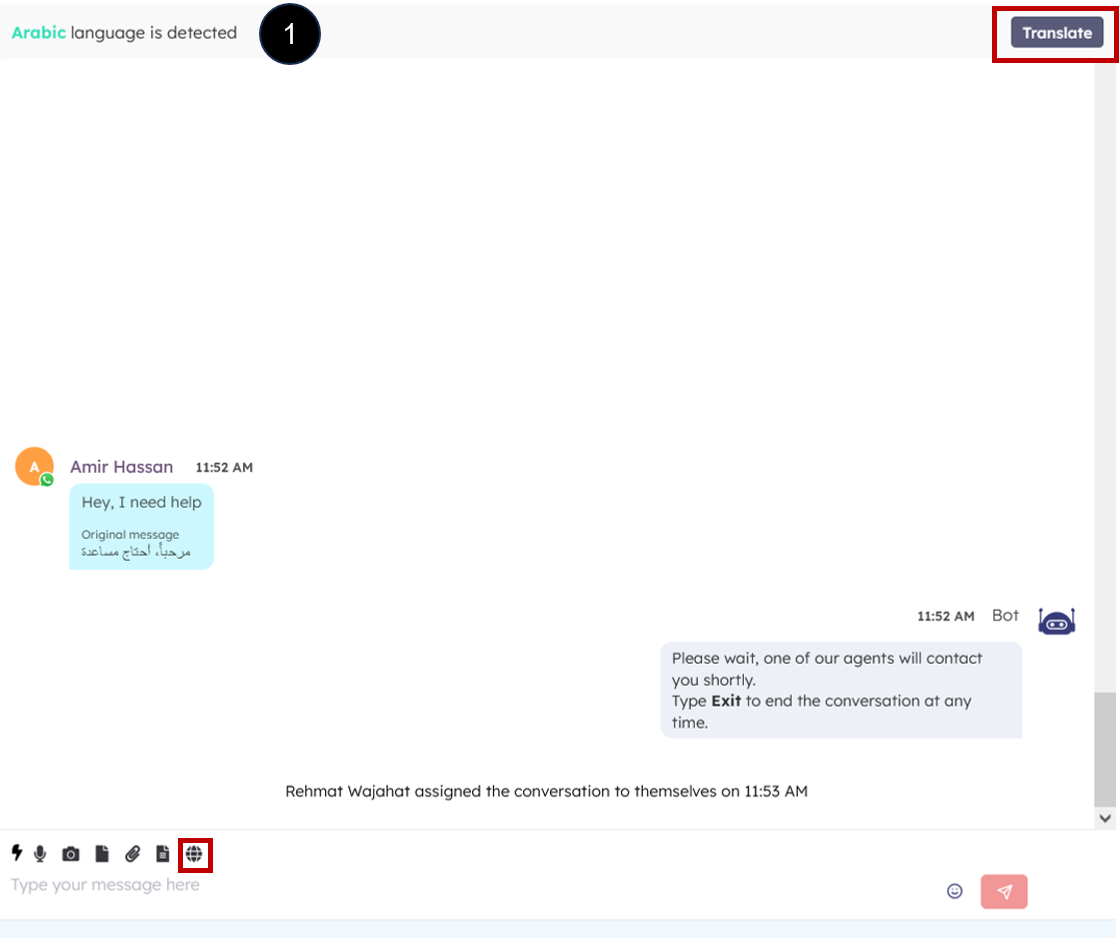
- The first message from the customer is divided into two parts: the English translation and the original text in Arabic. The customer’s initial message determines the language for the chat. If the customer switches to another language, live-chat translation will adjust automatically to the new language of the customer. Agents can manually turn translation on or off as needed.
- The customer’s language is automatically detected if the live-chat translation feature is enabled.
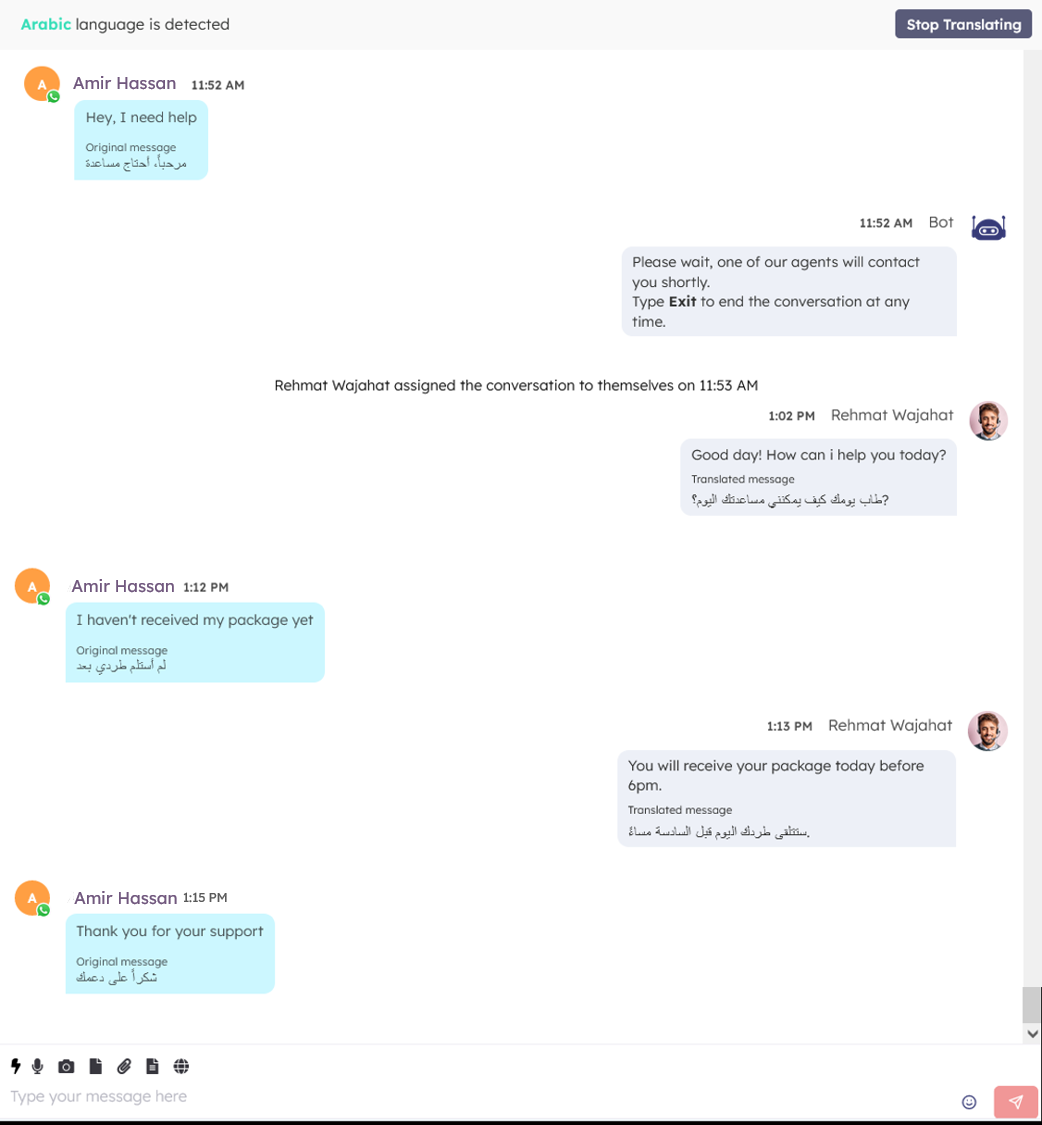
- The agent’s first response is also divided into two parts, but it functions in the opposite manner as the customer’s side. The message initially typed by the agent will be shown at the top, while the translated text will appear at the bottom.
- Here, you can enable the auto-language detection tool by clicking it.
Now that we have a clear understanding of how live chat translation works, let’s proceed to a step-by-step guide on activating the feature. This will enable you to offer customer support in languages other than your own.
-
Select preferred language for chat translation.
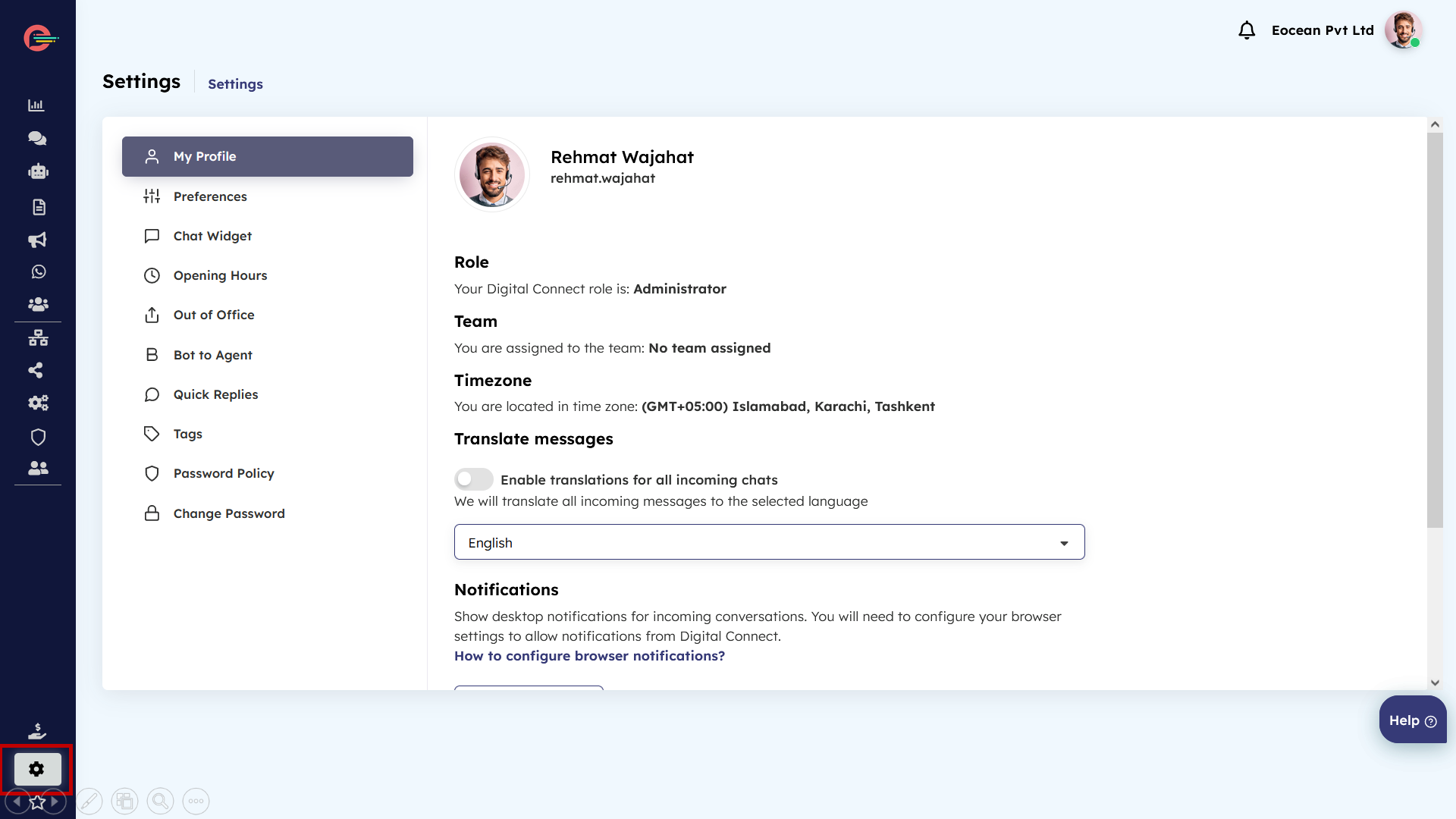
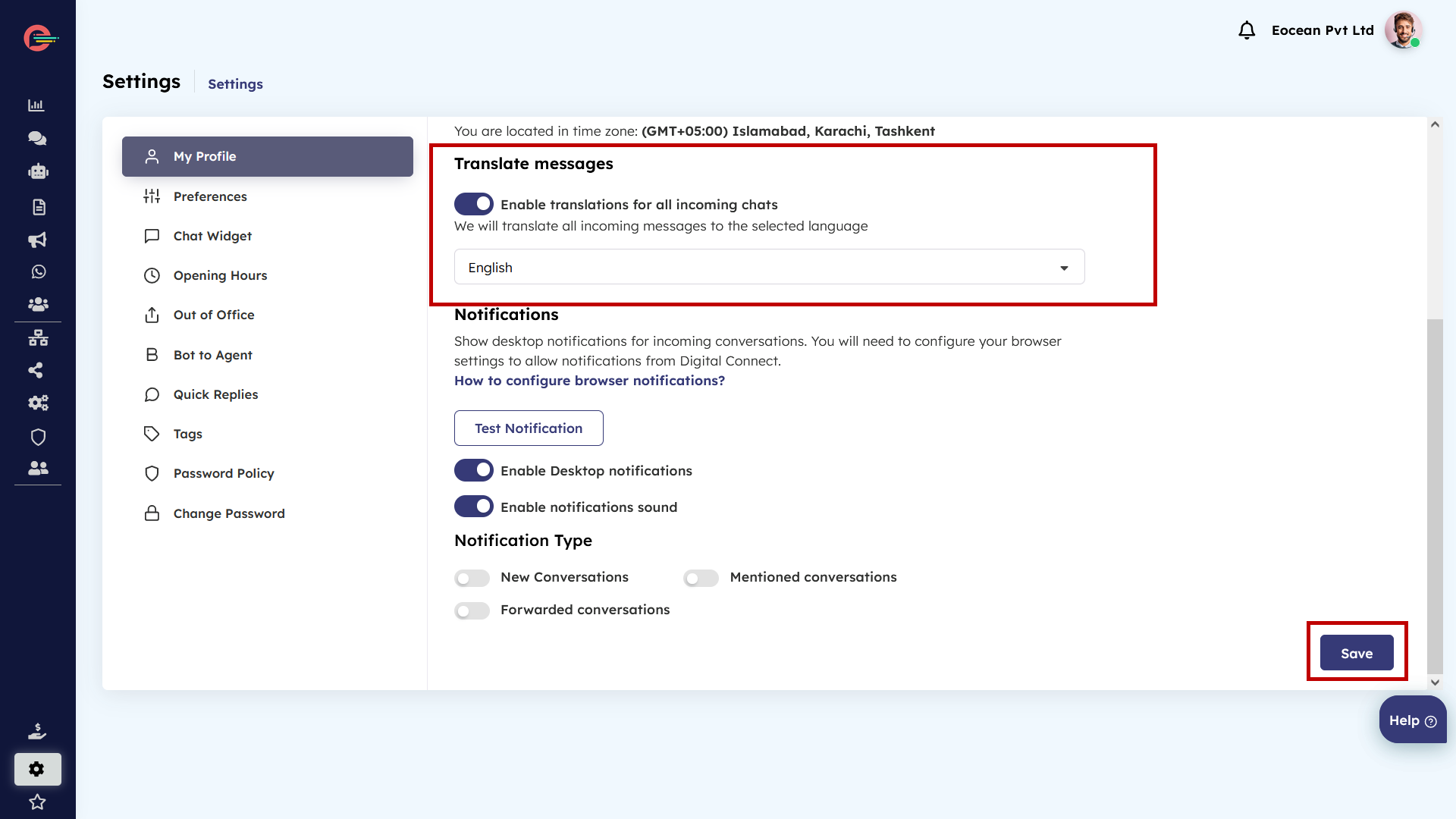
- Log in to Digital Connect as an agent or a supervisor, go to the Settings, and click on it.
- Click on My Profile and enable the toggle button and choose your preferred language from the drop down menu to enable translation for incoming chats.
- Click the Save button.

Congratulations! You have successfully set up your native language as English, which means that all incoming chats from languages other than English will be automatically translated into English. This feature allows you to communicate effortlessly with customers who speak different languages, providing them with the support they need in a language they understand.
-
Enable live-chat translation in chat manager
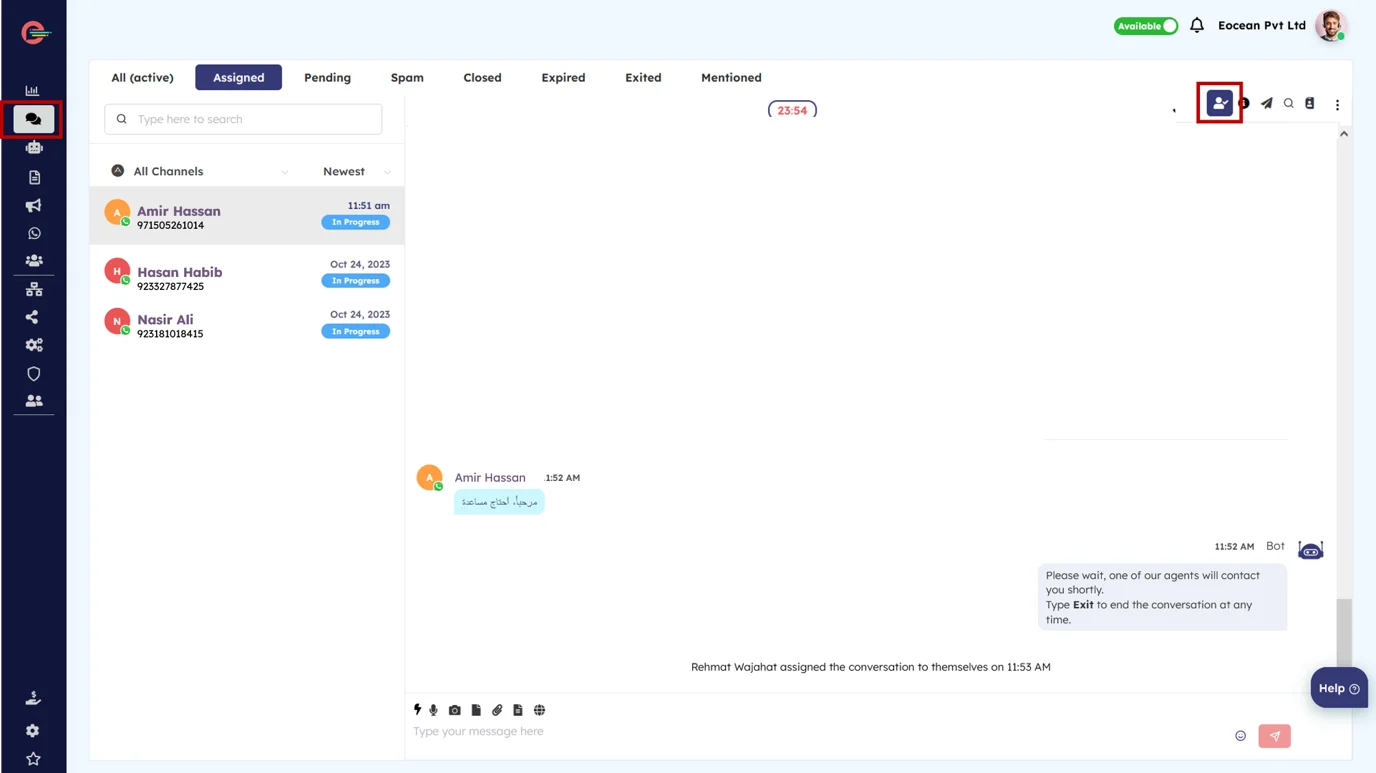
- Go to Chat Manager and click on it.
- Click on a customer chat and assign the chat to yourself.
Customer has sent a message in a non-native language
- Click on the globe icon to automatically detect the language (in case if you don’t recognize the language) of the customer. Our auto-translate tool will promptly recognize that the message sent by the customer is in Arabic. (see 1 below)
- Click the Translate button to initiate the translation of all your messages.
- You can now send messages to your customer and it will be automatically translated into the customer’s local language (Arabic in this case)
- To stop translating messages , simply click on the Stop Translating button to revert all messages back into your native language.
Translation settings apply only to the current chat. If you are handling more than one chat a time, you can translate one chat without affecting others.
[feedback_form] [related_articles]What does your customer see on his device?
The customer will only view the translated messages sent by the agent, as demonstrated in the example below. Customer will not view the original, untranslated messages from the agent or even the translated versions of their own messages. Isn’t it amazing how seamlessly the translation feature works?
-
Eligibility requirements for a WhatsApp
The WhatsApp Business Platform allows medium and large businesses to communicate with their customers at scale by integrating WhatsApp APIs to connect thousands of agents and bots to interact with customers programmatically and manually.
[wpdreams_ajaxsearchlite][mobile_menu]- Help Center
-
WhatsApp Business Platform
[left_menu]Eligibility requirements for a WhatsApp Business Platform account.
The WhatsApp Business Platform allows medium and large businesses to communicate with their customers at scale by integrating WhatsApp APIs to connect thousands of agents and bots to interact with customers programmatically and manually.
WhatsApp is a highly-regulated channel, and getting started requires documentation and approval from Facebook. The two main factors that WhatsApp takes into consideration are your business industry, and the types of message content you intend to send on WhatsApp.
The following industries and types of content are not allowed on the WhatsApp Business Platform:
- Independent software vendors
- Software services
- Real cash gaming (gambling)
- Adult content
- Alcohol/tobacco/drug-related products (including pharmaceuticals)
- Weapons
- Health care products/supplements
- Other categories not conforming to WhatsApp or Facebook’s commerce and community standards
The WhatsApp Commerce Policy provides a complete list of what is allowed and supported on the network. When you apply to use WhatsApp Business Platform, you’re agreeing to adhere to this policy.
Types of Messages
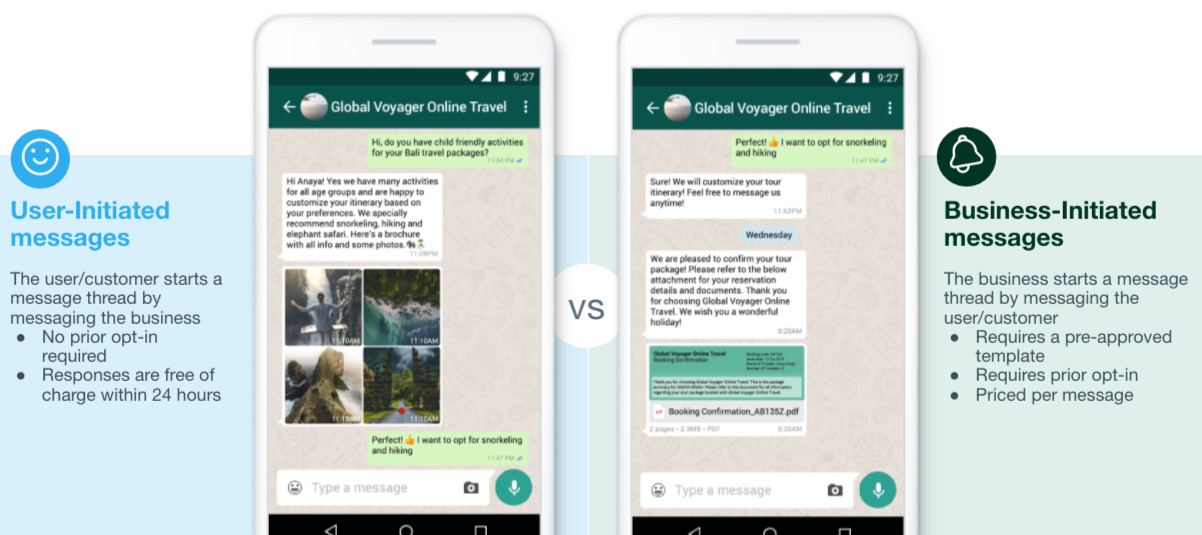
WhatsApp supports sending two types of messages.
Business-initiated messages can only be sent to users who have opted-in. When sending notifications, you must use a previously approved template.
Business-initiated messages are also called notifications or templated messages throughout the article.
[feedback_form] [related_articles]Information you’ll need to provide during the application process
When you’re applying to use the WhatsApp Business Platform, you’ll need to provide information that you can prepare beforehand in order to speed up the process.
- Valid website URL – Your website should provide a clear description of your business and products. Facebook page URLs are not accepted.
- Industry and product/service details – A description of how you’ll be using the business solution and what industry your business operates in.
- Business phone number – This is the phone number you want to use on the WhatsApp network. It can be a landline, mobile number, or toll-free number as long as the number has not previously been registered on the WhatsApp network.
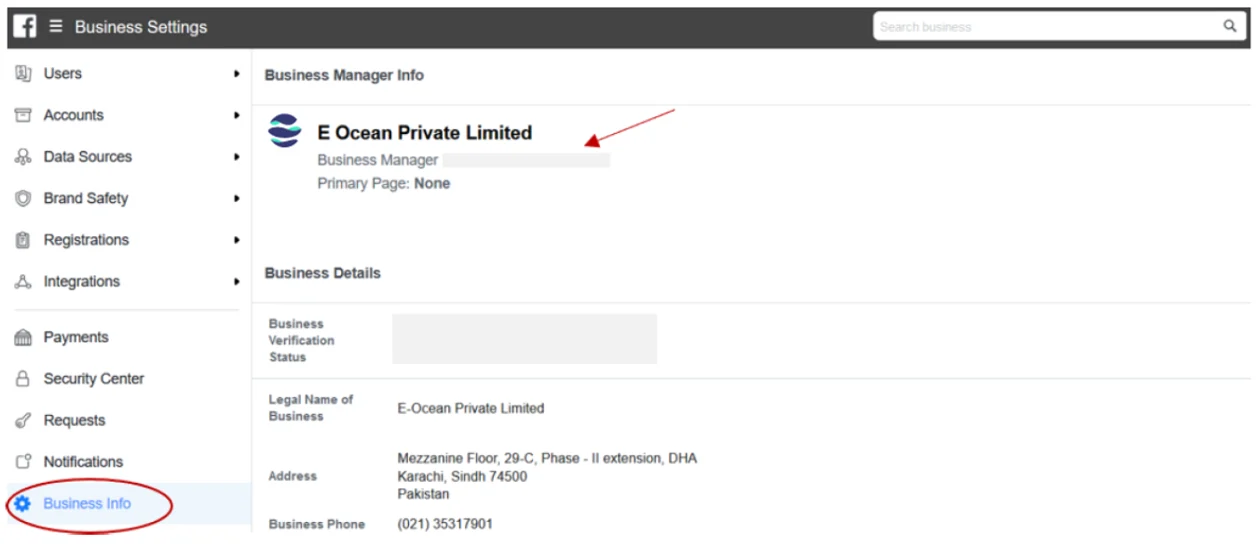
- Facebook Business Manager ID – Your Business Manager account will be used by WhatsApp to identify your business and to associate your phone numbers with your business.
- Here’show you can find your Facebook Business Manager ID or create a new one if you don’t have a Facebook Business Manager account yet.
- Verified business on Facebook – You are required to verify your business in Facebook Business Manager. You can read more about why this is necessary and how it works here.
- Approval of E Ocean to send messages for you – You’ll need to approve E Ocean within Facebook Business to send messages via WhatsApp on your behalf. You’ll receive the request to approve E Ocean within your Facebook Business Manager account as soon as we submit your application on the WhatsApp Business Platform. To approve:
- Log in to your Facebook Business Manager account and navigate to ‘Business Settings’, then click on ‘Requests’.
- You’ll find our request in the ‘Received’ requests tab – click on ‘Approve’.