Welcome to WordPress. This is your first post. Edit or delete it, then start writing!
Blog
-
WhatsApp Pricing Update – 2024/2025 Timeline: What It Means for Businesses
Meta is updating WhatsApp Business Platform pricing and services, which will impact your usage starting in the coming months. Please review the details below to stay informed about the latest changes.
-
Create and Manage Templates
Learn all about how to create and manage message templates, allowing businesses to send predefined messages to customers on WhatsApp in compliance with WhatsApp’s policies.
Create and Manage Templates
Learn all about how to create and manage message templates, allowing businesses to send predefined messages to customers on WhatsApp in compliance with WhatsApp’s policies.
Templates are used for sending WhatsApp template messages via either the Cloud API (hosted by Meta) or the On-Premises API. These templates are essential for businesses to initiate a new conversation with users on WhatsApp, when the interaction occurs outside the 24-hour customer service window.
The number of templates a WhatsApp Business Account can have is determined by its parent business. If a parent business is unverified, each of its WhatsApp Business Accounts is limited to 250 templates. However, if the parent business is verified and at least one of its WhatsApp Business Accounts has a business phone number with an approved display name, each of its WhatsApp Business Accounts can have up to 6,000 templates.
Ensure that your templates meet Meta’s strict Message Template Guidelines.
You can create templates using the Digital Connect Template Manager or the EOcean Template API. This article focuses on using the API to create and manage templates.
Before You Start
You will need:
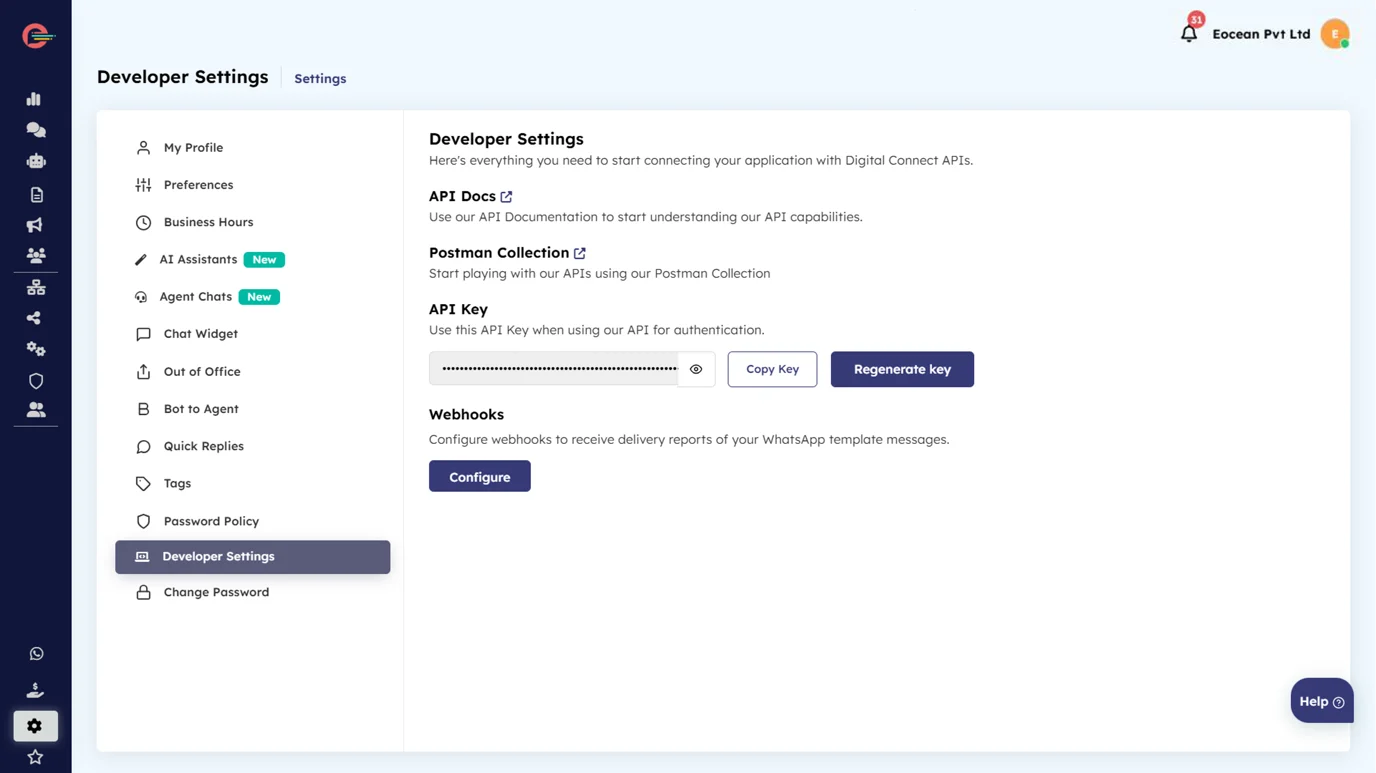
The API key associated with your account to authenticate the API request. The API key can be found in the Developer Settings of your Digital Connect account.
Please note that access to the Developer Settings is restricted to the platform administrator only.

Limitations
- The message template name field is limited to 512 characters.
- The message template content field is limited to 1024 characters.
- A template can only be edited when it is in a state of Approved, Rejected, or Paused. A template can be edited once per day, up to 10 times per month
- WhatsApp Business Accounts can only create 100 message templates per hour.
- Templates composed of 4 or more buttons, or a quick reply button and one or more buttons of another type, cannot be viewed on WhatsApp desktop clients. WhatsApp users who receive one of these template messages will be prompted to view the message on a phone instead.
Localization
You can add a message template in a specific language when creating a template. These templates count against your limit. Be consistent when providing translations.
Getting Templates
Send a GET request to the Eocean’s Template API endpoint to get a list of templates owned by a WhatsApp Business Account.
Request Syntax
GET /template?category=, &content=, &language=, &name=, &name_or_content=, &quality_score=, &status=Sample Request
Parameters
Parameter Description category array The category for a template content string The content for a template language array A list of supported languages that are available for each template name string The name for a message template name_or_content string name_or_content string Returns a list of message templates where the value for name or content match this value quality_score array The quality score for a template status array The review status for a template Example Request (Rejected Templates)
You can return only templates with specific field values by including the field and the desired value in your request. For example, include status=REJECTED to only get templates that have been rejected.
curl https://eoceandigitalconnect.com/v2/api/outgoing/template?fields=name,status&status=REJECTED’ \ -H ‘token: EAAJB…’
Example Response
{"data": [{"name": "seasonal_promotion_text_only","status": "APPROVED",},{"name": "seasonal_promotion_video","status": "PENDING","id": "1252715608684590"3},{"name": "seasonal_promotion_image_header","status": "PENDING","id": "1372429296936443"}],"paging": {"cursors": {"before": "MAZDZD","after": "MgZDZD"},}}Example Request (Rejected Templates)
You can return only templates with specific field values by including the field and the desired value in your request. For example, include status=REJECTED to only get templates that have been rejected.
GET https://eoceandigitalconnect.com/v2/api/outgoing/template?fields=name,status&status=REJECTED
Get Template Insights
Send a GET request to the Eocean’s Template Insight API endpoint to get a list of templates owned by your WhatsApp Business Account.
Request Syntax
GET /template/insights?fields=analytics&start=
&end= &granularity= Example Request
Parameters
Parameter Description end datetime/timestamp The end timestamp for the date range you are retrieving analytics for. As template analytics are being provided with a daily granularity in the UTC timezone, an end timestamp other than 0:00 UTC would be corrected to its next 0:00 UTC. Required granularity enum {DAILY} The granularity by which you would like to retrieve the analytics. Required start datetime/timestamp The start timestamp for the date range you are retrieving analytics for. As template analytics are being provided with a daily granularity in the UTC timezone, a start timestamp other than 0:00 UTC would be corrected to its prior 0:00 UTC. Required Fields
Reading from this edge will return a JSON formatted result:
{
“data”: [],
“paging”: {}
}
Error Codes
Error Description 100 Invalid parameter 200005 Template Insights are not available yet for this WhatsApp Business account 105 The number of parameters exceeded the maximum for this operation Creating Templates
Send a POST request to the Eocean’s Template API endpoint to create a template.
Request Syntax
POST https://eoceandigitalconnect.com/v2/api/outgoing/template
Post Body
{"allow_category_change":, "name": "", "language": "", "category": "", "components": [] }Body Properties
Placeholder Description Sample Value String Required. Template name. Maximum 512 characters order_confirmation Enum Required. Template category. See Template Categories below. UTIILITY Boolean Optional. Set to true to allow us to automatically assign a category. If omitted, the template may be rejected due to miscategorization. true Enum Required. Template language and locale code. en_US Array of objects Required. Components that make up the template. See Template Components below. See Template Components below. JSON Object Optional. Optional data during creation of a template from Template Library. These are optional fields for the button component.Note: For utility templates that contain buttons, this property is not optional.Learn how to create templates using Template Library “[ {‘type’: ‘URL’, ‘url’: {‘base_url’ : ‘https://www.example.com/1’, ‘url_suffix_example’ : ‘https://www.example.com/demo’}}, {type: ‘PHONE_NUMBER’, ‘phone_number’: ‘+16315551010’} ]” type enum Required.
The button type QUICK_REPLY, URL, PHONE_NUMBER, OTP, MPM, CATALOG, FLOW, VOICE_CALL, APPOTP phone_number String Optional.
Phone number for the button.“+13057652345” url JSON Object Optional.
View JSON object URL paramters base_url and url_suffix_examplezero_tap_terms_accepted boolean Optional.
Whether the zero tap terms were accepted by the user or not.true otp_type enum Optional.
The OTP type. COPY_CODE, ONE_TAP, ZERO_TAPtrue supported_apps Array of JSON Object Optional.
View JSON object Supported App paramters package_name and signature_hashJSON Object Optional.
Optional data during creation of a template from Template Library. Learn how to create templates using Template Libraryadd_contact_number boolean Optional.
Boolean value to add information to the template about contacting business on their phone number.true add_learn_more_link boolean Optional.
Boolean value to add information to the template about learning more information with a url link.
Not widely available and will be ignored if not availabletrue add_security_recommendation boolean Optional.
Boolean value to add information to the template about not sharing authentication codes with anyone.true add_track_package_link boolean Optional.
Boolean value to add information to the template to track delivery packages. Not widely available and will be ignored if not available.true code_expiration_minutes int64 Optional.
Integer value to add information to the template on when the code will expire.5 Template Categories
Templates must be assigned to one of the predefined categories. These categories are important because they influence pricing. The category you select will be reviewed and validated during the template creation process.
- AUTHENTICATION
- MARKETING
- UTILITY
Refer to Meta’s Template Categorization document to determine which category to use when creating templates.
Template Components
Templates are composed of various text, media, and interactive components, based on your business needs. Refer to the Template Components document for a list of all possible components and their requirements as well as samples and example queries. When creating a template, define its components by assigning an array of component objects to the component’s property in the body of the request.
For example, here’s an array containing a text body component with two variables and sample values, a phone number button component, and a URL button component:
[ { "type": "BODY","text": "Thank you for your order, 1! Your confirmation number is 2. If you have any questions, please use the buttons below to contact support. Thank you for being a customer!","example": {"body_text":["Pablo","860198-230332"]]}},{"type": "BUTTONS","buttons": [{"type": "PHONE_NUMBER","text": "Call",{"phone_number": "15550051310"},{ "type": "URL","text": "Contact Support","url": "https://www.luckyshrub.com/support"}]}]Refer to the Template Components document for a list of all possible components and their requirements as well as samples and example queries.
Templates categorized as AUTHENTICATION have unique component requirements. See Authentication Templates.
Category Validation
When you send a template creation request, Meta immediately validate its category using the template categorization guidelines.
- If Meta agrees with the category you designated, template is created and its status is set as PENDING. The template then undergoes template review.
- If Meta disagrees with your category designation, template is created, but its status is set as REJECTED and triggers a message template status update webhook with reason set to INCORRECT_CATEGORY. We recommend that you listen for this webhook to identify rejected templates, or request the rejected_reason field on newly created templates, which will have the value TAG_CONTENT_MISMATCH.
In both cases, the template’s initial status is returned as part of the API response.
If your template status has been set to REJECTED as part of category validation, you have several options:
- Edit the template’s components so they align with our guidelines.
- Edit the template’s category so it aligns with our guidelines.
- Create a new template.
Automatic Categorization
You can include the allow_category_change property in your request to have us automatically assign a category based on your template’s contents and our template categorization guidelines. This can prevent your template’s status from immediately being set to REJECTED due to miscategorization.
Automatic categorization is only possible when creating a template.
Template Review
Templates with a status of PENDING are undergoing template review. We review the contents of each newly created or edited template to make sure it adheres to our content guidelines and policies. Based upon the outcome of this review, we automatically change its status to APPROVED or REJECTED, which triggers a message template status update webhook.
Template Status
Based on the outcome of category validation and template review, we set or change your template’s status to one of the following values:
- APPROVED — The template has passed template review and been approved, and can now be sent in template messages.
- PENDING — The template passed category validation and is undergoing template review.
- REJECTED — The template failed category validation or template review. You can request the rejected_reason field on the template to
Response
Upon success, the API responds with the newly created template’s ID, status, and category. There are three possible outcomes:
- We agreed with the category you designated and the template is now undergoing template review (status is PENDING).
- We disagreed with the category you designated (status is REJECTED)
- We automatically approved the template (status is APPROVED). This is only possible for authentication templates with one-time password buttons.
{ "id": "", "status": "", "category": "" }Response Properties
Placeholder Description Sample Value Template ID. 572279198452421 Template status PENDING The template category that you designated, or that Meta assigned. MARKETING Example Request
Here’s an example request to create a seasonal promotion template composed of the following components:
- a text header
- a text body
- a footer
- two quick-reply buttons
For additional examples, see Example Requests.
curl 'https://eoceandigitalconnect.com/v2/api/outgoing/template\-H token: EAAJB...' \-H 'Content-Type: application/json' \-d '{"name": "seasonal_promotion","language": "en_US","category": "MARKETING","components": [{"type": "HEADER","format": "TEXT","text": "Our 1 is on!","example": {"header_text": ["Summer Sale"]}},{"type": "BODY","text": "Shop now through 1 and use code 2 to get 3 off of all merchandise.","example": {"body_text": [[ "the end of August","25OFF","25%"]]}},{"type": "FOOTER","text": "Use the buttons below to manage your marketing subscriptions"},{{"type":"BUTTONS","buttons": [{"type": "QUICK_REPLY","text": "Unsubscribe from Promos"},{"type":"QUICK_REPLY","text": "Unsubscribe from All"}]}]},Example Response
{ "id": "572279198452421","status": "PENDING","category": "MARKETING"Editing Templates
Send a POST request to the Eocean Template API endpoint to edit a template.
Limitations
- Only templates with an APPROVED, REJECTED, or PAUSED status can be edited.
- You can only edit a template’s category or components.
- You cannot edit the category of an approved template.
- Approved templates can be edited up to 10 times in a 30 day window, or 1 time in a 24 hour window. Rejected or paused templates can be edited an unlimited number of times.
- After editing an approved or paused template, it will automatically be approved unless it fails template review.
Request Syntax
PUT https://eoceandigitalconnect.com/v2/api/outgoing/template
Post Body
{
“templateId”: “{templateId}”,
“templateDetails”: {
“category”: “{category}”,
“components”: []
}
}
Properties
Placeholder Description Sample Value String Required if components property is omitted.
Template CategoryAUTHENTICATION Array Required if components property is omitted.
Array of template components objectsSee Example Request (Editing Components)
below.Example Request (Editing Components)
Example request to a template’s body text which contained both marketing and utility content to only contain marketing content.
curl –location –globoff –request PUT
‘https://eoceandigitalconnect.com/v2/api/outgoing/template’ \
–header ‘token: ‘ \
–header ‘Content-Type: application/json’ \
–data ‘{
“templateId”: “”,
“templateDetails”: {
“category”: “”,
“components”: []
}
}’Example Payload
{

  "components": [

   {

    "type": "HEADER",

    "format": "TEXT",

    "text": "Our 1 is on!",

    "example": {

     "header_text": [

"Spring Sale"]}},{"type": "BODY","text": "Shop now through 1 and use code 2 to get 3off of all merchandise.","example": {"body_text": [["the end of April","25OFF",
"25%"
]
]
}
},
{
"type": "FOOTER",
"text": "Use the buttons below to manage your marketing subscriptions" },
{
"type":"BUTTONS",
"buttons": [
{
"type": "QUICK_REPLY",
"text": "Unsubcribe from Promos"
},
{
"type": "QUICK_REPLY",
"text": "Unsubscribe from All"
}
]
}
]
}'Example Request (Editing Category Only)
Example request to change template’s category from UTILITY to MARKETING.
curl 'https://eoceandigitalconnect.com/v2/api/outgoing/template-H 'Content-Type: application/json' \-H 'token: EAAJB...' \-d '{"category": "MARKETING"}'Example Response
Example response upon success.
{
“success”: true
}Deleting Templates
You can dissociate a WhatsApp Message Template from a WhatsApp Business Account by making a DELETE request to
https://eoceandigitalconnect.com/v2/api/outgoing/template?name={template_name}
- If you delete a template that has been sent in a template message but has yet to be delivered (e.g. because the customer’s phone is turned off), the template’s status will be set to PENDING_DELETION and we will attempt to deliver the message for 30 days. After this time you will receive a “Structure Unavailable” error and the customer will not receive the message.
- Name of an approved template that has been deleted cannot be used again for 30 days.
Deleting by name
Deleting a template by name deletes all templates that match that name (meaning templates with the same name but different languages will also be deleted).
Request Syntax
DELETE /template?name=
Example Request
curl –location –request DELETE
‘https://eoceandigitalconnect.com/v2/api/outgoing/template?name={template_name}’
\
–header ‘token: {token}’ \
–header ‘Content-Type: application/json’Example Response
{
“success”: true
}Example Postman Request
Step 1 – Setup request type to “POST”
Step 2 – Setup URL
Step 3 – Choose body type “raw”
Step 4 – Select “JSON” type
Step 5 – Set content of the request
You can find more examples here – Open in Postman
Prerequisites
- You must have a verified WhatsApp Business Account.
- If you want to send Template Messages, it must be approved first.
Meta Official Documentation:
https://developers.facebook.com/docs/whatsapp/business-management-api/message-templates/
[feedback_form] [related_articles]Meta Official Documentation
https://developers.facebook.com/docs/whatsapp/business-management-api/message-templates/
-
How to Set Up API Campaigns in Digital Connect
API Campaigns are mainly used for transactional messaging. WhatsApp allows businesses active on WhatsApp API to send pre-approved template messages as notifications to users. In this article, we will explore how to configure the API campaign.
How to Set Up API Campaigns in Digital Connect
API Campaigns are mainly used for transactional messaging. WhatsApp allows businesses active on WhatsApp API to send pre-approved template messages as notifications to users. In this article, we will explore how to configure the API campaign.
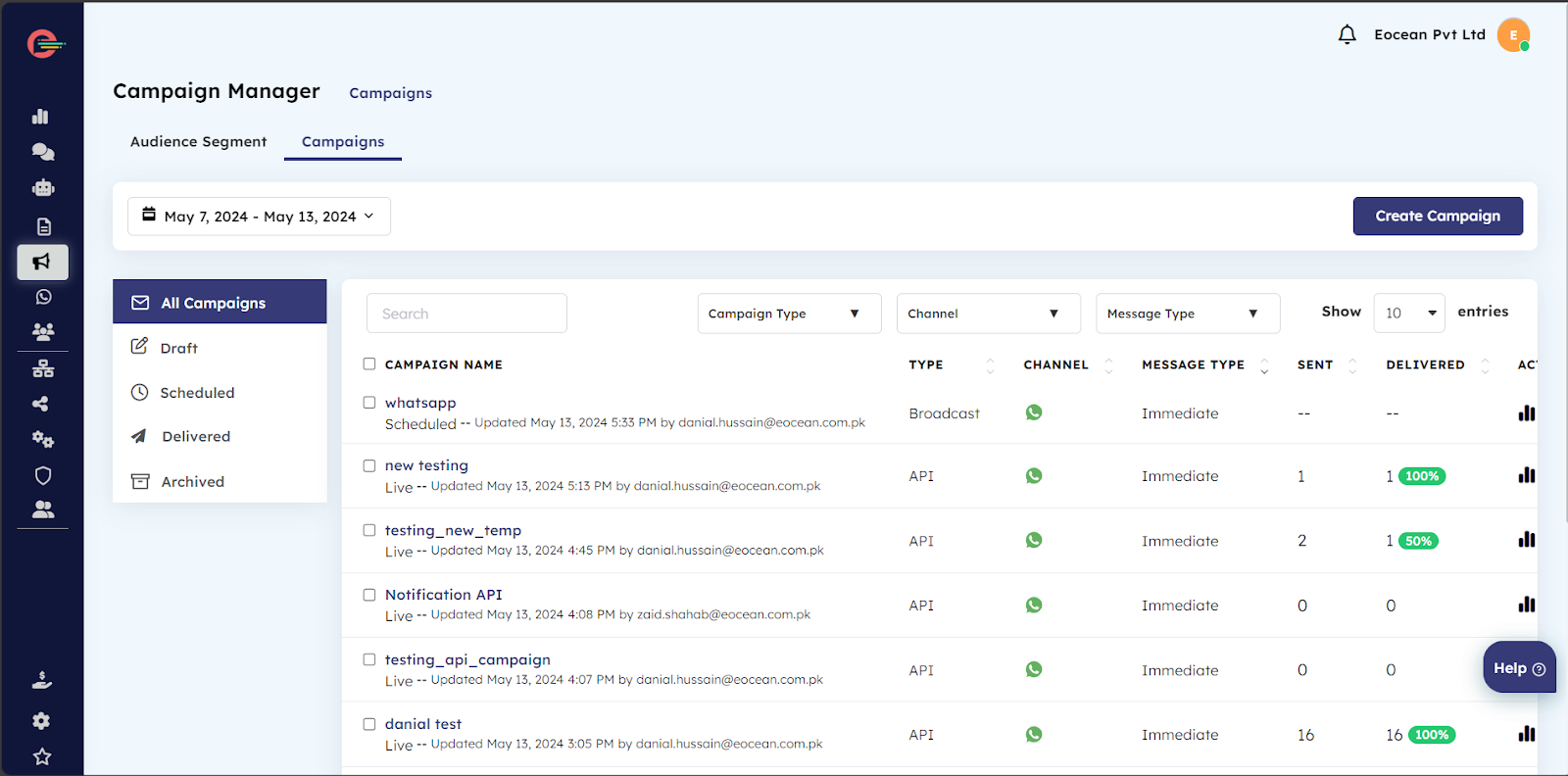
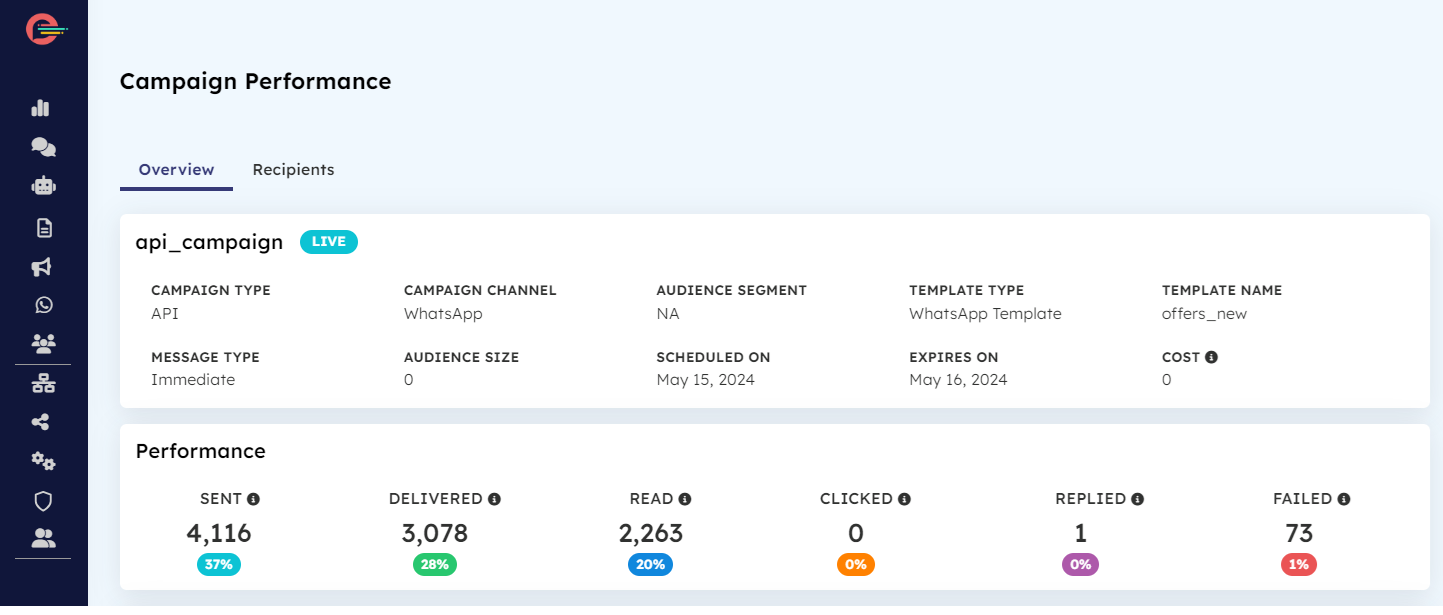
Setting up API Campaigns within the Campaign Manager on your Digital Connect account enables you to use the generated Campaign ID in API requests to initiate the delivery of transactional messages from your own business system. Additionally, you can track the performance analytics of your campaigns directly in the Digital Connect dashboard.
Prerequisites
- You must have a verified WhatsApp Business Account.
- You must have at-least one pre-approved template message.
- You must have a WhatsApp Businesss Account hosted on Cloud API.
- Tools to make HTTP/S request.
Step 1. Create an API Campaign
1. Go to Campaign Manager and click on Create Campaign
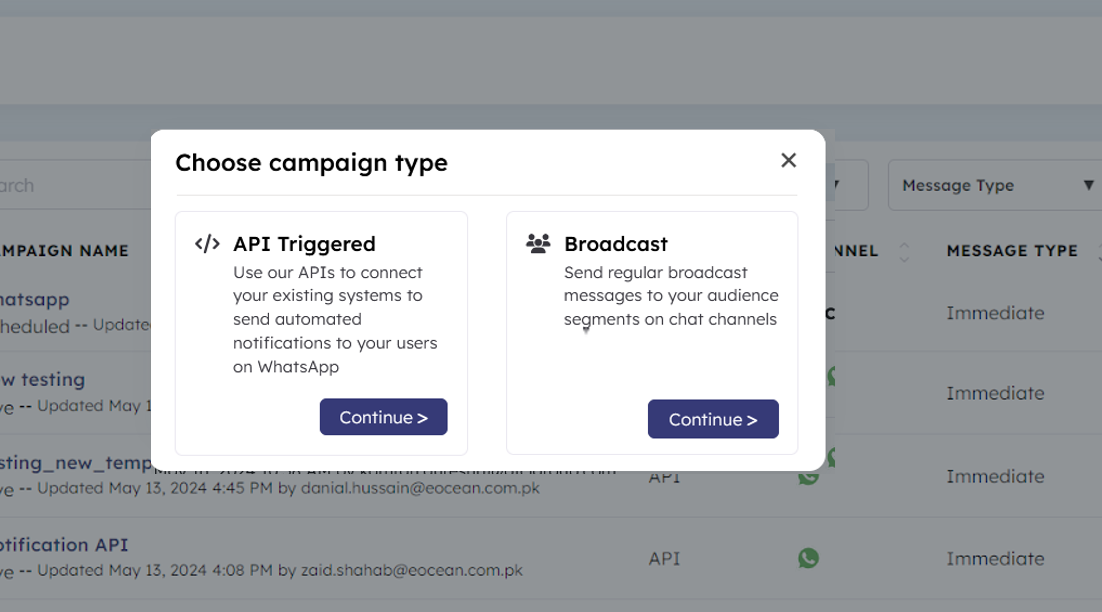
2. Select API Triggered as the campaign type and click Continue
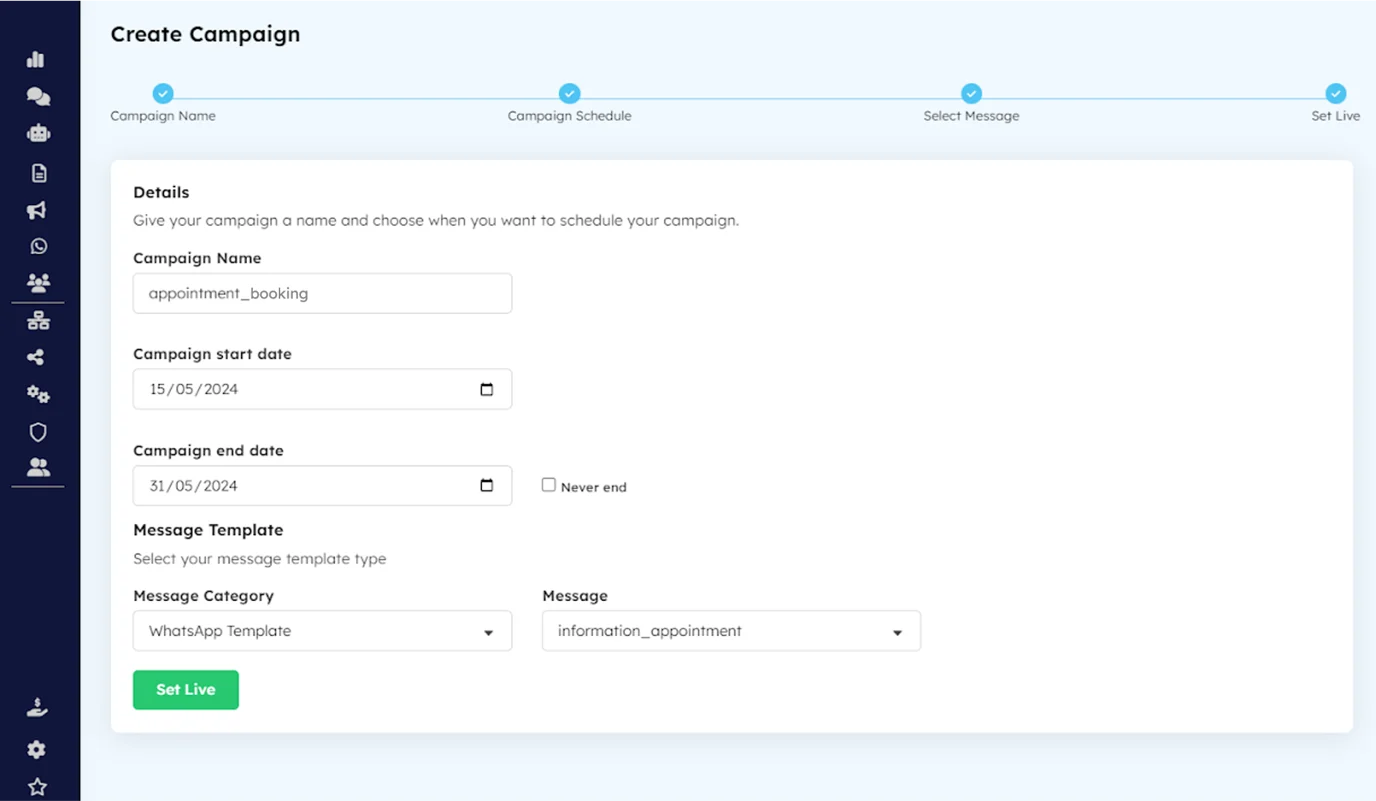
3. Provide the following details:
- Campaign Name
- Start Date
- End Date (Click Never end checkbox on-going campaigns)
- Select WhatsApp Template as Message category
- Select your template from the list next to Message Category
- Click Set Live to create your API campaign.
4. Go to Campaign Manager > Campaigns & Copy the Campaign ID of the API campaign you have just setup.

STEP 2: Generate API Key
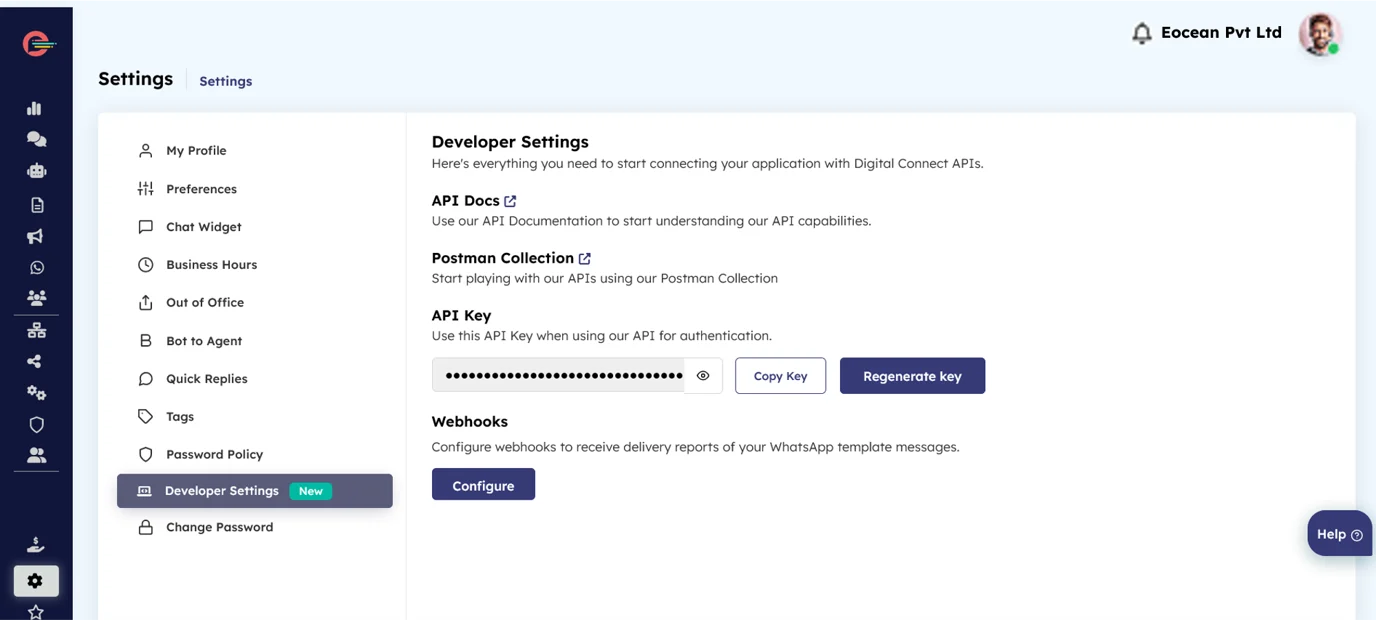
Fetch API Key from Developer Settings
To authenticate the API request, you will require the API key associated with your Digital Connect account. The API key can be found in the Developer Settings of your account. Please note that access to the Developer Settings is restricted to the platform administrator only.
 [feedback_form] [related_articles]
STEP 3: Send notification to users
We’ll be using the Campaign ID and API key acquired in previous steps. To simplify the process of setting up messages on the business side,The API is designed to receive the parameters’ values to be filled in templates before sending them to users.
Here is a breakdown of the API fields to provide you with more information and understanding.
Fields Data Type Description apiKey String (required) The apiKey which will be retrieved from Developer Settings source String (required) Set source as “api” in this case countryCode String (required) Country code of receiver For instance +92, +44 etc. campaignId String (required) Campaign Id which will be copied from Campaign Summary templateParams String (required) If there is a parameterized template then this field must be used. Let’s send our first notification.
In your API campaign request payload:
- Paste the Campaign ID.
- Fill in the required parameters such as countryCode, source and apiKey etc.
- Deliver your message to the designated recipient’s phone number..
Method: POST
URL with endpoint: https://eoceandigitalconnect.com/v2/api/outgoing/message
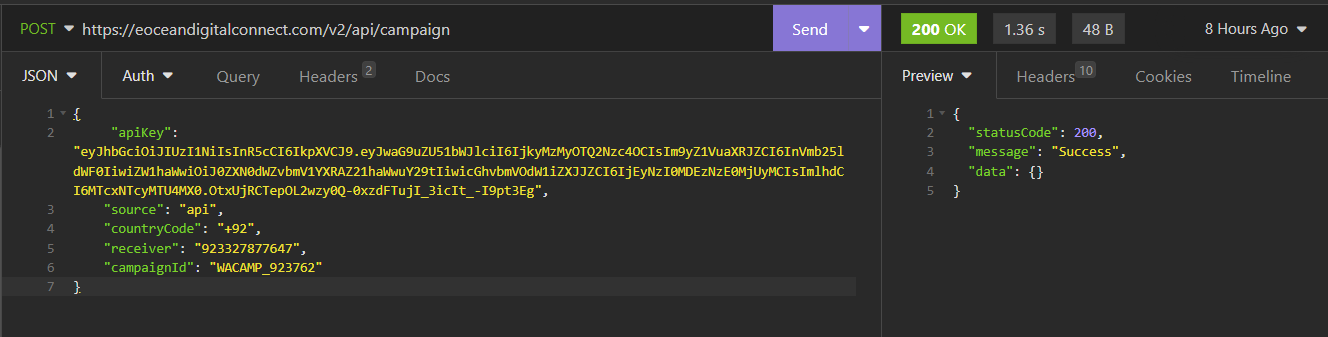
Payload for Non Parameterized Campaign:
JSON (raw-body):
{
“apiKey”:
“eyJhbGciOiJIUzI1NiIsInR5cCI6IkpXVCJ9.eyJwaG9uZU51bWJlciI6IjkyMzMyOTQ2Nzc4
OCIsIm9yZ1VuaXRJZCI6InVmb25ldWF0IiwiZW1haWwiOiJ0ZXN0dWZvbmV1YXRAZ21h
aWwuY29tIiwicGhvbmVOdW1iZXJJZCI6IjEyNzI0MDEzNzE0MjUyMCIsImlhdCI6MTcxNT
cyMTU4MX0.OtxUjRCTepOL2wzy0Q-0xzdFTujI_3icIt_-I9pt3Eg”,
“source”: “api”,
“countryCode”: “+92”,
“receiver”: “92XXXXXXXXXX”, //Receiver Whatsapp Number
“campaignId”: “WACAMP_XXXXX” //Your Copied Campaign ID
}
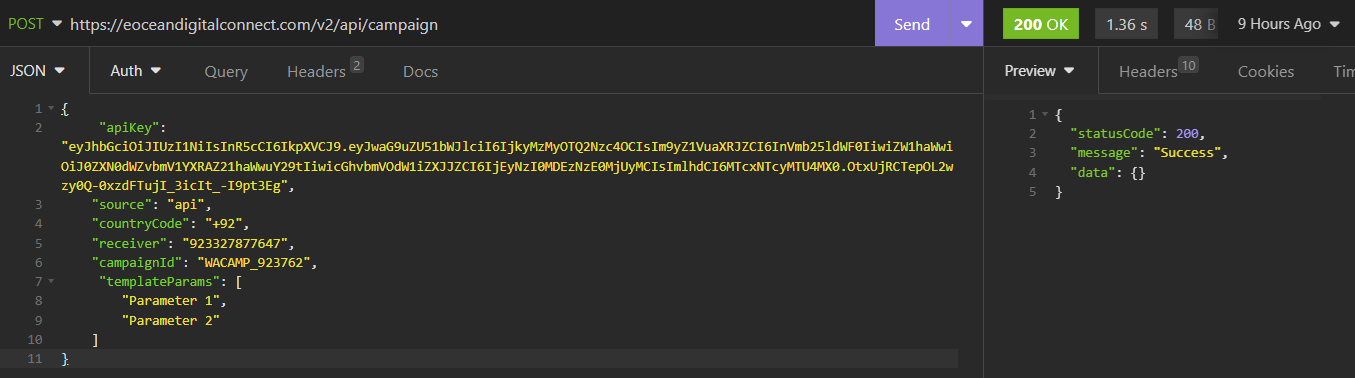
Payload for Parameterized Campaign:
JSON (raw-body):
{
“apiKey”:
“eyJhbGciOiJIUzI1NiIsInR5cCI6IkpXVCJ9.eyJwaG9uZU51bWJlciI6IjkyMzMyOTQ2Nzc4
OCIsIm9yZ1VuaXRJZCI6InVmb25ldWF0IiwiZW1haWwiOiJ0ZXN0dWZvbmV1YXRAZ21h
aWwuY29tIiwicGhvbmVOdW1iZXJJZCI6IjEyNzI0MDEzNzE0MjUyMCIsImlhdCI6MTcxNT
cyMTU4MX0.OtxUjRCTepOL2wzy0Q-0xzdFTujI_3icIt_-I9pt3Eg”, “source”: “api”,
“countryCode”: “+92”,
“receiver”: “92XXXXXXXXXX”, //Receiver Whatsapp Number
“campaignId”: “WACAMP_XXXXX” //Your Copied Campaign ID
“templateParams”: [ //Your parameters for the template
“Parameter 1”,
“Parameter 2”
]
}
By completing these steps, you will successfully establish and manage an API-triggered campaign, while also gaining valuable insights into its performance metrics.
-
Digital Connect Webhooks for messages sent using WhatsApp message templates
In this article, you will learn about configuring webhooks to track your template message delivery status.
Digital Connect’s Webhooks for messages sent using WhatsApp message templates
In this article, you will learn about configuring webhooks to track your template message delivery status.
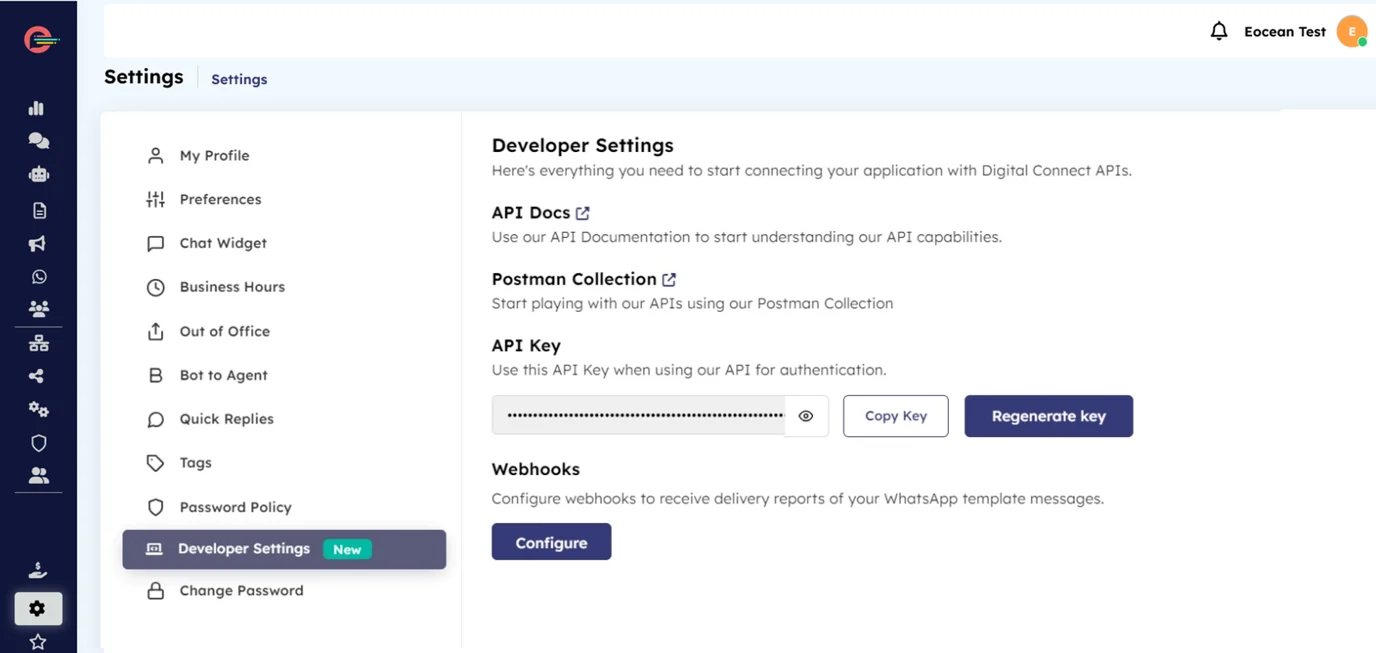
Webhooks are only available for businesses on Cloud API and can be configured in the Developer settings of your Digital Connect account. Please note that access to the developer settings is restricted to the platform administrator only.
Webhooks are necessary if you are integrating Digital Connect APIs with your business systems to send out automated notifications. Without webhooks, you will not receive status update of your sent messages.
Digital Connect offers support for webhooks, which can notify you of specific events through callback URLs.
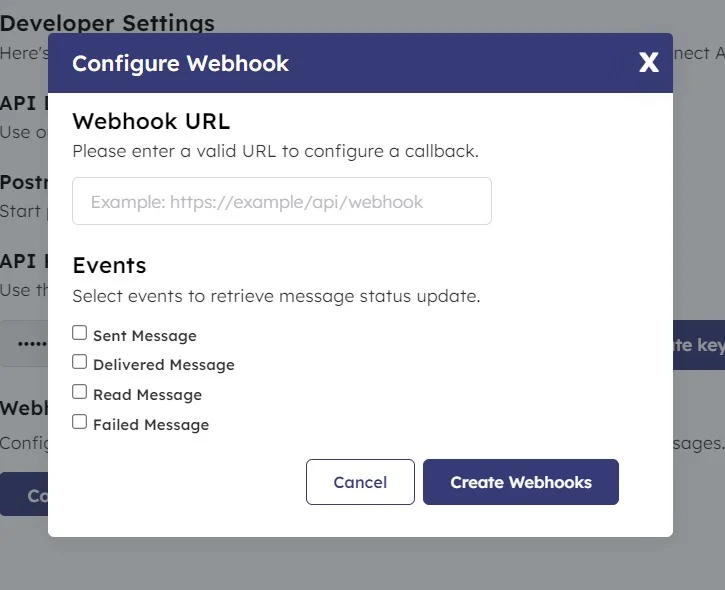
- Message sent
- Message delivered
- Message read
- Message failed
How to configure webhook URL?
- Navigate to Settings > Developer Settings, then click on Configure
- Add the webhook URL, select alert events, and click Create webhook to start receiving alerts.
 [feedback_form] [related_articles]
Webhooks supported by Digital Connect:
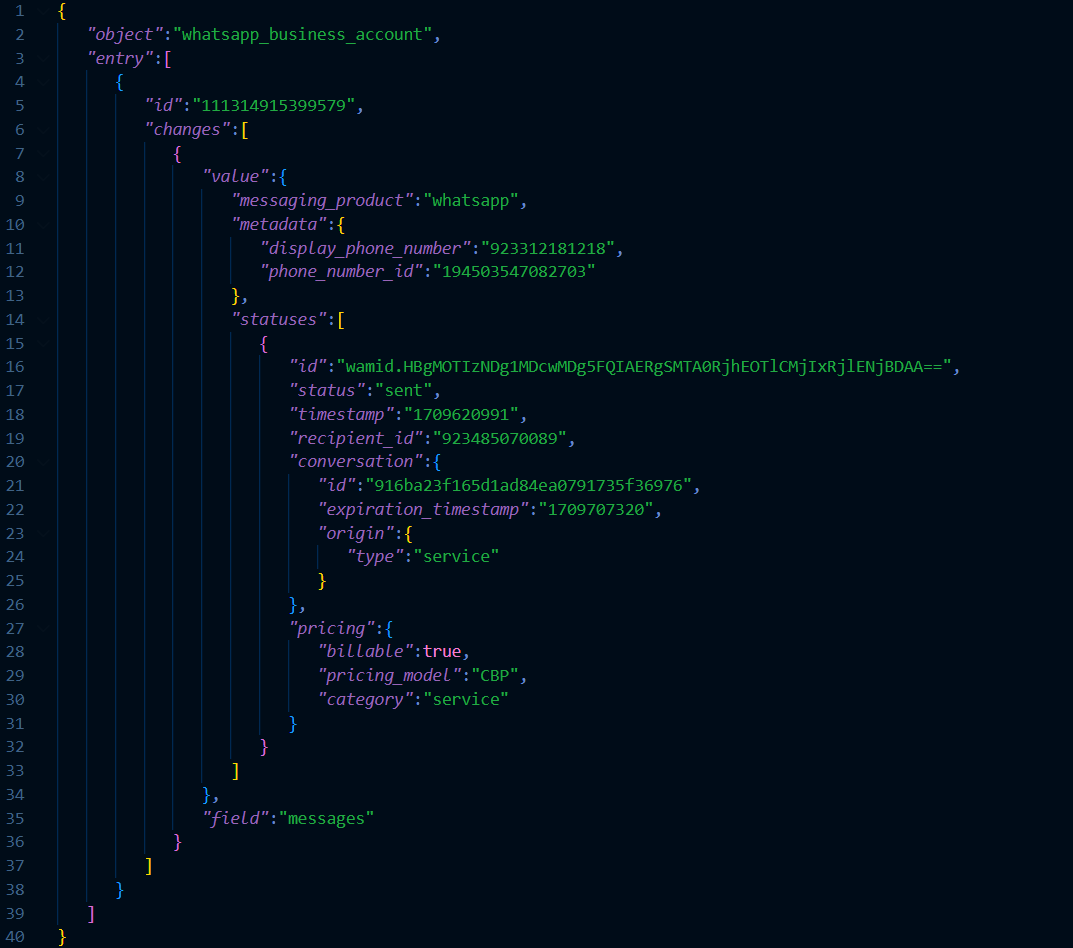
1. Message sent
This webhook is triggered when the message is successfully sent to the recipient.
Sample Payload
2. Message delivered
This webhook is triggered when your message has been successfully delivered to the recipient.
Sample Payload
3. Message read
This webhook is triggered when the recipient has read the message you sent to them.
Sample Payload
4. Message failed
This webhook is triggered when a message has not been successfully delivered.
Sample Payload
-
Authenticate by using API Keys
The Digital Connect API uses API keys to authenticate requests. You can view and manage your API key in the Digital Connect Dashboard.
Authenticate by using API Keys
The Digital Connect API uses API keys to authenticate requests. You can view and manage your API key in the Digital Connect Dashboard.
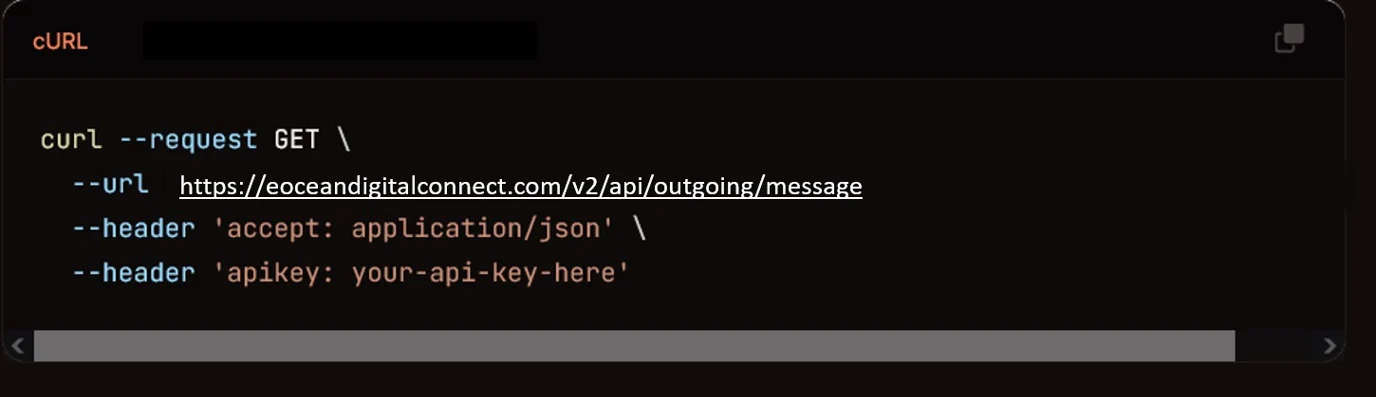
The API key needs to passed as a header into every API call you make.
apikey: ‘your-api-key-here’All API requests must be made over HTTPS.
- Calls made over plain HTTP will fail.
- API requests without authentication will also fail.
Protect your API keys by keeping them confidential. Avoid sharing them in public areas like GitHub or client-side code. Periodically create new API keys, delete the old keys, and update your applications to use the new API keys.
Sample Code
You can find more examples here – Open in Postman
[feedback_form] [related_articles] -
How to Send Transactional Messages on WhatsApp via Digital Connect API
As a business, you may want to automate transactional messages on WhatsApp, sending message templates directly from your own system—such as a website, app, or CRM—whenever a relevant customer event occurs.
How to Send Transactional Messages on WhatsApp via Digital Connect API
As a business, you may want to automate transactional messages on WhatsApp, sending message templates directly from your own system—such as a website, app, or CRM—whenever a relevant customer event occurs.
This article will guide you through the precise steps required to automate WhatsApp notifications with templates using your own system.
Prerequisites
TABLE OF CONTENTS
HTTP Request using API Key
POSThttps://eoceandigitalconnect.com/v2/api/outgoing/message
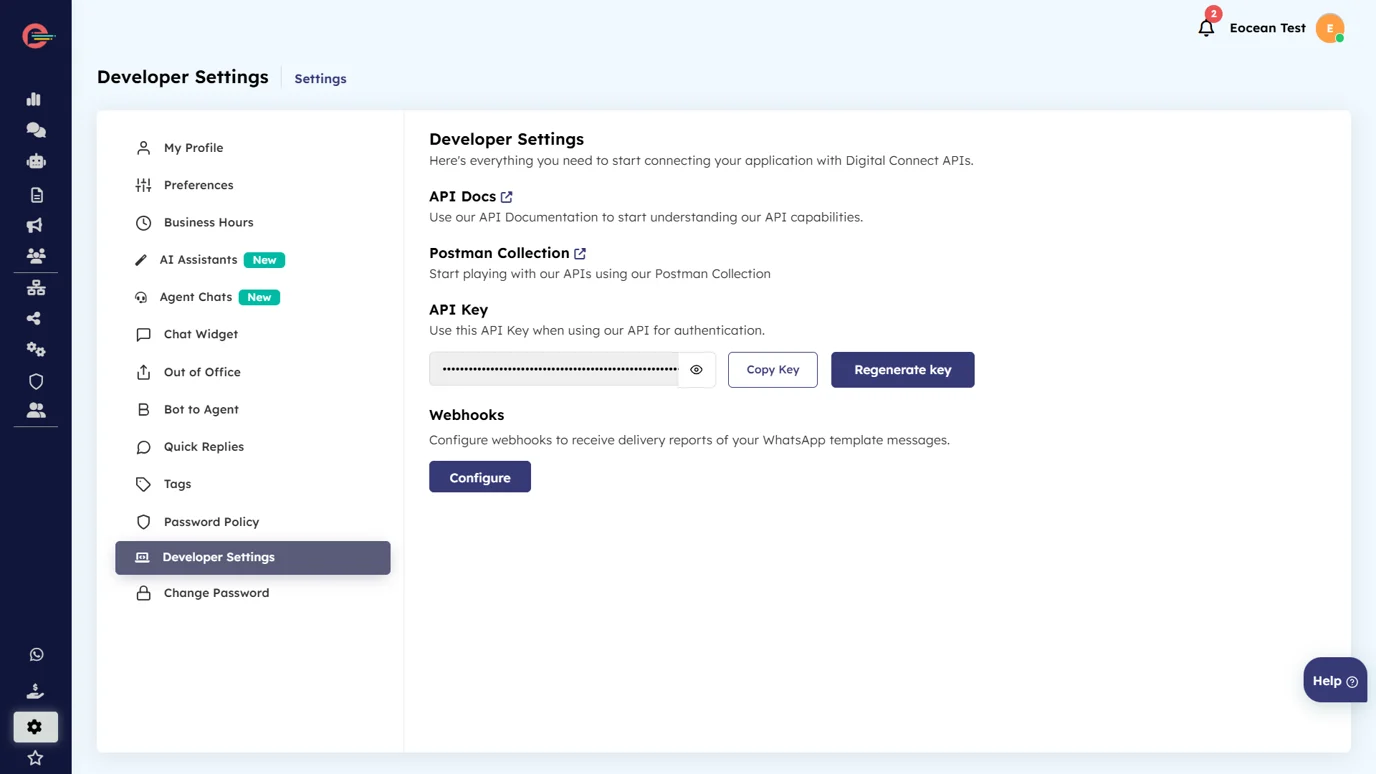
To authenticate the API request, you will require the API key associated with your account. The API key can be found in the Developer Settings of your Digital Connect account. Please note that access to the Developer Settings is restricted to the platform administrator only.
Example:
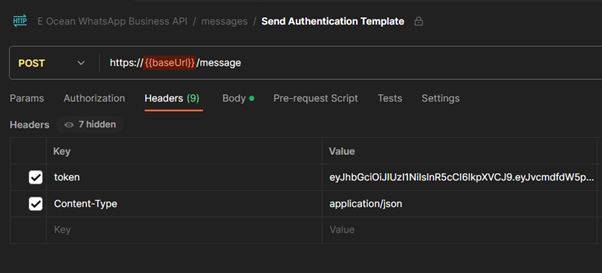
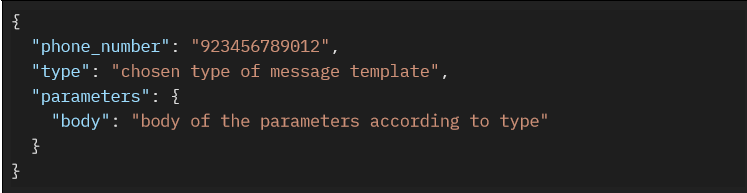
The request body for the API should be in JSON format and include the following parameters:
Fields Type Description phone_number String (required) Phone number to authenticate type String (required) Type of message template parameters Object (required) Contains the data for the chosen type Request Payload
Message Types and Parameters
You can send both types of WhatsApp messages, including Template and Free-form messages. However, Free Form messages can only be sent to customers within a 24-hour conversation window. Otherwise, although the message won’t be sent, you will still receive a success response from the API.
Make sure to include the relevant parameters based on the type you choose when sending the message in the request body.
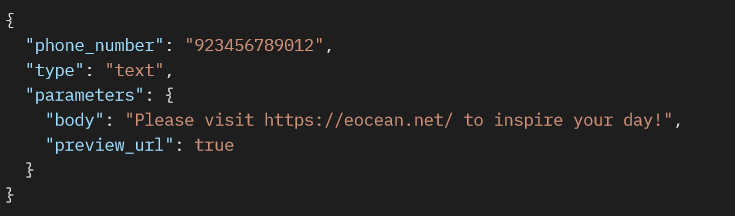
Type : TEXT
Fields Data Type Description body String (required) text message that can contain URLs and supports formatting preview_url Boolean (optional) Set this field to true to include a URL preview box Text Message Payload (Without Preview URL)
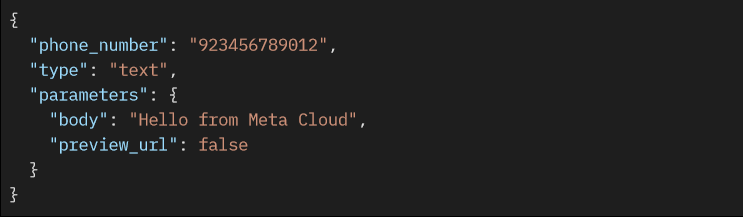
Text Message Payload (With Preview URL)
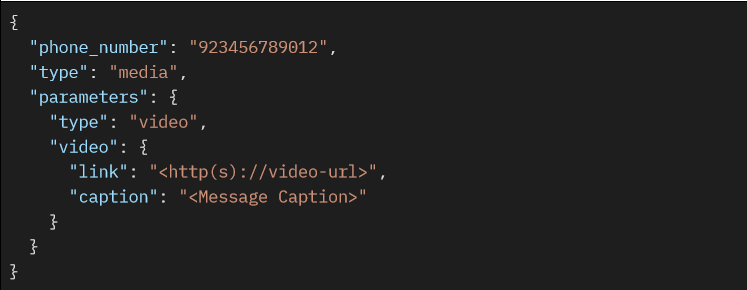
Type: MEDIA
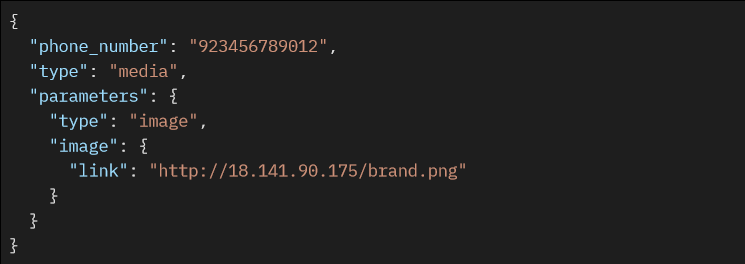
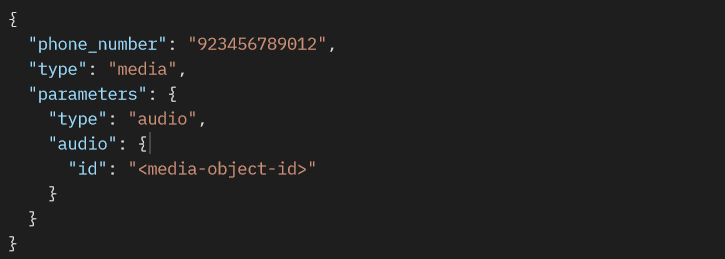
The media object consists of audio, document, image and video objects.
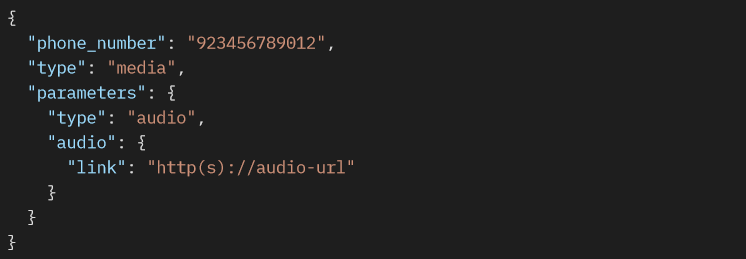
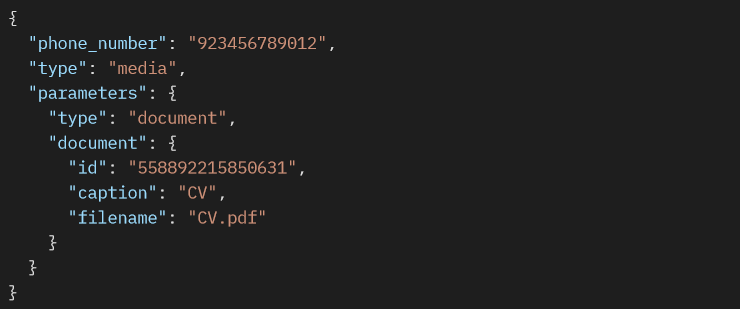
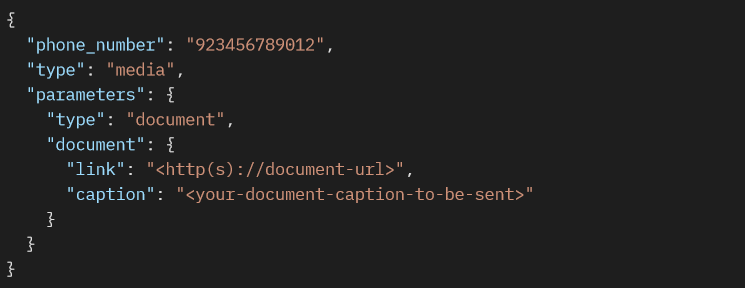
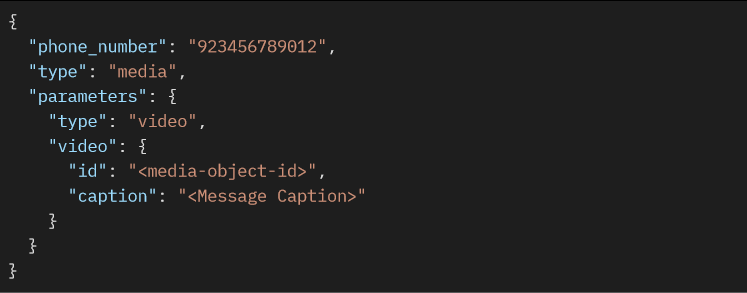
Fields Data Type Description type String (required) The type of media object id String (required) The ID of the media object link String (required when type is audio, document, image, sticker or video or when not using uploaded media ID ) The protocol and URL of the media to be sent caption String (optional) Description of the media object filename String (optional) Specified filename document Image Message by ID Payload
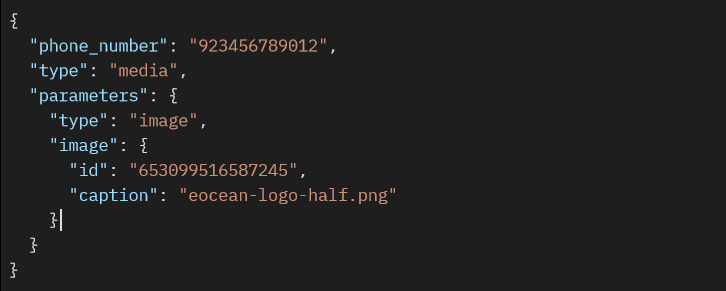
Image Message by URL Payload
Audio Message by ID Payload
Audio Message by URL Payload
Document Message by ID Payload
Document Message by URL Payload
Video Message by ID Payload
Video Message by URL Payload
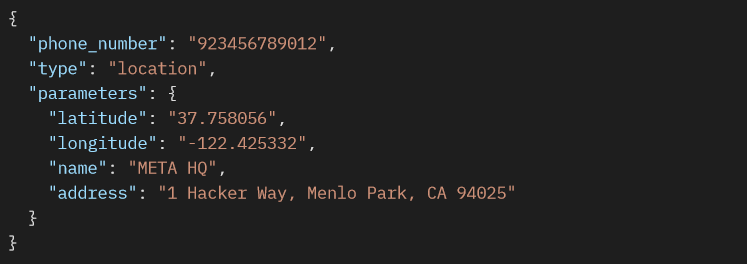
Type: LOCATION
Fields Data Type Description latitude String (required) latitude of the location longitude String (required) longitude of the location name String (optional) name of the location address String (optional) address of the location Location Message Payload
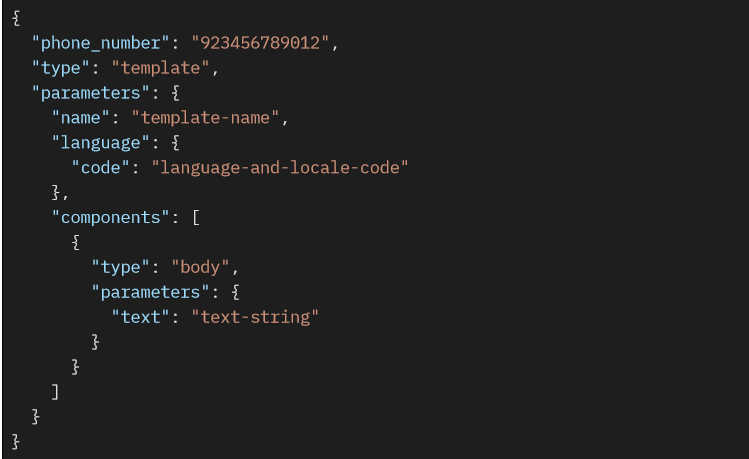
Type: TEMPLATE
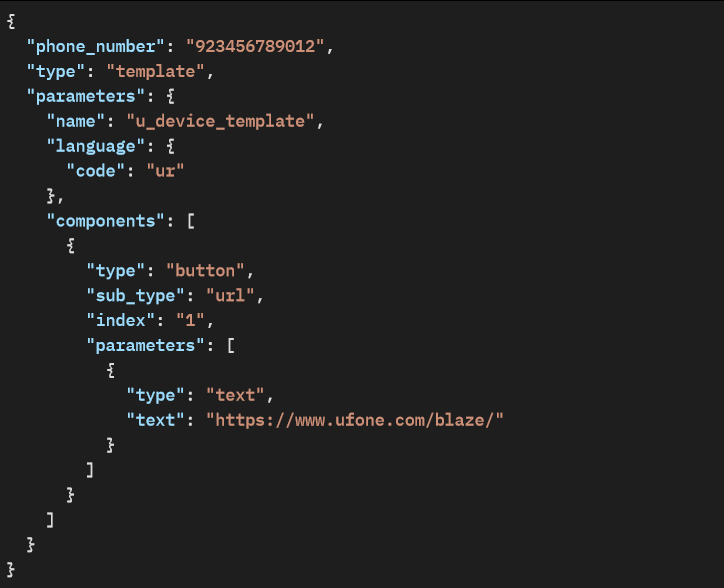
Fields Data Type Description name String (required) The ID of the media object language Object (required) Specifies the language object component Array of Objects (optional) Specifies the array of component objects Template Text Message Payload
Template Button Message Payload
Template Date and Currency Message Payload
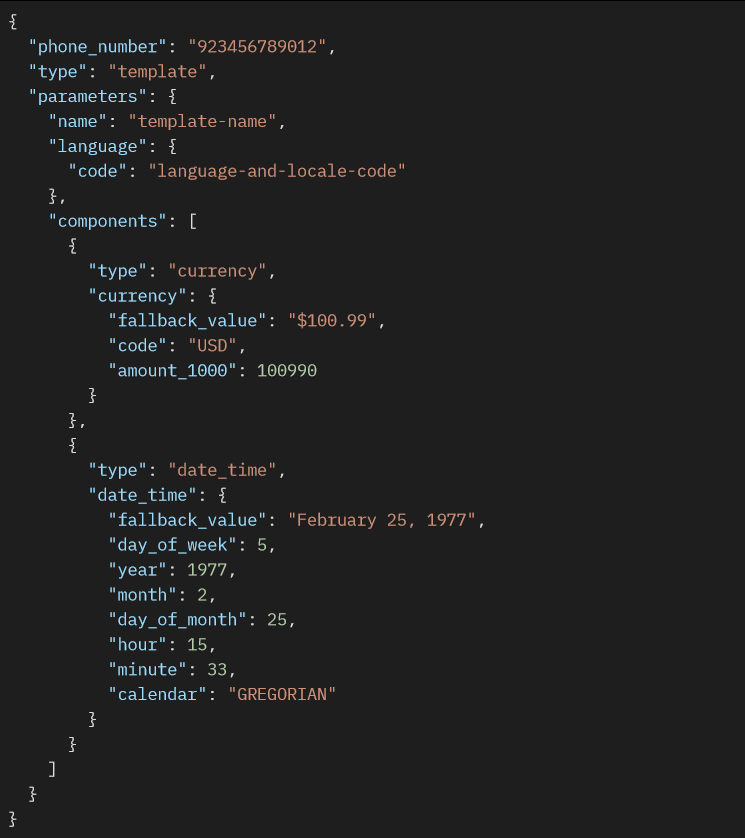
Type: CONTACTS
Fields Data Type Description name Object (required) Specifies the name object address Object (required) Specifies the address object email Object (required) Specifies the email object org Object (required) Specifies the organization object phone Object (required) Specifies the phone object birthday String (required) Specifies the birthday url Object (required) Specifies the url object Contact Message Payload
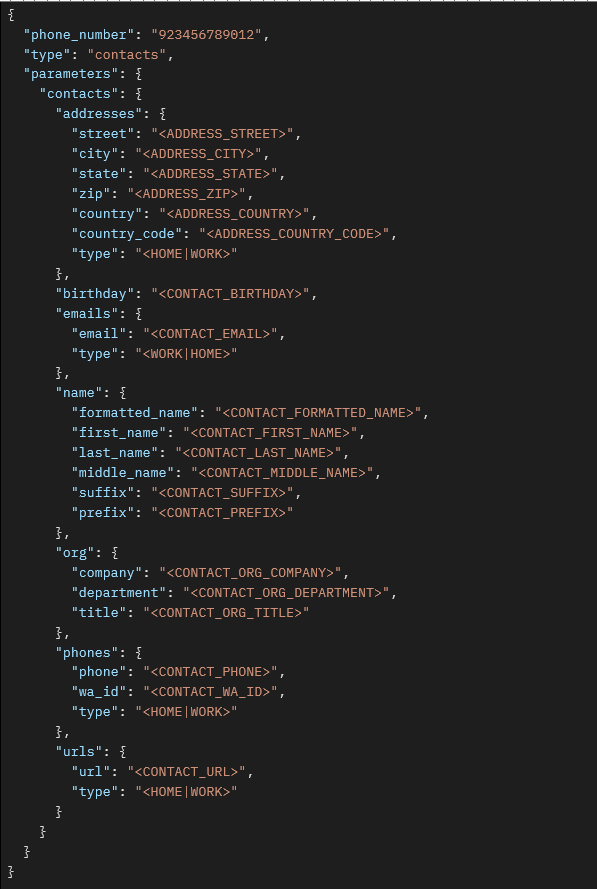
Parameter Fields
Fields Data Type Description type String (required) Describes parameter type. Values: text, currency, date_time, image or document. text String (required when type is text) Message of the text currency String (required when type is currency) Specifies the currency object date_time string (required when type is date_time) Specifies the date_time object image String (required when type is image) Specifies the media object of type image document String (required when type is document) Specifies the media object of type document For more information on message types and their required parameters, please refer to the following link:
https://developers.facebook.com/docs/whatsapp/cloud-api/reference/messages
Response Body
If successful, the response body will return a status of 200 including message ID and a success indicator.
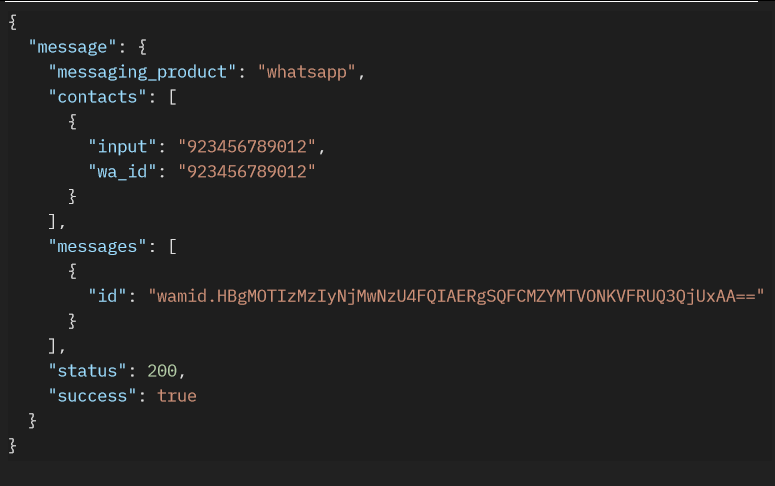
Message Throughput
For each registered business phone number, Cloud API supports up to 1,000 messages/sec by default.
Throughput is inclusive of inbound and outbound messages and all message types. Note that business phone numbers, regardless of throughput, are still subject to their WhatsApp Business Account’s business use case rate limit and template messaging limits.
If you attempt to send more messages than your current throughput level allows, the API will return error code 130429 until you are within your allowed level again.
Error Codes and Messages
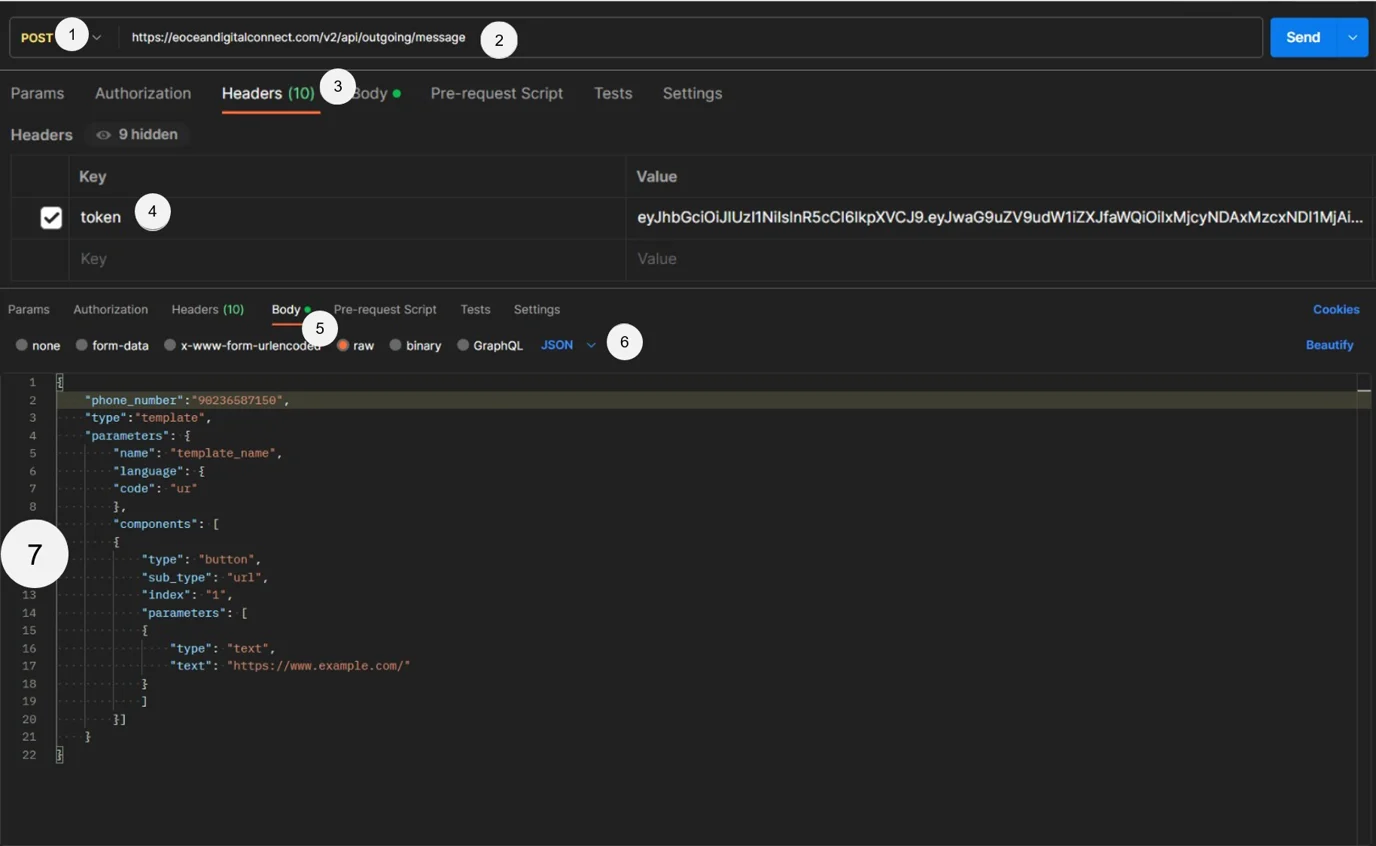
Error Message Error Code Error Description noToken Unauthorised: No token Provided (Code: 1488) The request is missing the required authentication token invalidToken Unauthorised: Invalid token (Code: 1489) The provided authentication token is invalid or expired incorrectCredentials Incorrect org_unit_id or phone_number_id (Code: 1652) The provided org_unit_id or phone_number_id is incorrect or invalid validation Data Validation Error (Code: 1265) Data being sent does not match the expected format limitReached limitReached: (Code: 130429) Requests per minute exceeded Example Postman Request
Step 1: Setup Request Type to “POST”
Step 2: Setup URL
Step 3: Select Headers option
Step 4: Set token under Headers section
Step 5: Choose body type “raw”
Step 6: Select “JSON” type
Step 7: Set content of the request
You can find more examples here – Open in Postman
 [feedback_form] [related_articles]
Check your messaging limit tier in your Facebook Business Manager or Digital Connect Campaign Manager to determine your daily template sending limit.
-
What are Conversational Components and how to configure them
Conversational components are in-chat features that you can enable on your business phone number to simplify customer interactions on WhatsApp. You can set up welcome message, offer pre-written ice breakers, and easy-to-use commands.
What are Conversational Components and how to configure them?
Conversational components are in-chat features that you can enable on your business phone number to simplify customer interactions on WhatsApp. You can set up welcome message, offer pre-written ice breakers, and easy-to-use commands.
These components are only available on cloud-hosted WhatsApp accounts. Conversation components are not supported on WhatsApp Web. Administrators can configure the conversational components in Digital Connect.
EOcean Digital Connect supports the following conversational components.
- Welcome Message: Greet users with a welcome message when they open a WhatsApp chat for the first time.
- Ice Breakers: Present pre-written, selectable text options to first-time customers to drive and guide their interactions with your business.
- Commands: Present a list of commands to customers when they type “/”. A ‘hint” gives the user an idea of what can happen when they use a specific command.
Configure Conversational Components
You can configure all of these features in WhatsApp Manager on your WhatsApp Business Phone number.
Welcome Message
- In Digital Connect’s sidebar, go to WhatsApp Manager, click Automations, and toggle the Welcome message button to enable it.
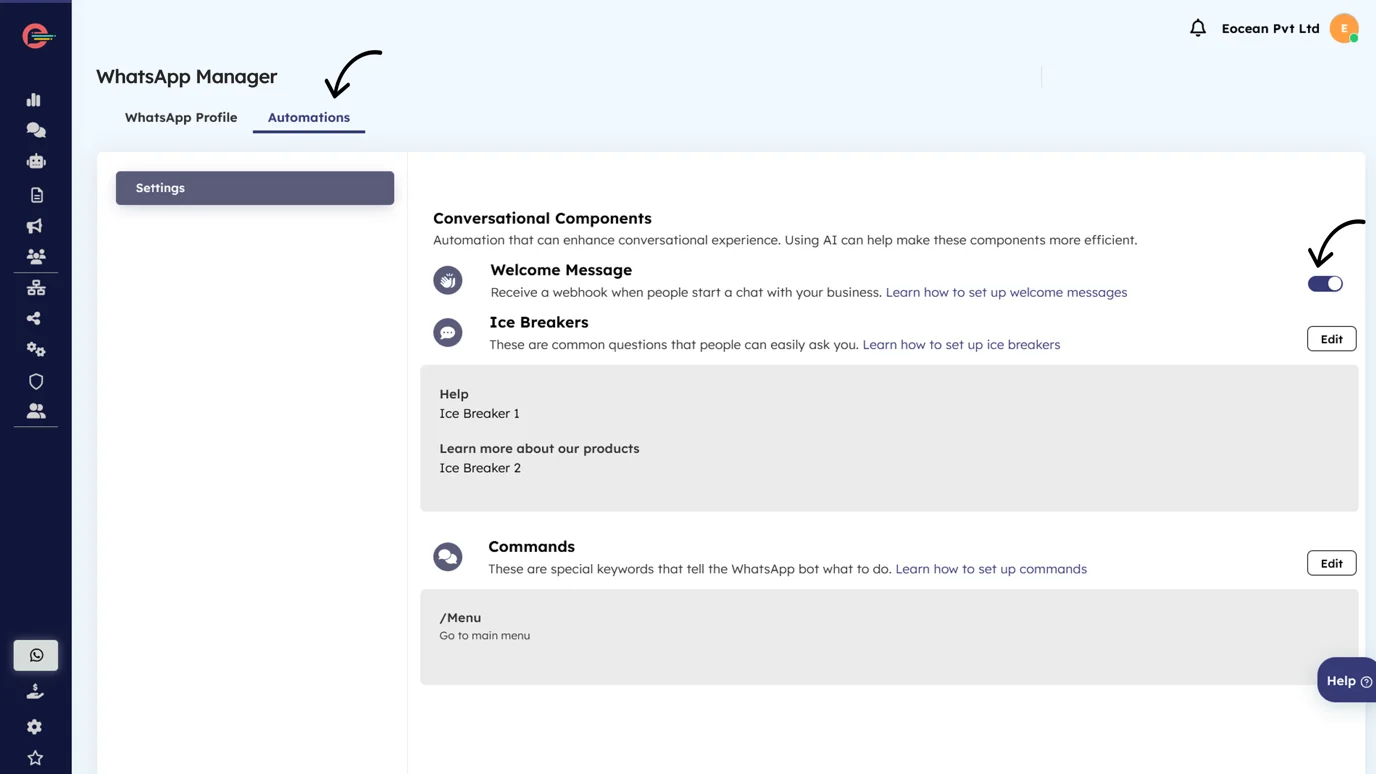
All free form, interactive, and template message types can be sent as welcome messages. Categorized message pricing will apply.
Ice Breakers
- In Digital Connect’s sidebar, go to WhatsApp Manager, click Automations, and select Edit for Ice Breakers.
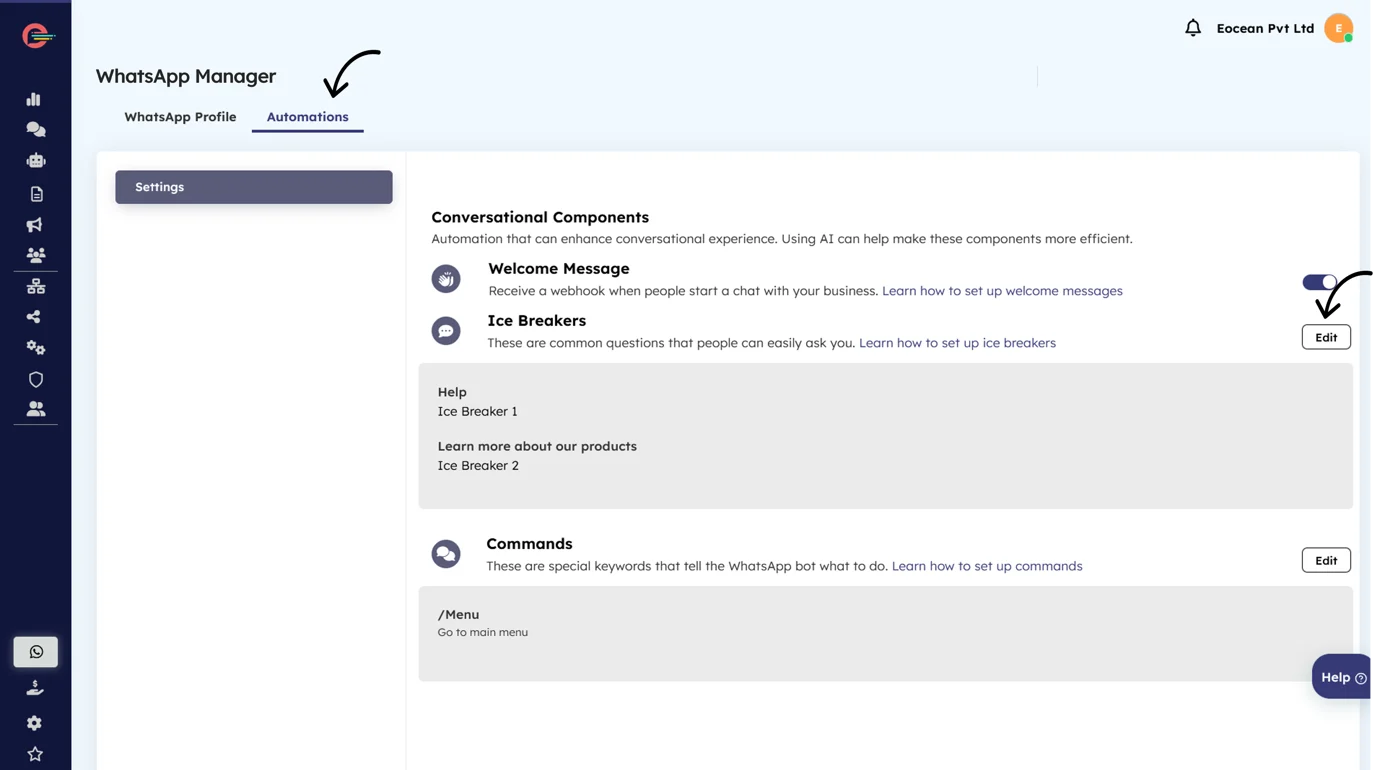
- Add, edit, and rearrange your Icebreakers.. For this example, we have configured two Ice Breakers, ” Help” and “Learn more about our products”.
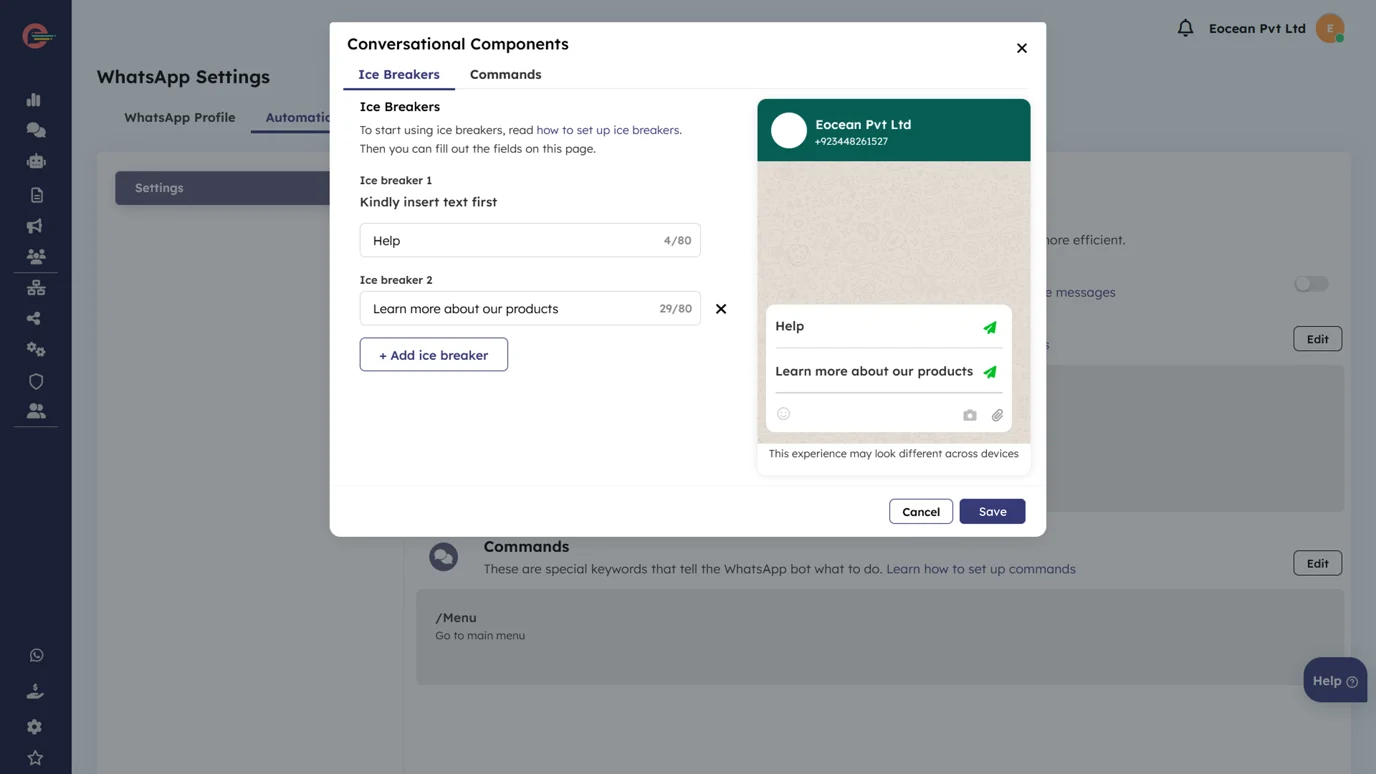
- Click Save to apply changes
Your ice breakers can now be used by your customers. You can return to these screens and edit your Ice Breakers at any time.
You can configure up to 4 ice breakers on a business phone number. Each ice breaker can have a maximum of 80 characters. Emojis are not supported.
If a WhatsApp user taps a universal link (wa.me or api.whatsapp.com links) configured with pre-filled text, the user interfaces for ice breakers are automatically dismissed.
Commands
- In Digital Connect’s sidebar, go to WhatsApp Manager, click Automations, and select Edit for Commands.
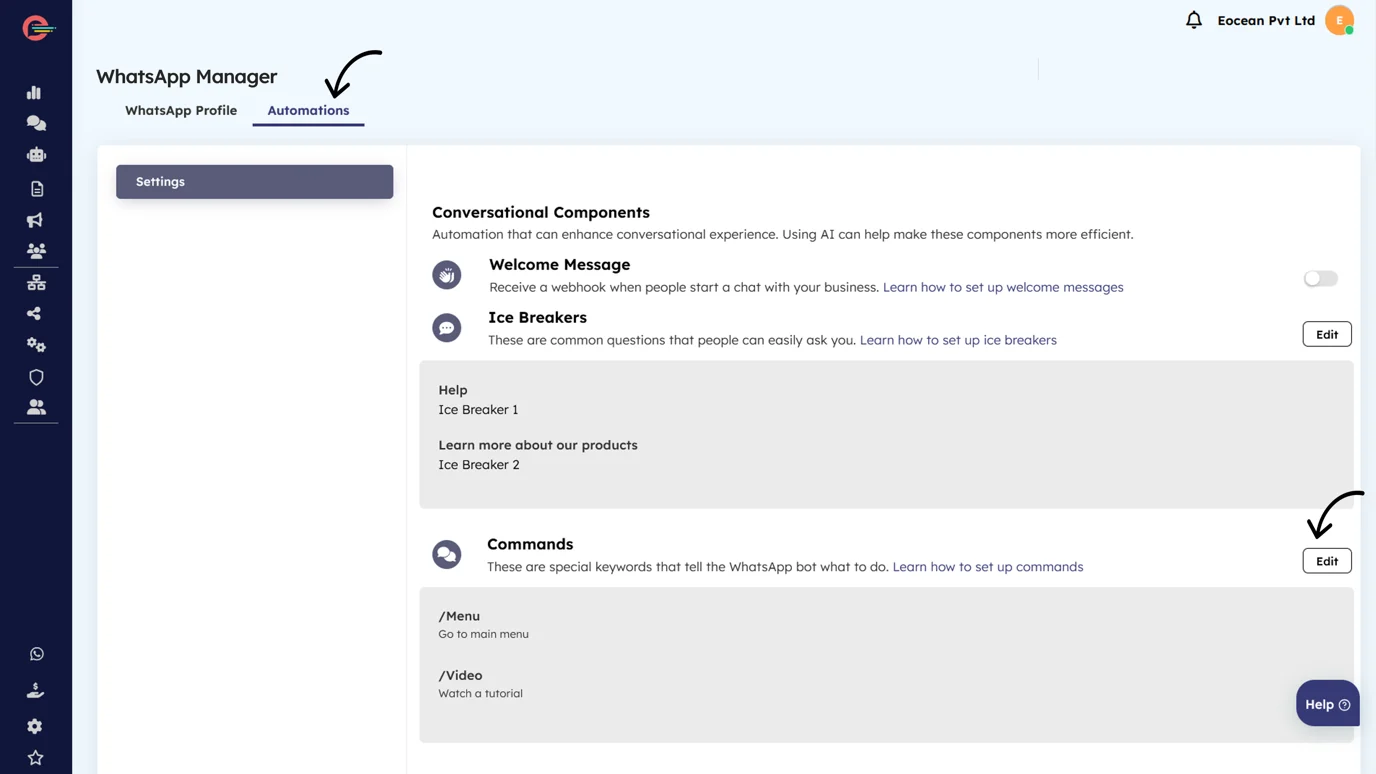
- Add, edit, and rearrange your Commands. For this example, we have configured two Commands, ” Menu” and “Video”.
- Click Save to apply changes
Your commands can now be used by your customers. You can return to these screens and edit commands at any time.
You can define up to 30 commands. Each command has a maximum of 32 characters, and each hint has a maximum of 256 characters. Emojis are not supported.
[feedback_form] [related_articles]Testing conversational components
After configuring your icebreaker or command, please open WhatsApp and initiate a conversation with the designated WhatsApp Business phone number. The newly set components will be available for your interaction immediately..
Since icebreakers only work with first-time conversations, you’ll need to clear the chat first if you have an existing chat thread with the business number. To clear a chat, go to the business’s profile in WhatsApp, tap the vertical icon menu next to the business name, and select Clear chat. When the business now initiates a new chat thread, the icebreakers will appear.
-
Utility Template Library
Utility templates are triggered by user action or request. The Utility Template Library offers pre-written templates for common use cases like payment reminders and delivery updates, enhancing ease and agility in template creation.
Utility Template Library
Utility templates are triggered by user action or request. The Utility Template Library offers pre-written templates for common use cases like payment reminders and delivery updates, enhancing ease and agility in template creation.
The Template Library, available in the Template Manager, provides pre-written templates categorized as utility. You can access and use these pre-approved templates without needing additional approval. Although the content is fixed, the parameters can be customized to suit specific business or user information.
Creating Templates via Template Manager
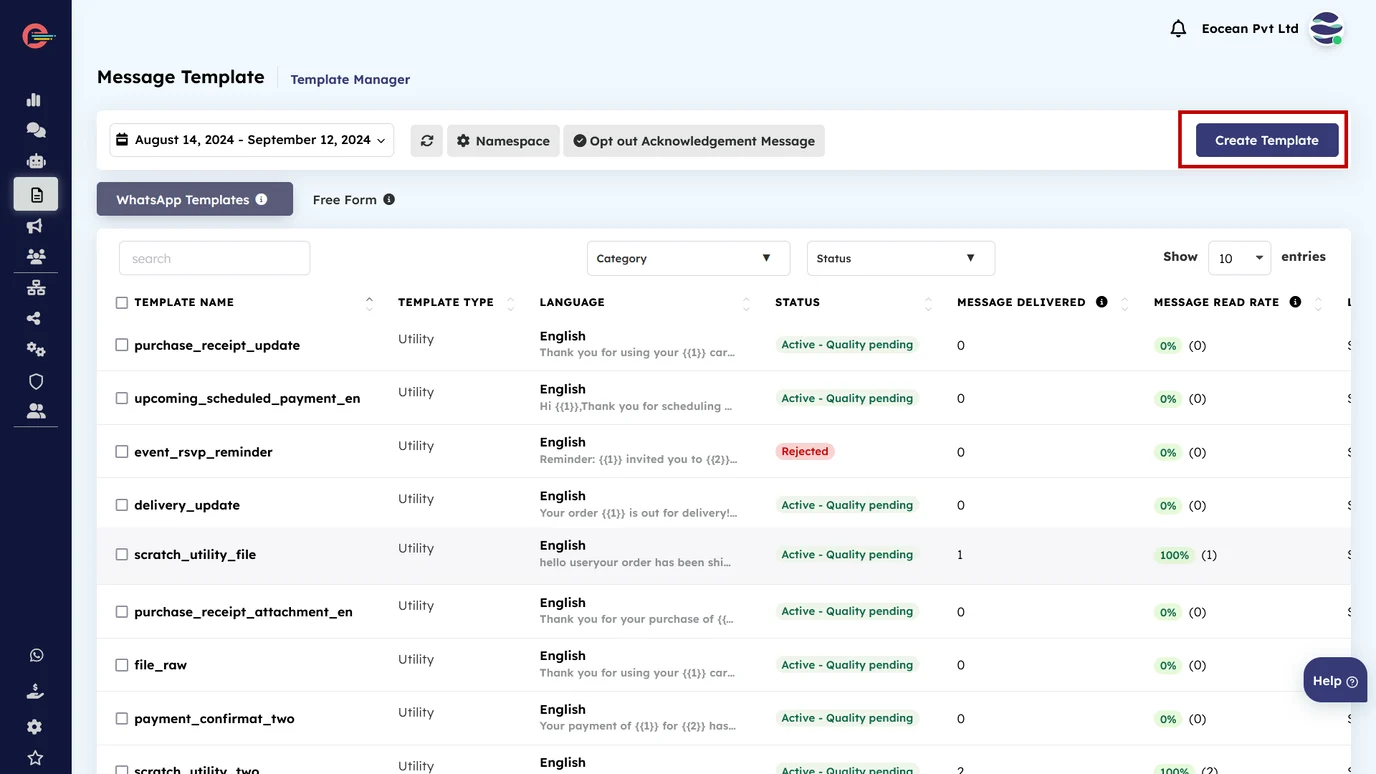
- In Digital Connect’s sidebar, select Template Manager and click Create Template.
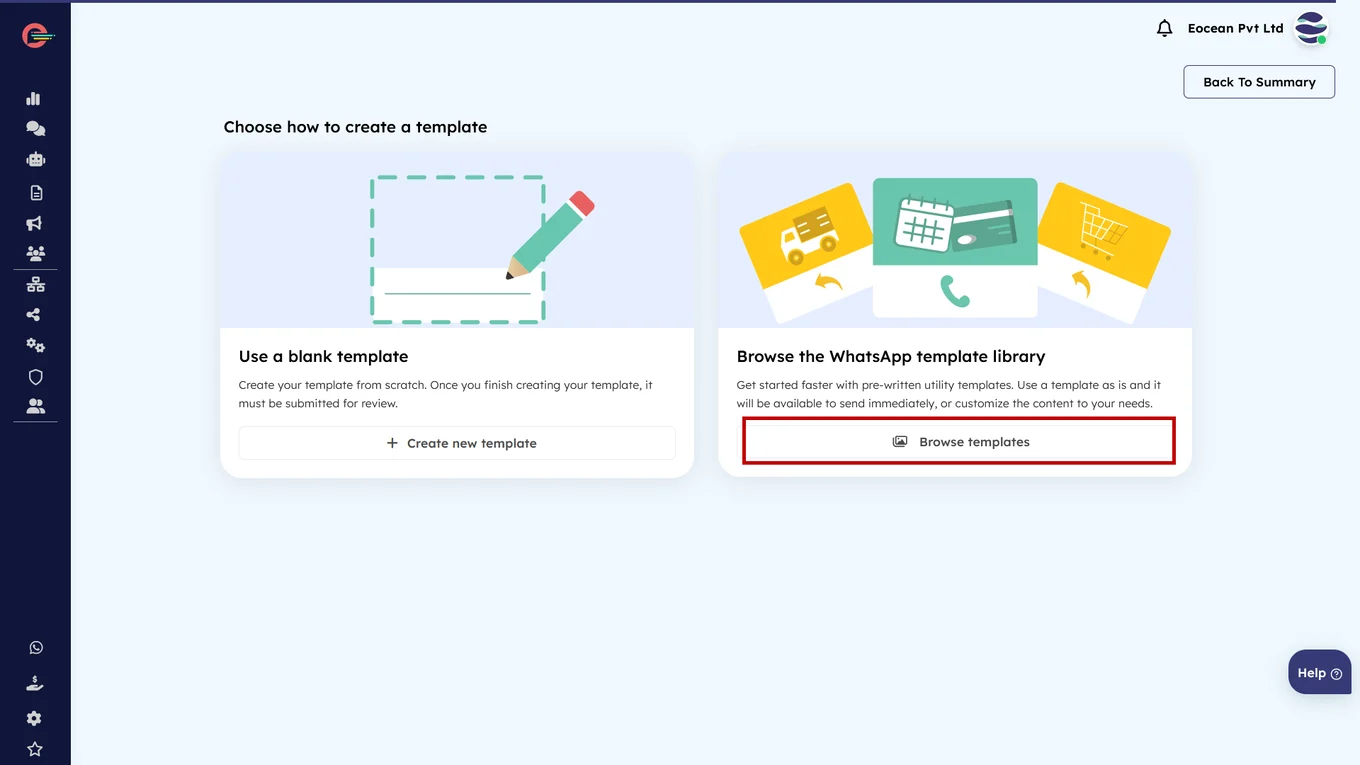
- Under Browse the WhatsApp Template Library, select Browse Templates.
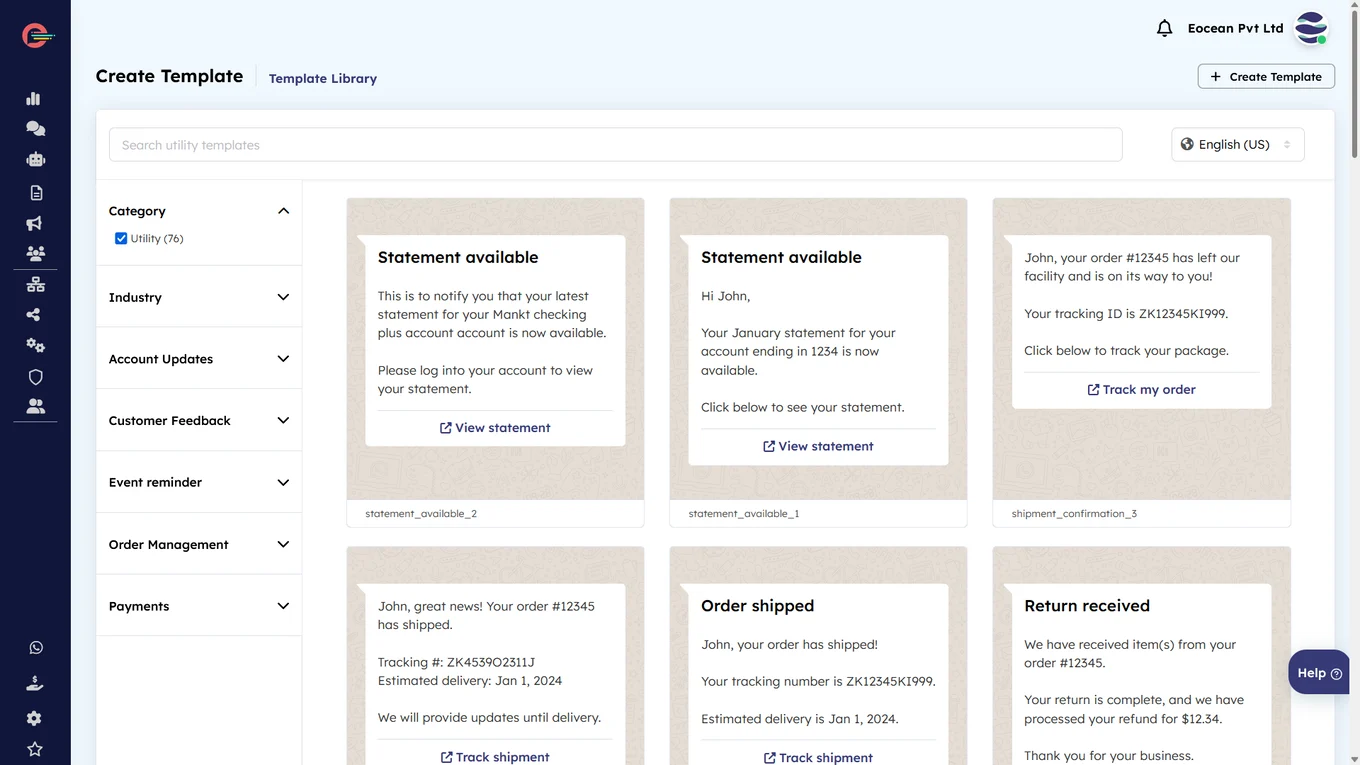
- You will now see all currently available utility templates. Use the search bar to search by topic or use case, or use the drop-down options on the sidebar to filter the results.
Note that hovering over a template will show the values of its parameters.
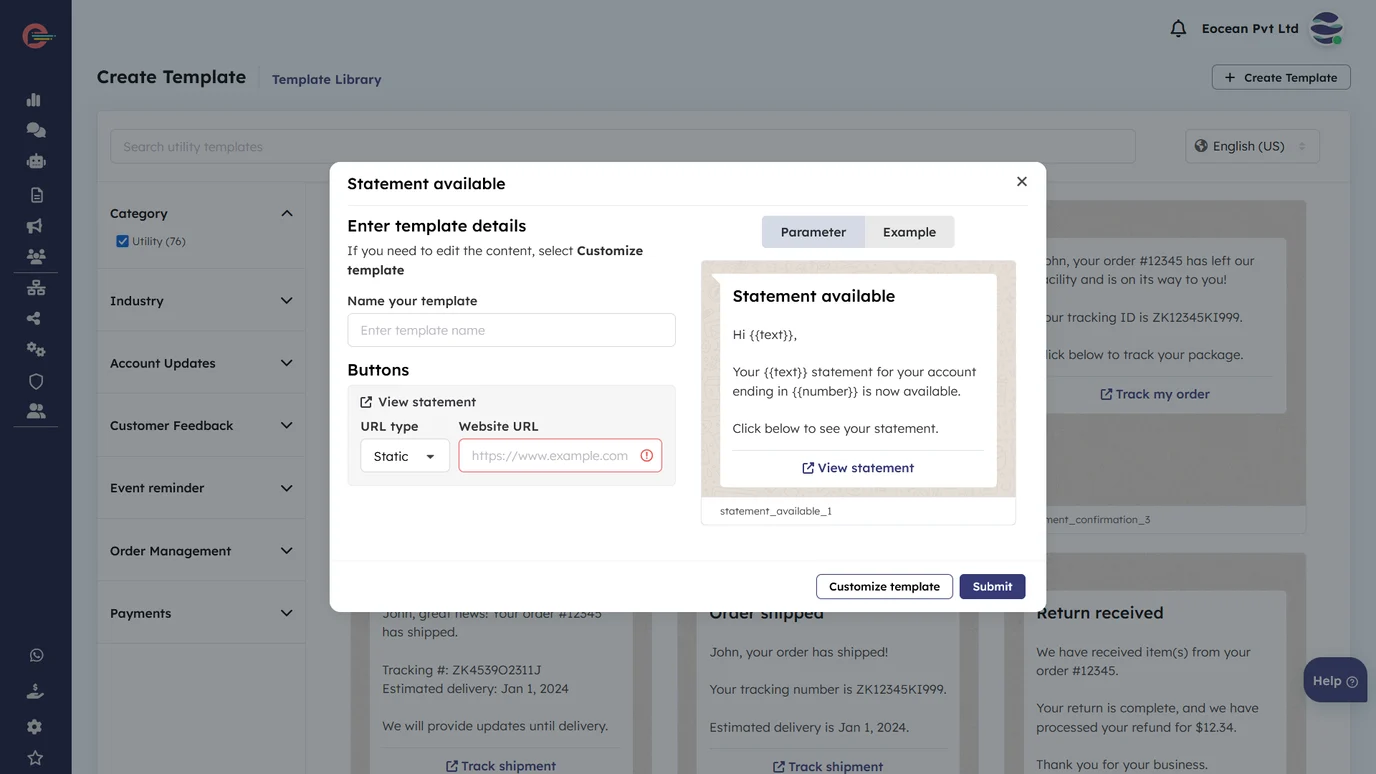
- To create a template, select one by clicking on it. Then, add the name of your template, select the language, and fill in the button details. Once you complete these steps, click Submit.
Note: If you choose Customize Template, your template will need to go through a review before you can send messages.
Template Parameters and Restrictions
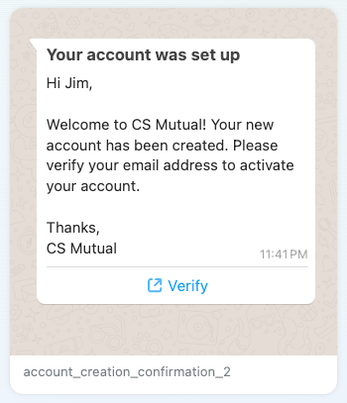
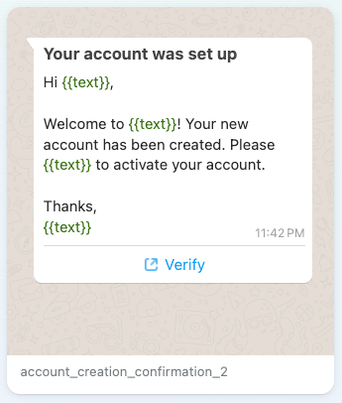
The templates in the library contain both fixed content and parameters. The parameters represent spaces in the template where variable information can be inserted, such as names, addresses, and phone numbers.
In the example above, parameters like the name Jim or the business name CS Mutual can be modified to accept variables like your customer’s name and your business’s name.
Messages sent using templates from Utility Template Library are subject to parameter checks during send time. Values used in parameters that are outside of the established ranges listed below will cause the message send to fail.
For additional information, refer to Meta’s official documentation
[feedback_form] [related_articles] -
View Template Insights for message templates in Digital Connect
The Template Insights tab in Digital Connect provides performance insights for WhatsApp Business message templates, allowing you to optimize your business messaging strategies.