Author: telenorengage-user
-
Digital Connect Conversation Statuses
All customer conversations are segmented in different inbox views within Chat Manager. These views group conversations by status which are either auto-assigned or manually assigned by agents to manage conversations effectively.
[wpdreams_ajaxsearchlite][mobile_menu]- Help Center
-
Chat Manager
[left_menu]Digital Connect Conversation Statuses
All customer conversations are segmented in different inbox views within Chat Manager. These views group conversations by status which are either auto-assigned or manually assigned by agents to manage conversations effectively.
[feedback_form] [related_articles]Status Definition Example All (Active) indicates all conversations not yet assigned to any agent. - New incoming support request from customer
Assigned indicates conversation has been assigned to an agent and is in progress - Agent providing active support to resolve customer issue
Pending indicates agent is waiting for more information from customer or investigation from internal business team to help resolve the issue - Customer did not provide enough information to resolve the issue
- Information required from back office team to resolve the issue requires more time
Spam indicates a conversation containing harmful or abusive words or not relevant to the business can be marked as ‘Spam’ by the agent. - Customer is abusive or repeatedly initiating conversation not relevant to the business
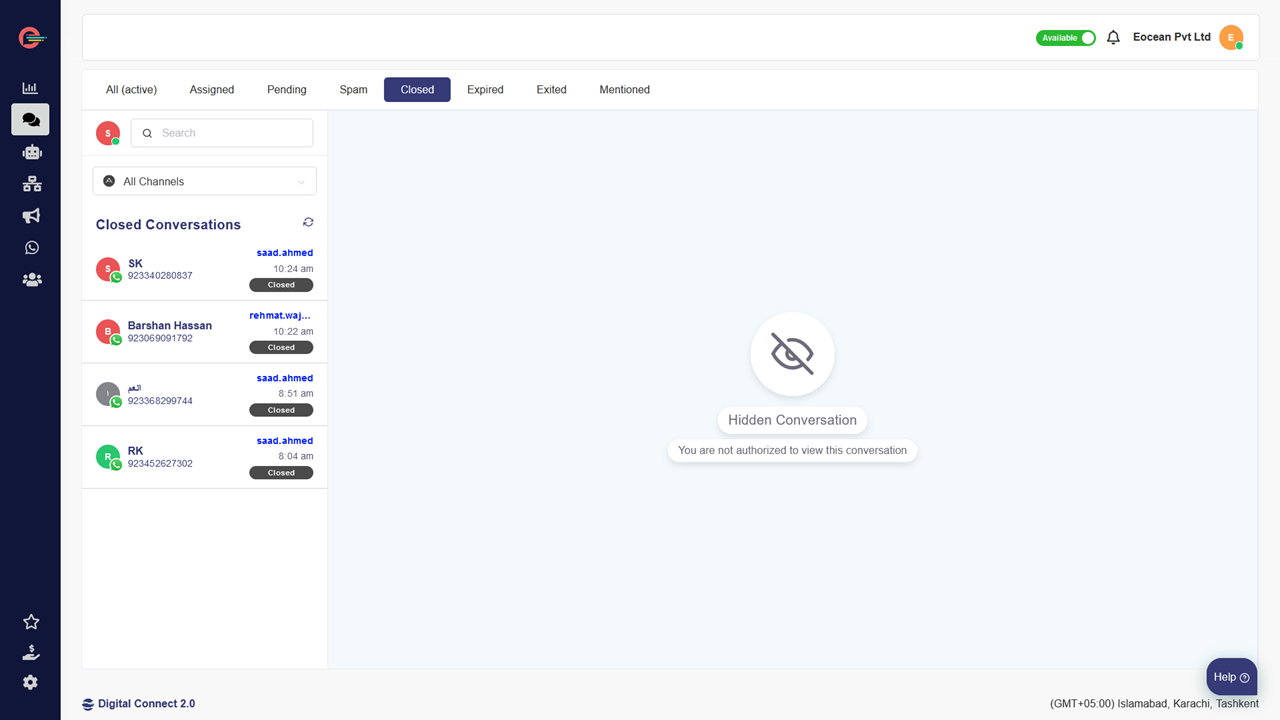
Closed indicates an agent has resolved the issue and closed the conversation - Issues where customer has accepted the solution
Expired With our Expired conversations view, we’re focusing on providing you with better visibility and monitoring of incoming conversations which have a time out rule for agent/supervisor replies depending on the social messaging channel.
When time out is reached for an incoming conversation via WhatsApp channel (24-hour session limit) it will be automatically moved to the Expired inbox.- Agent did not respond to the incoming conversation and more than 24 hours have passed since the last message from the customer
- Agent/Supervisor has not marked the conversation pending, spam or closed before it expired
Exited indicates a conversation where customer exits the conversation without getting a response from the agent. - Customer may opt for “talk to agent” mid-way into a bot conversation and then due to change of mind or delay in response from an agent decide to exit the conversation
Mentioned indicates a conversation in which you have been tagged by another agent or a supervisor in a private note to seek assistance to resolve an issue - Agent may require particular information to resolve a customer issue which resides with another agent or a team.
-
different categories of template messages
Your WhatsApp message templates must fall into one of the following categories. Templates that do not align clearly with these template types are more likely to be rejected by WhatsApp.
[wpdreams_ajaxsearchlite][mobile_menu]- Help Center
-
WhatsApp Business Platform
[left_menu]What are the different categories of template messages?
Your WhatsApp message templates must fall into one of the following categories. Templates that do not align clearly with these template types are more likely to be rejected by WhatsApp.
- Utility: Send account updates, order updates, alerts, and more to share important information.
Example: Dear 1, You recently registered with us as a customer. Just letting you know that your account registration was successful. Thanks for joining! - Authentication:strong> Send codes that allow your customers to securely access their accounts and perform financial transactions.
Example: Your login code for your account is 1. - Marketing: Send promotional offers, product announcements, and more to increase awareness and engagement. (always important to get explicit Opt-in from the customer first)
Example: Hello 1. We have recently launched our new range of casual wear Shop now to avail 15% discount. Offer valid till 15th Oct.
[feedback_form] [related_articles]The numbers indicate variables that are automatically filled in from your database.
-
desktop notifications Digital
Notifications make it easy to stay informed of incoming conversations from customers. Digital Connect provides real-time alerts to keep agents informed and ensure they never miss a chat, enabling efficient support.
[wpdreams_ajaxsearchlite][mobile_menu]- Help Center
-
Getting Started
[left_menu]Type of desktop notifications in Digital Connect
Notifications make it easy to stay informed of incoming conversations from customers. Digital Connect provides real-time alerts to keep agents informed and ensure they never miss a chat, enabling efficient support.
Digital Connect provides 4 types of real-time desktop notifications to ensure agents are always in the loop. These notifications are designed to boost responsiveness and collaboration while helping agents manage conversations more efficiently. Here’s how each notification works.
New Message Notification
- Alerts you when a customer sends a new message in an ongoing conversation
New Conversation Notification
- Alerts you when a customer starts a new conversation.
Forwarded Conversation Notification
- Alerts you when a team member forwards a conversation to you.
Private Note Notification
- Alerts you when a team member tags you in a private note within a conversation.
-
Delete User in Digital Connect
Business can delete users created within Digital Connect from time to time to mostly free up an agent seat.
[wpdreams_ajaxsearchlite][mobile_menu]- Help Center
-
Users and Teams
[left_menu]Delete User in Digital Connect
Business can delete users created within Digital Connect from time to time to mostly free up an agent seat.
Keep in mind, that only admins and team supervisors can delete users.
To delete a user account, simply apply the following steps.
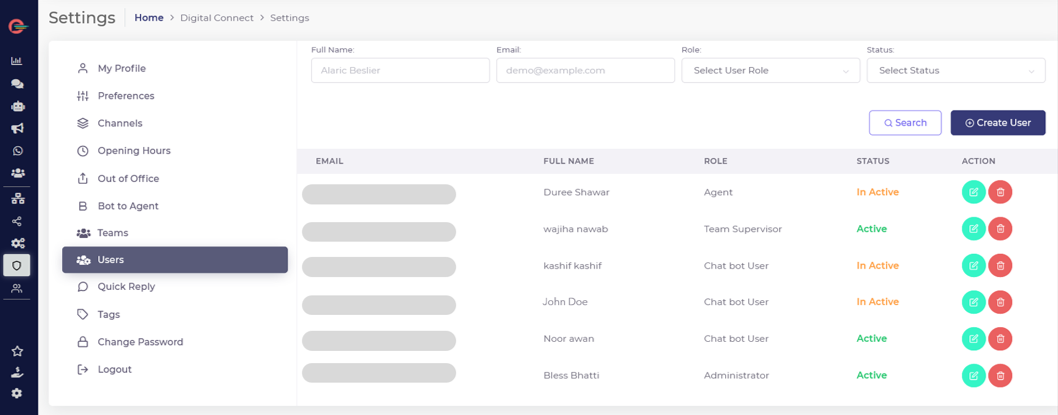
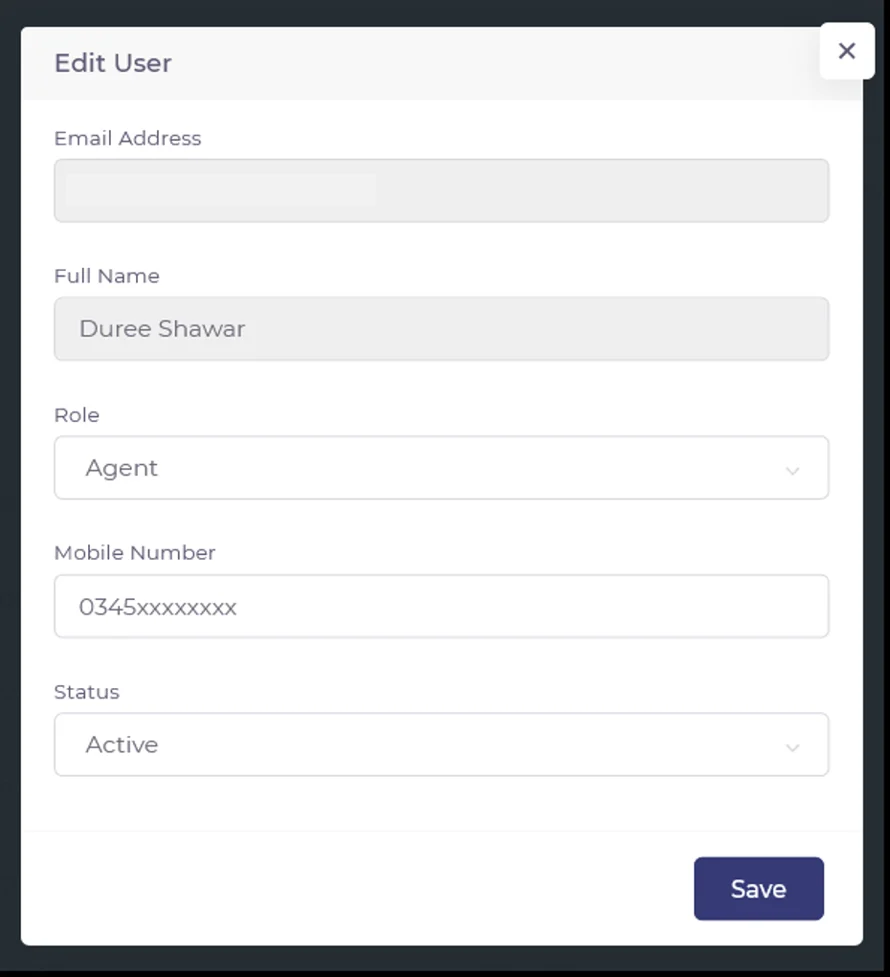
- Click on Users in left navigation pane. You will see a list of all Users, or alternatively you can also search for users by their name and other filters provided on top.
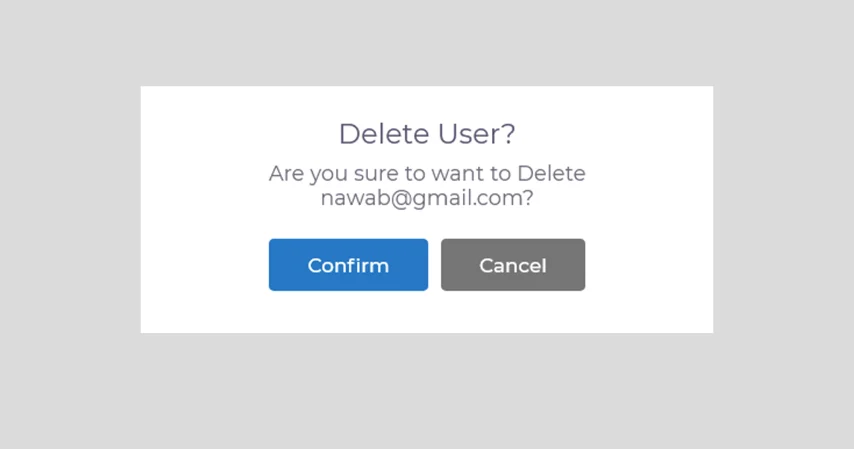
- Click on Delete (red) icon and a delete confirmation modal will appear. Click Confirm to delete the user.
[feedback_form] [related_articles]All data including conversations assigned or handled by the deleted agent or team supervisor will remain available within Digital Connect as per the data retention period of your plan. However, all assigned conversations which have not been marked closed by the agent will automatically become unassigned.
-
create google my business account
Google’s Business Messages is a mobile conversational channel that enables customers to message a business in Google Search or Google Maps in just one click without having to visit the business’ website.
[wpdreams_ajaxsearchlite][mobile_menu]- Help Center
- Support Channels
-
Google’s Business Messages
[left_menu]How to Create a Google My Business Account?
Google’s Business Messages is a mobile conversational channel that enables customers to message a business in Google Search or Google Maps in just one click without having to visit the business’ website.
Before you can connect Google’s Business Messages with Digital Connect, you need to have a Google My Business account. Here’s how you can setup your Google My Business Account.
Once you’ve verified your business, you can continue with connecting your Google’s Business Messages channel in your Digital Connect account.
[feedback_form] [related_articles] -
Create a GPT Powered Bot
A custom GPT chatbot trained on your own enterprise data can automate repetitive tasks and provide quick responses to customer inquiries, freeing up human staff to focus on more strategic tasks.
[wpdreams_ajaxsearchlite][mobile_menu]- Help Center
-
ChatBot Builder
[left_menu]How to Create a GPT-Powered Bot?
A custom GPT chatbot trained on your own enterprise data can automate repetitive tasks and provide quick responses to customer inquiries, freeing up human staff to focus on more strategic tasks.
After successfully submitting your Training Data, you have the option to create either a Hybrid Bot, which combines GPT technology with other Triggers for integration, or a GPT bot integrated with OpenAI. In this tutorial, we will guide you through the process of creating a GPT bot.
To accomplish this task:
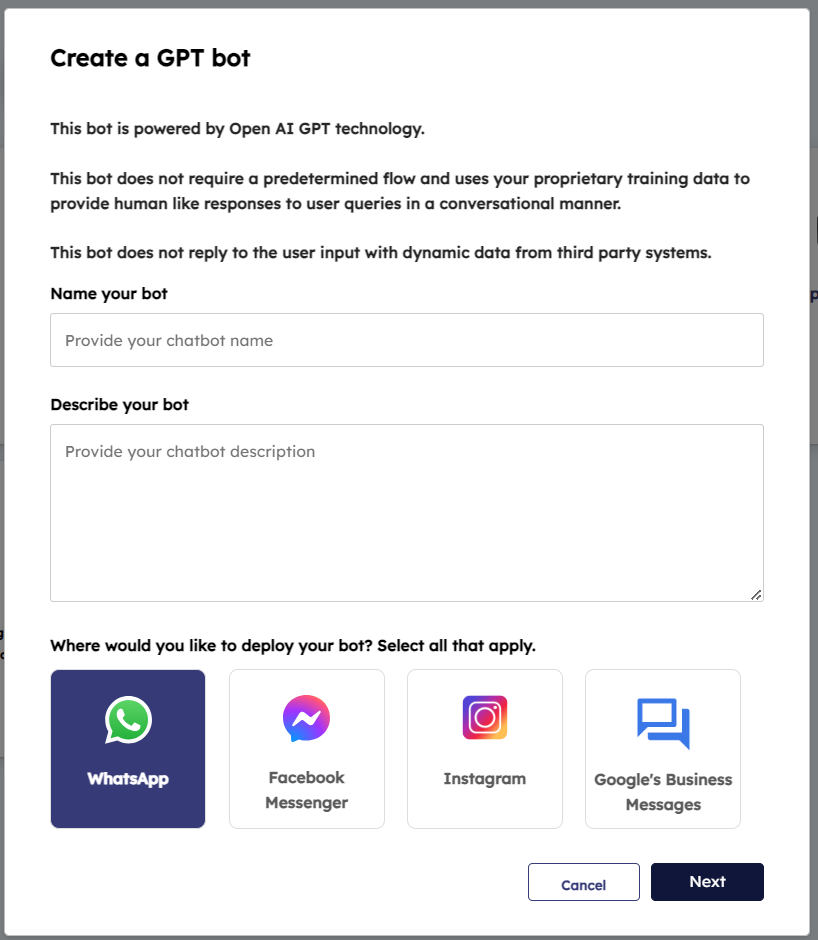
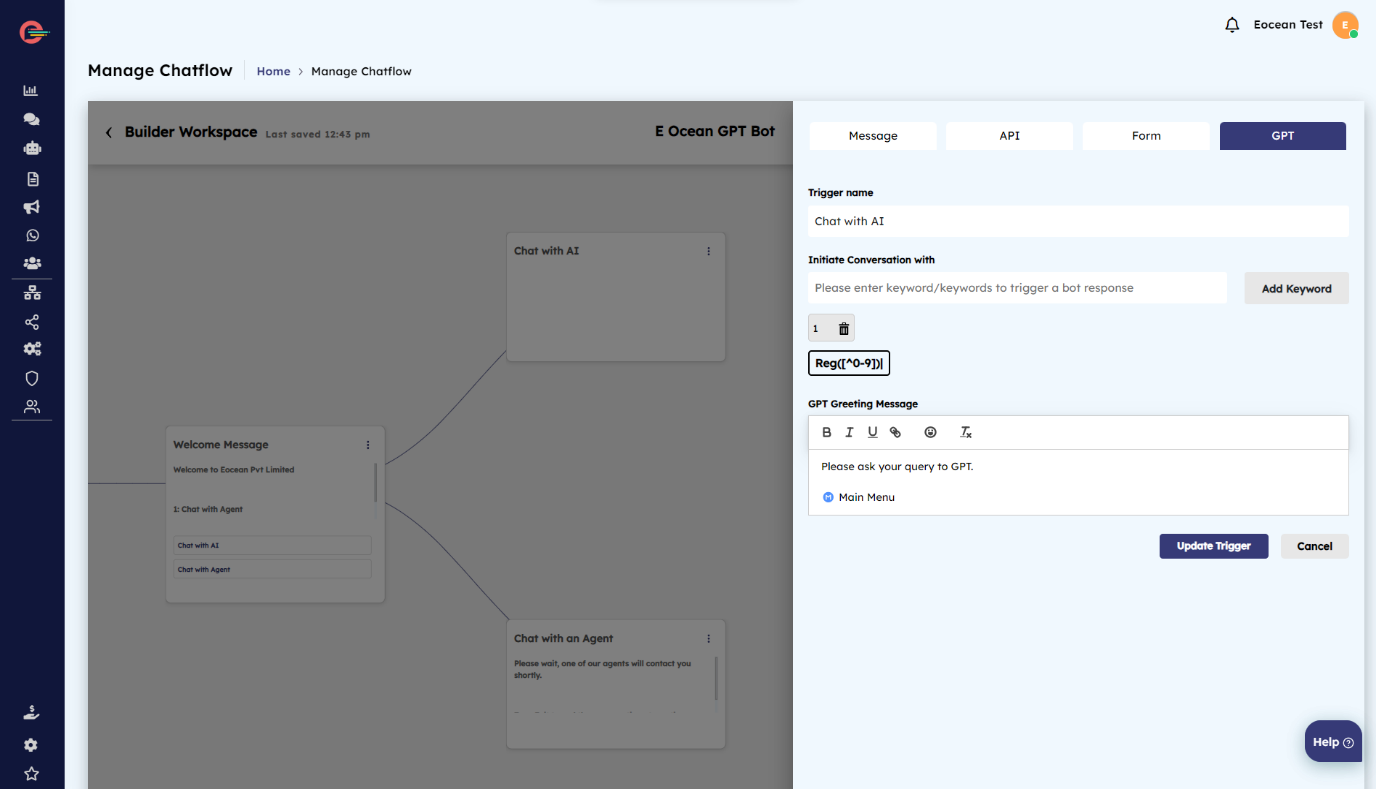
- Click Build GPT Bot
- Provide a name for your bot.
- Describe what your bot does.
- Select the channel where you want to deploy your bot.
- Click on GPT in action block tray
- Add a trigger to establish a connection with your GPT powered bot.
- Create a Welcome Message for your users after they choose the GPT option from the bot menu.
- Click on Update Trigger to save and update your bot.
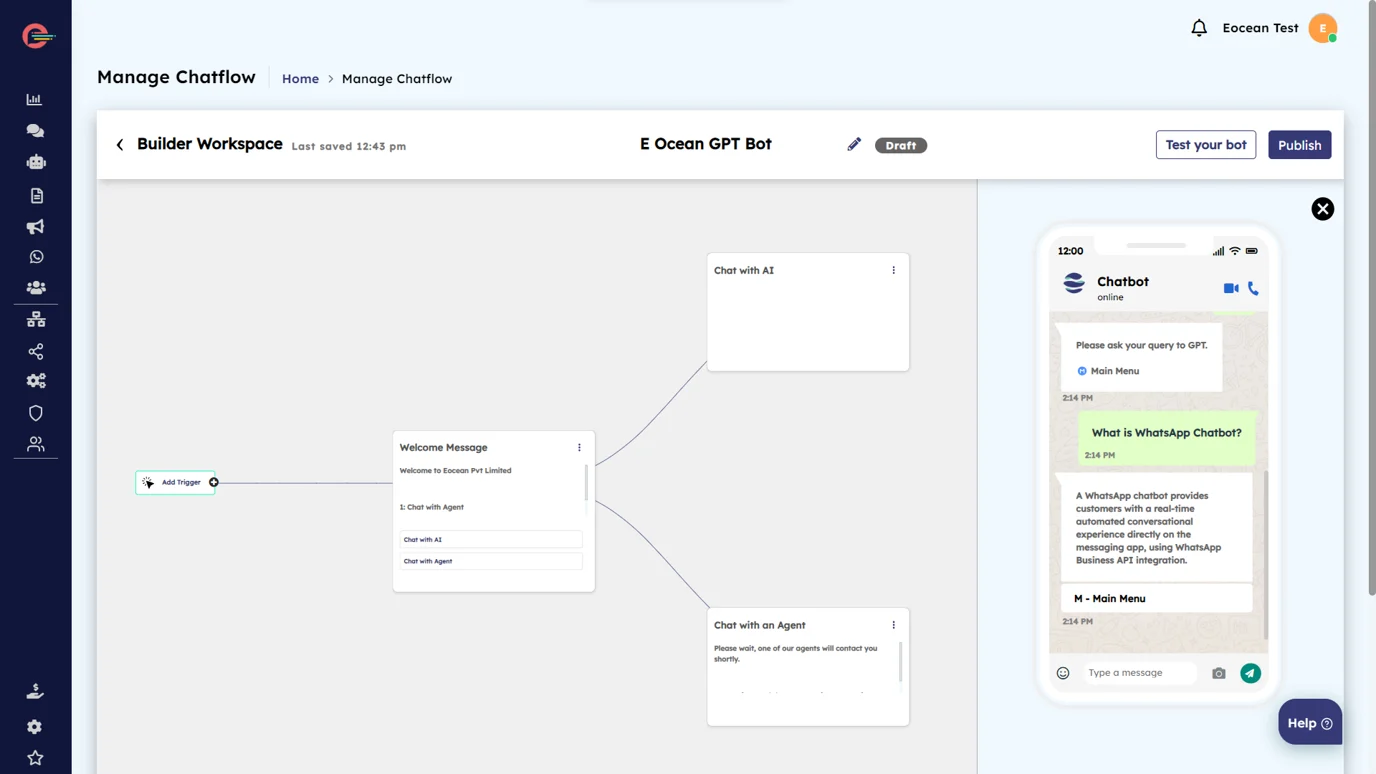
Test your Bot
Click on the Test your bot button and begin simulating a conversation that resembles human interaction in order to evaluate the accuracy of your bot responses.
[feedback_form] [related_articles]Usage of OpenAI account
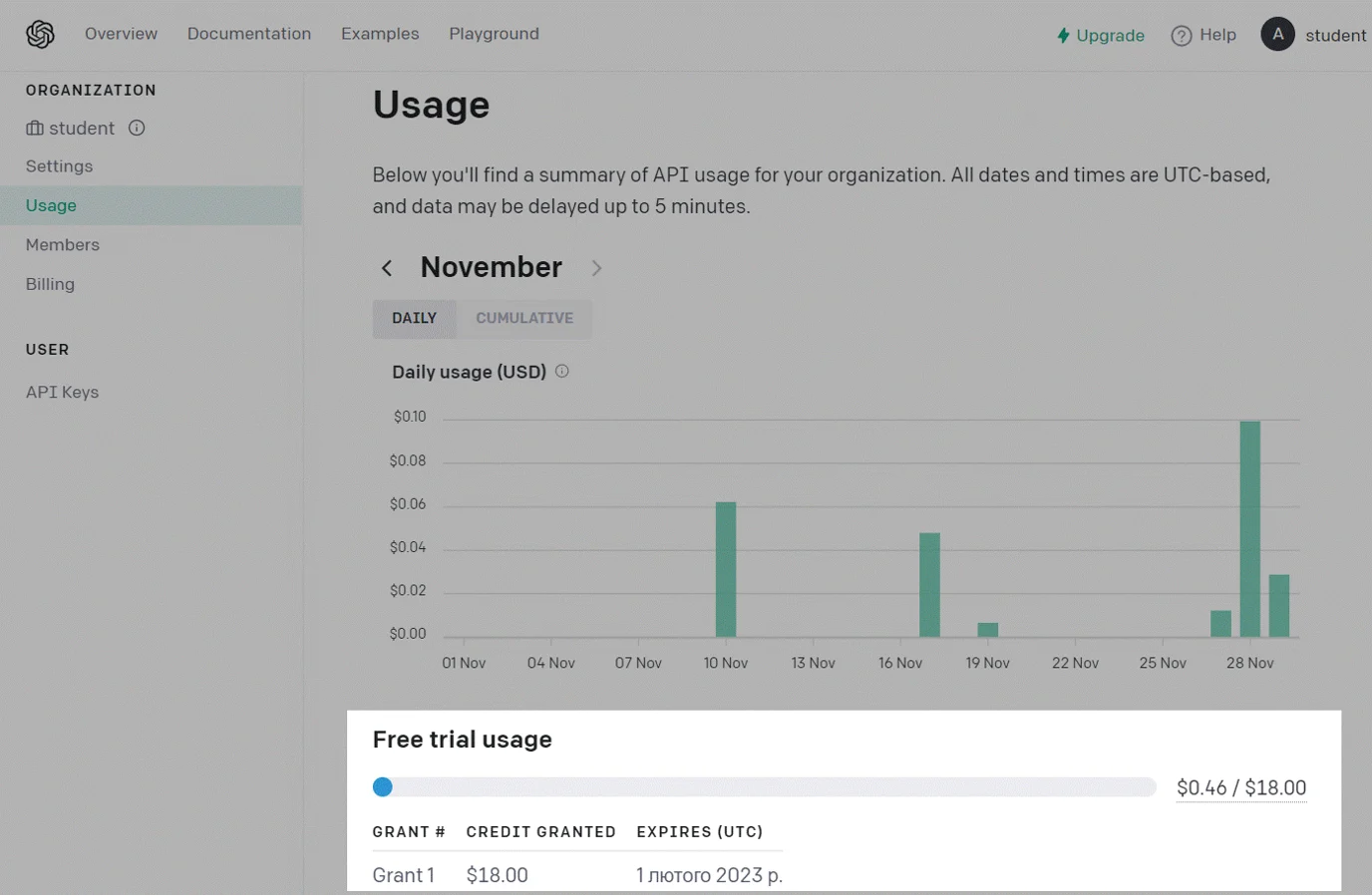
To access a summary of your organization’s API usage, simply log in to your OpenAI account.
To do this:
- Login to your OpenAI account
- Click on Usage tab
You can view the daily cost of your API usage here.
To see how many tokens you have left, log in to your OpenAI account, and go to the “Usage” tab.
To check your token usage history, scroll the page down to the “Daily usage breakdown (UTC)” section. You can see the whole history or filter it by specific date or team member.
To estimate the cost of using different data models, you can utilize a convenient pricing calculator available here.
-
Connect GPT technology From OpenAI
With E Ocean Digital Connect, you can make your chatbot smarter by adding the GPT model from OpenAI. This makes your chatbot more knowledgeable and helpful, allowing it to provide expert answers and assist users with a variety of tasks.
[wpdreams_ajaxsearchlite][mobile_menu]- Help Center
-
ChatBot Builder
[left_menu]How to Connect GPT technology From OpenAI to Your Chatbot
With E Ocean Digital Connect, you can make your chatbot smarter by adding the GPT model from OpenAI. This makes your chatbot more knowledgeable and helpful, allowing it to provide expert answers and assist users with a variety of tasks.
To begin, you will need to create an OpenAI account and link it to your chatbot. We will provide you with step-by-step instructions on how to do this, as well as information on the AI models that are available for you to use. Additionally, we will guide you on effectively training your bot to meet your business requirements.
Getting Started
The GPT (Generative Pre-trained Transformer) is an advanced AI model developed by OpenAI. It is designed to generate text and code, making it a versatile tool for various applications.
The primary GPT models offer a wide range of functionalities. They can analyze text across different difficulty levels, provide accurate answers to questions, optimize text for SEO and SMM tasks, categorize text into tables, assist with brainstorming, edit and translate text, handle coding and mathematical tasks, and support conversations on any topic, including specific subjects.
To leverage the power of GPT for your business tasks through a chat bot, you need to follow a few steps. First, choose an appropriate GPT model that aligns with your requirements. Then, customize your prompts by adding reply sentiments, narrowing down your list of questions or topics, and incorporating relevant information about your business. You can also provide examples of the desired responses you would like the chat bot to deliver.
Create an OpenAI Account
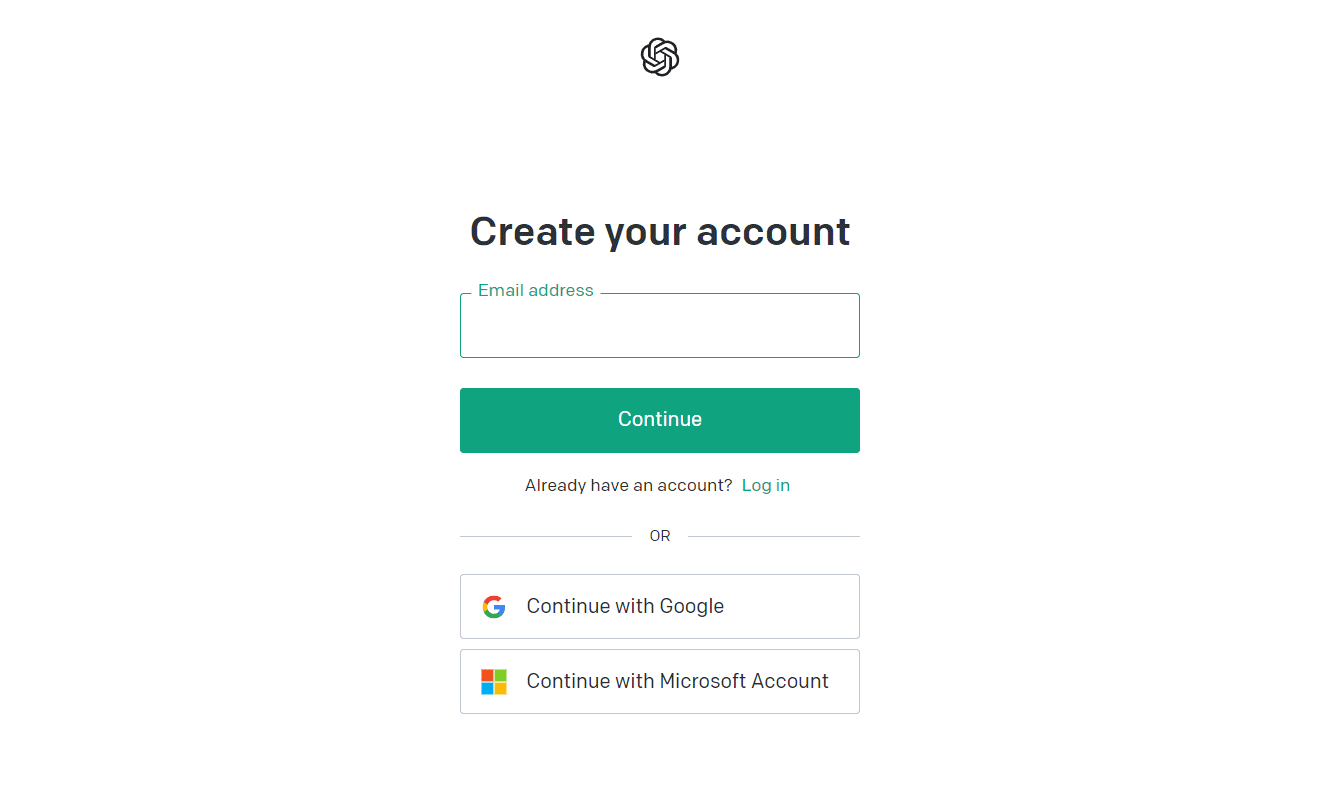
- Go to OpenAI, and create an account. Click Sign up, enter your email address, and click Continue, or continue with your Google or Microsoft account
- Enter your email address and then enter a password in the next window. You will receive a confirmation email in your inbox.
- Click Verify in the email and enter your name and the name of your organization.
- Enter your phone number to receive a SMS conformation code.
- Enter the code, and log into your account.
Before choosing a phone number to use, check OpenAI’s list of supported countries and territories.
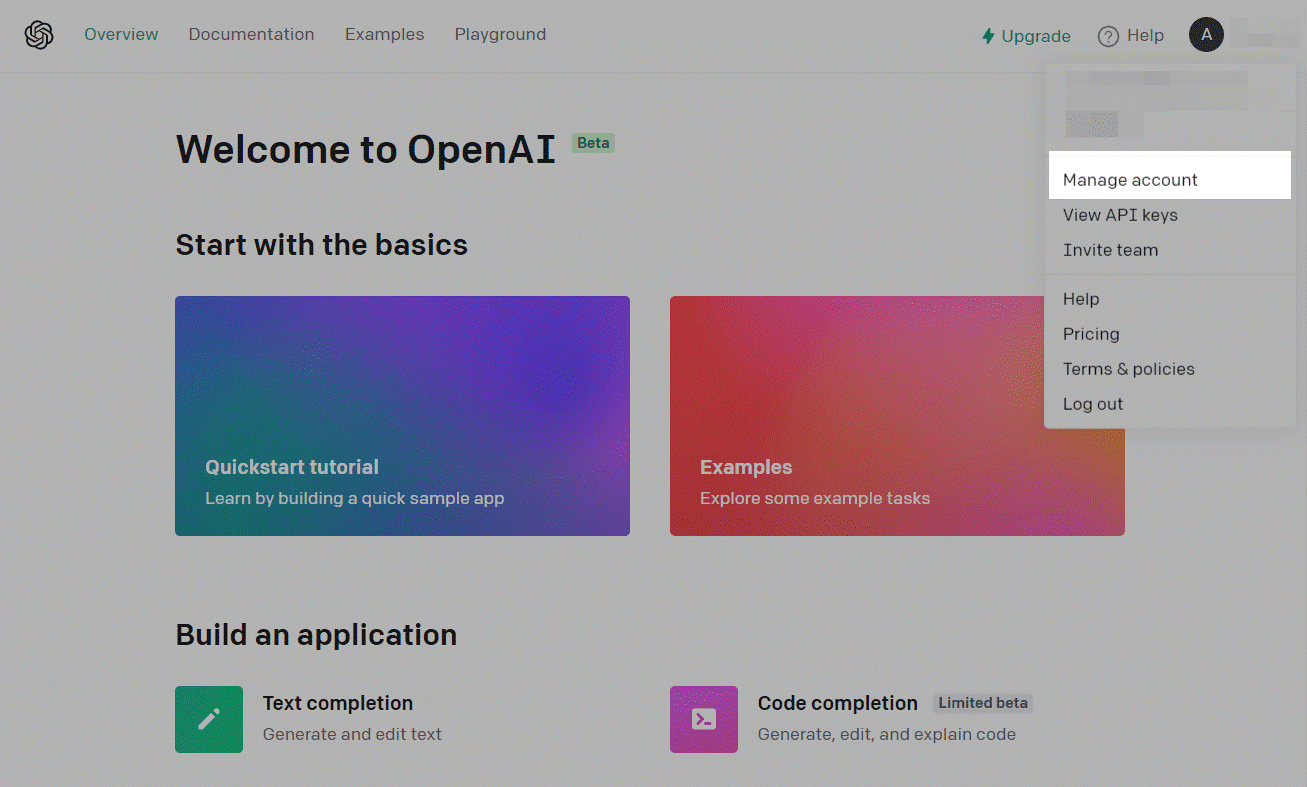
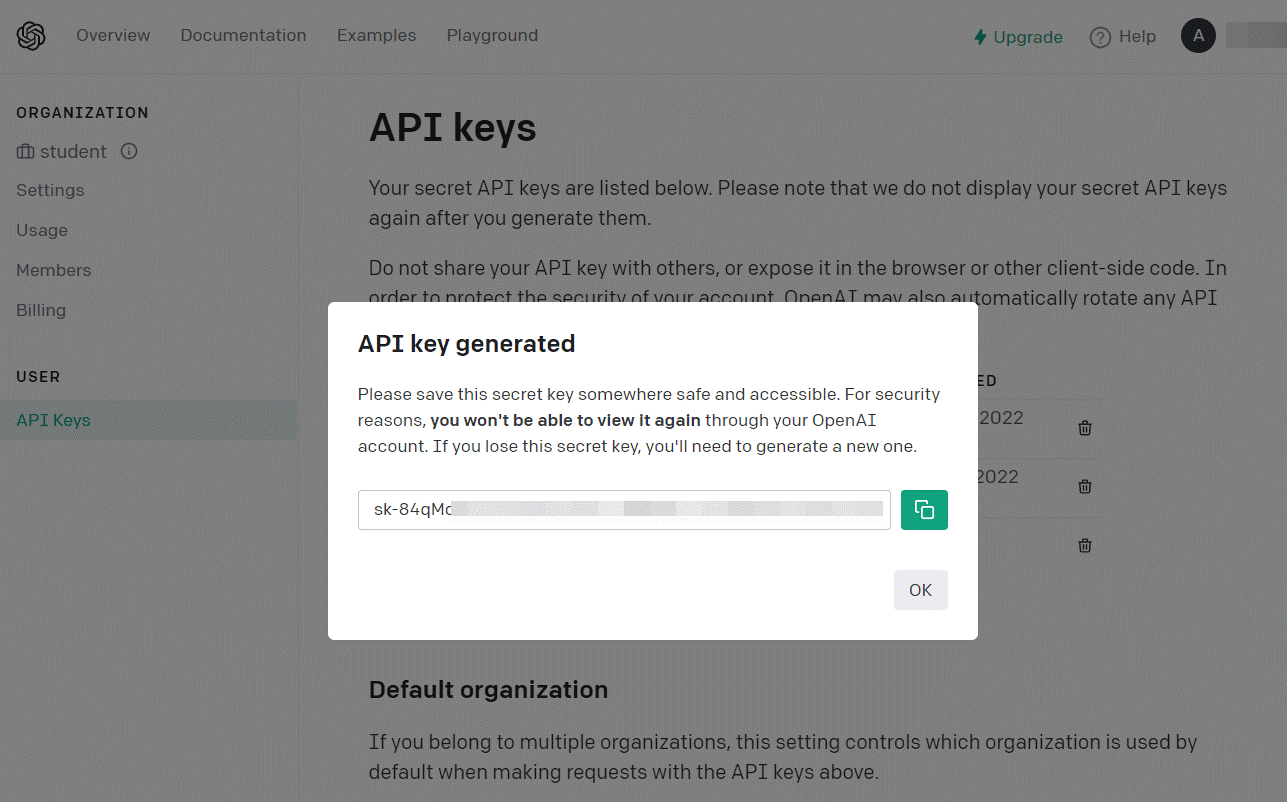
- Go to the API Keys tab and click Create new secret Key, and copy your key.
You need to save a key on your device because you cannot copy the same key on this page a second time. If you lose the key, you will need to generate a new one.
Set Up the Integration
Now that you have successfully generated the API key, you will need to enable it in Digital Connect Bot Builder.
To do this:
- Go to the Chatbot Builder in Digital Connect.
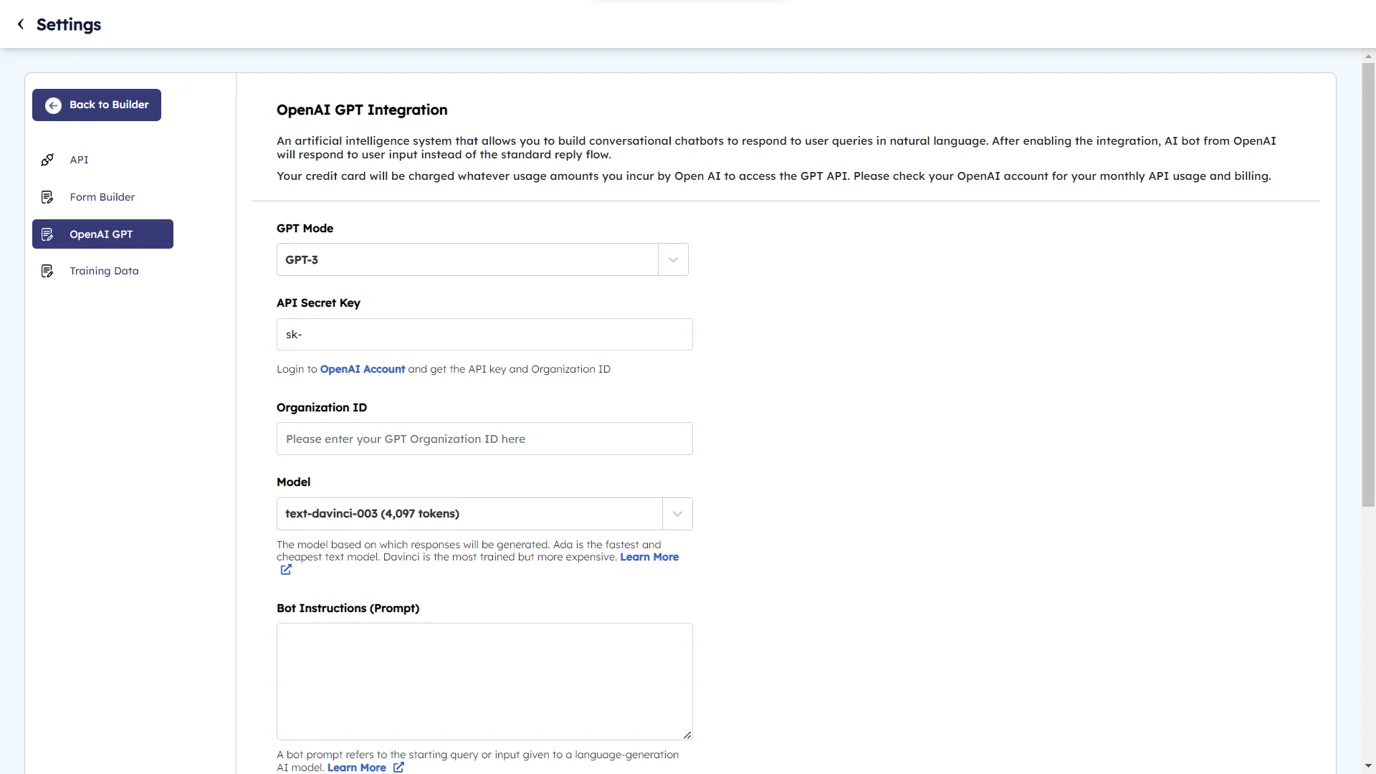
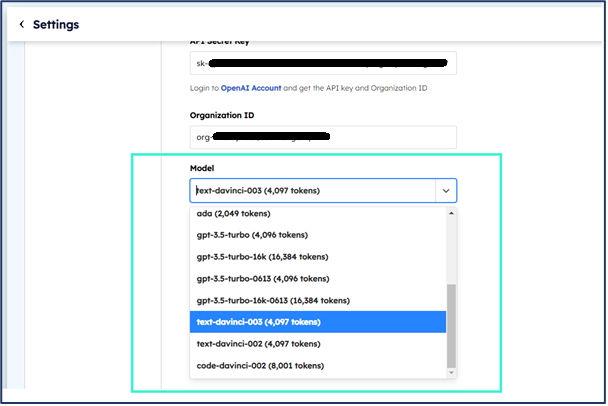
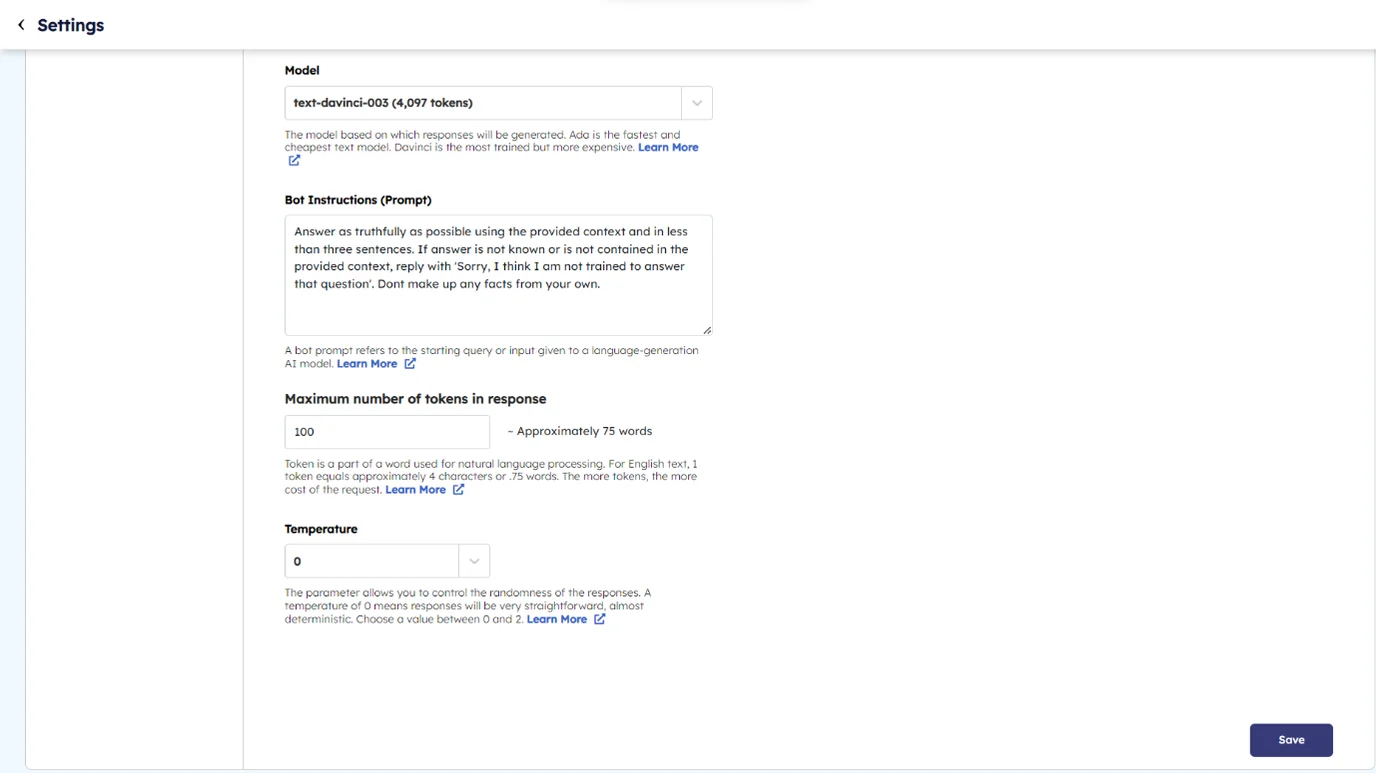
- Click on Settings and then click on OpenAI GPT tab. Here you can configure the mandatory details for integrating GPT models with your Bot Builder.
Enter Your API Key
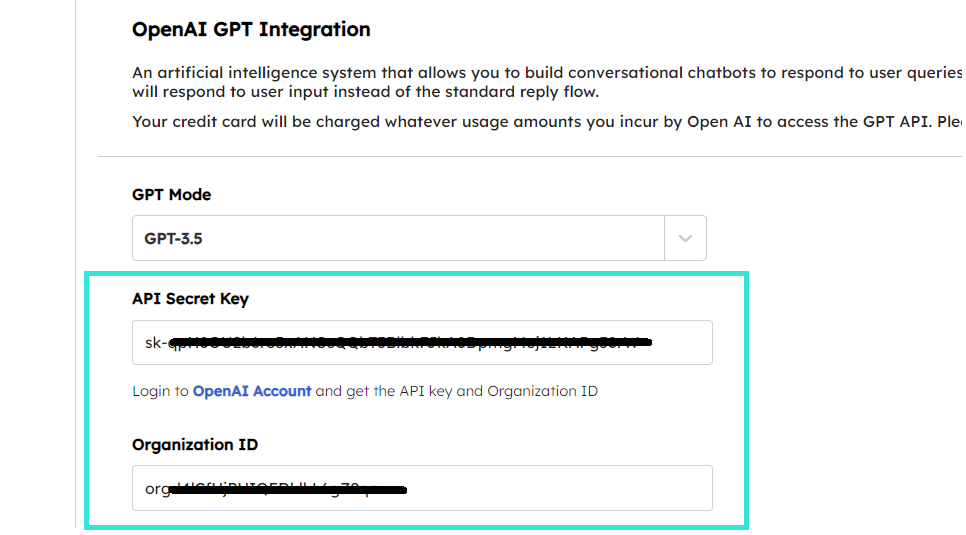
- Enter your Open AI Secret Key and Organization ID.
Choose a Model
Choose your AI Model to generate bot replies. Each engine has its own unique capabilities and is suited for different types of tasks.
Model Description Recommended use cases Davinci The most comprehensive yet expensive and slower model, as it works with a large amount of data. It can perform the same tasks as other models but requires fewer prompts in the “Bot instructions” field.
Use it to perform tasks where it needs to analyze the context deeper and generate more complex text or code. Also, you can use it to solve logic problems involving cause and effect.Analyzing complex intent and cause-and-effect problems, summarization, and explaining and generating code Curie The model can analyze text, answer direct questions, and provide key points.
Use it for Q&A in chatbots. For example, in the “Instruction for bot” field, you can enter your questions and answers that the bot will use.Translation, complex classification, text sentiment analysis, and summarization Babbage The model is good at picking up obvious text patterns and using them as references to generate new text.
Use it to classify information and assign categories. For creative applications, Babbage is able to understand structure just enough to be able to create simple plots and titles.Moderate classification, and semantic search classification Ada The fastest and cheapest model. Use it when you need to parse text faster without too much nuance. Parsing text, simple classification, address correction, keywords ChatGPT A gpt-3.5-turbo model trained on human conversation data. Able to generate human-like responses with a more natural tone than other models and personalize its replies based on the topic and previous user messages. Generating replies for messaging apps and virtual assistants and implementing QA systems. Giving the software a natural language interface. Providing tutoring in various subjects. Simulating characters for video games and much more. Only davinci, curie, ada, and babbage models are available for fine-tuning. In this field, you can also specify one of the OpenAI system models that aren’t in the standard list. The full list is available in the OpenAI documentation.
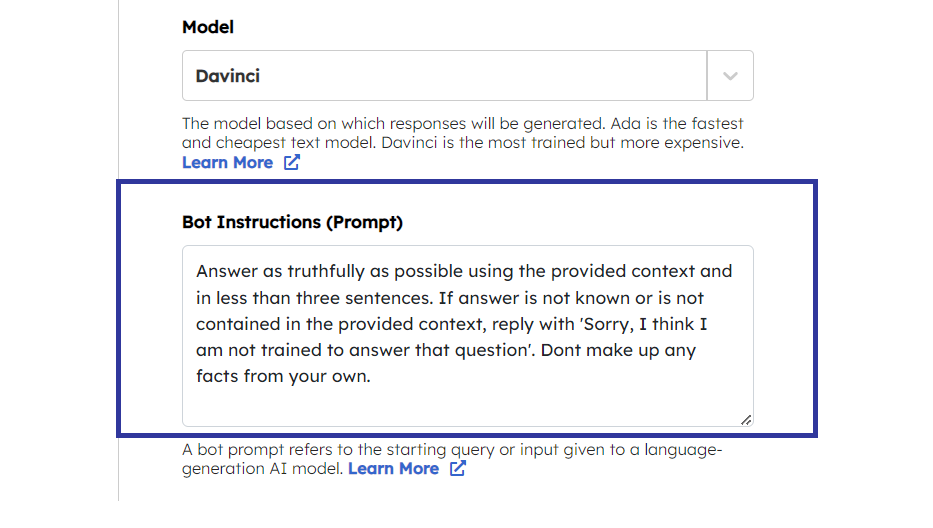
Add a Prompt to the Bot
GPT Models provide versatile capabilities, from text analysis to generating topic-specific replies. By customizing prompts and incorporating text sentiment and company information, you can create personalized and meaningful interactions with your chatbot.
When creating a prompt, keep the following recommendations in mind:
Here are some simple recommendations for creating effective prompts:
- Provide detailed instructions for your bot, including user interactions, desired reply details, and topic preferences.
- Use examples to illustrate your desired outcomes, such as sorting lists or classifying paragraphs.
- Ensure high-quality and accurate input data and be clear about language preferences.
- Personalize the model by describing specific personas or characters for more tailored responses.
- Test and refine your prompts in the builder workspace until you achieve the desired results.
AI analyzes text in all languages and can answer in a language you specify, but it interacts better in English. If you do not specify a language, the bot will answer in English by default
If you have any questions about how to create bot prompts or possible scenarios, you can check existing discussions or start a new one in the OpenAI community.
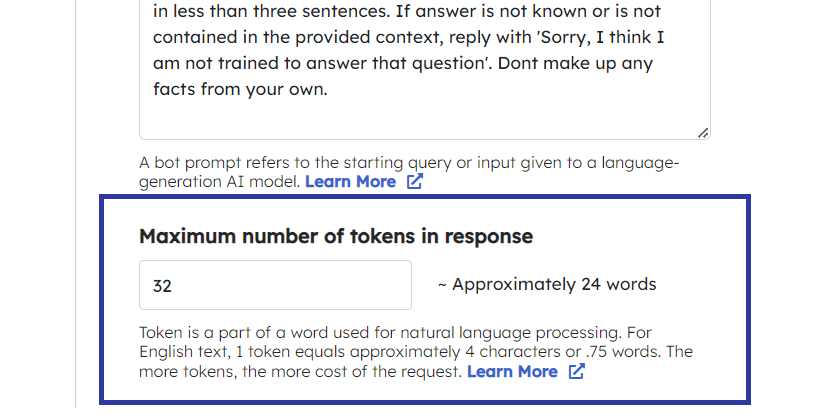
Provide a Token Number and Set Up the Temperature
Tokens refer to the individual units (such as words and characters) used to represent and process text. They are important to keep track of as they contribute to the model’s input limit and incur additional costs when interacting with the API.
In terms of the English language, typically, one token in ChatGPT corresponds to one word. However, keep in mind that tokens can also represent single characters or punctuation marks, which may affect the exact conversion rate from tokens to words.
For each request, the token count takes into account the number of words in the following places:
- in the “Bot Prompt” field;
- in the last messages in a chat with a bot;
- in the current question that a user asks a bot;
- in the current answer that a bot provides a user with.
Read more: What are tokens and how to count them and about OpenAI’s pricing plans in the Pricing section.
After completing the signup, OpenAI automatically gives $18 credits for 3 months. This money will be withdrawn when you use tokens. Token fees vary depending on the model used. For example, the Davinci model in a live environment cost $0.1200 per a thousand tokens, while the Ada model in a test environment costs $0.0004.
- Provide token number In the “Maximum number of tokens in response” field, specify a number. For the Davinci model, you can enter up to 2,048 tokens, and for all other models — up to 1,024 tokens.
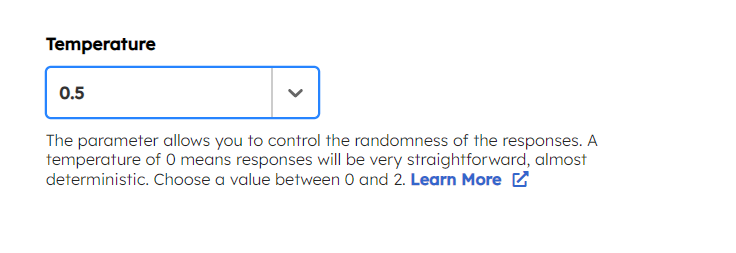
- Provide a temperature indicator value from 0 to 2.
Temperature is a parameter that determines the randomness of the output. Higher temperature values (e.g., 1.2) lead to more random and diverse responses, while lower values (e.g., 0.2) make the outputs more focused and deterministic. You can adjust the temperature setting based on your desired level of randomness in the generated responses.
[feedback_form] [related_articles]Save the Integration
Now you have successfully configured all the mandatory fields to integrate OpenAI GPT into your Bot builder.
- After clicking “Save,” you can begin adding data to your Digital Connect account to submit to OpenAI for training your bot.
-
Configure Platform Preferences
Digital Connect preferences allow you to configure default platform settings to help accomplish desired functionality. It is important to review all of the options available and apply configurations that meet your business needs
[wpdreams_ajaxsearchlite][mobile_menu]- Help Center
-
Getting Started
[left_menu]Configure Platform Preferences
Digital Connect preferences allow you to configure default platform settings to help accomplish desired functionality. It is important to review all of the options available and apply configurations that meet your business needs
Only Administrators can access and setup Platform Preferences
You can configure your Platform Preferences by applying the following steps:
- Login to your Digital Connect account and click on Settings > Preferences
Setup your Timezone
In the Time Zone section, you can set a default time zone for your account using the drop down menu.
Enable Security
Typically, logging into Digital Connect requires just your username and password. With two-factor authentication (2FA) turned on, logging in requires verification using a code sent on your mobile phone or email address. Because logging in with 2FA requires an additional layer of security , the risk of a potential intruder gaining access to your account is much lower. In the Security section, you can enable two-factor authentication for your user accounts.
Once enabled, your users will receive a one-time code on their registered mobile phone number and/or registered email address to log in to their accounts.
- You can enable two-factor authentication by toggling the button towards right side.
- It will prompt the modal window asking you to select the check boxes to receive code via SMS or Email
-
Select your options and click save changes
Your users will now receive a unique code to login to their account as an added layer of security in addition to their account password.
It is recommended to enable both SMS and Email verification to avoid the possibility of SMS OTP delivery failures
Auto-hide conversations
At times, due to compliance or security related requirements, you may be required to hide customer agent conversations once conversation status is marked closed by your agents.
You can enable auto-hide conversations feature by toggling the button towards right and click save changes.
Once enabled all conversations marked closed by your agents will be automatically hidden within the customer conversation window.
Automatically assign conversations
This feature is very helpful in case of high volume of incoming conversations to assign them to your agents automatically using a round-robin mechanism.
-
Toggle the icon towards right and click on save changes and all your conversations will be automatically assigned to your agents
[feedback_form] [related_articles]Email Conversation Transcript
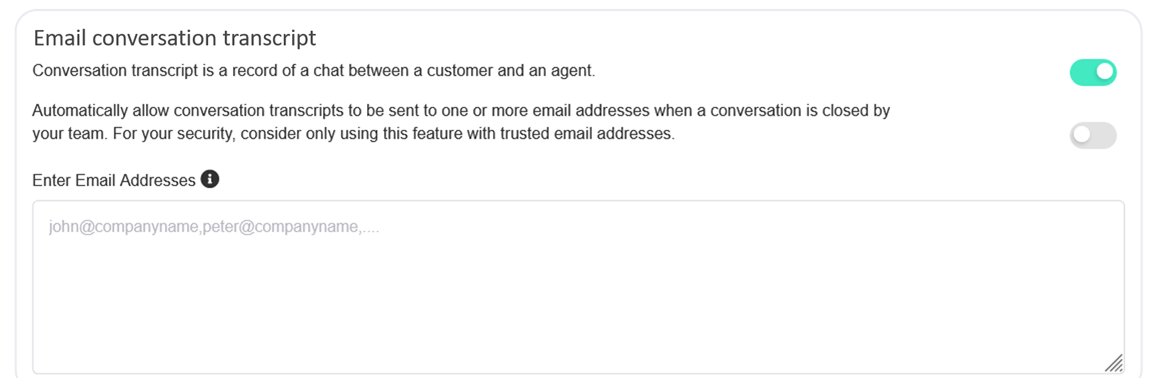
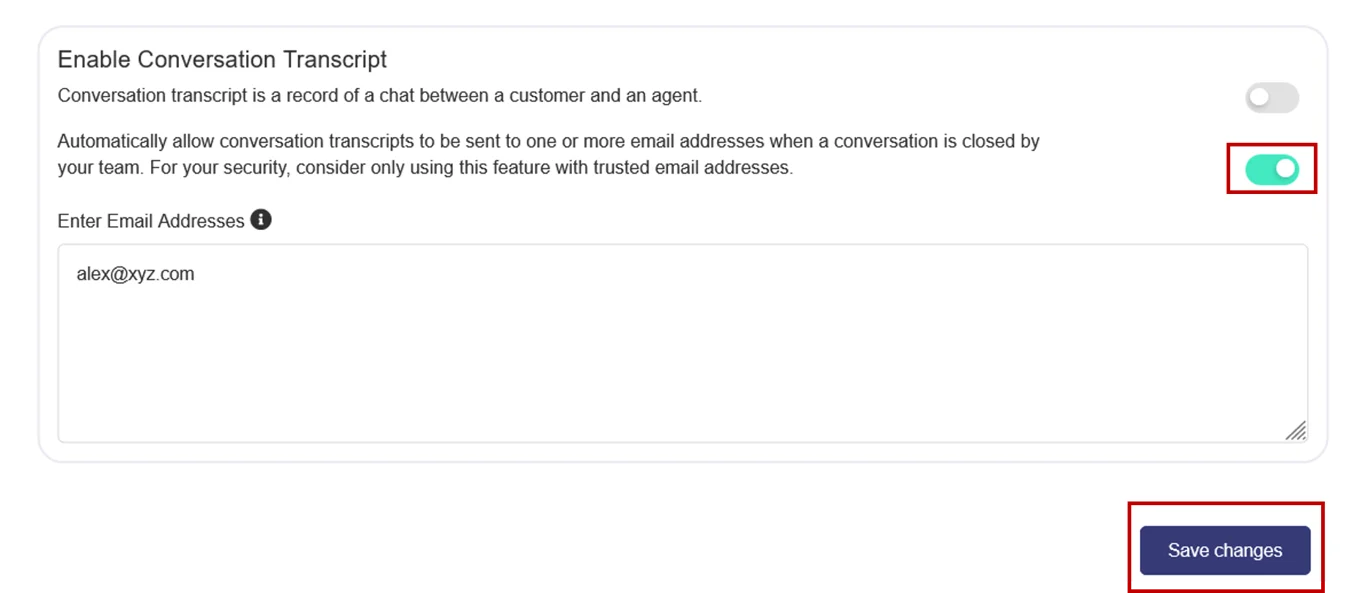
This section allows you to configure authorized email addresses to receive a conversation transcript for each conversation once its closed by your agent.
Manually Email conversation transcript
You can allow your agents to manually email conversation transcripts on a case to case basis.
- Toggle the top icon towards right and add email addresses of your authorized recipients in the provided section under Enter Email Addresses.
-
Click save changes
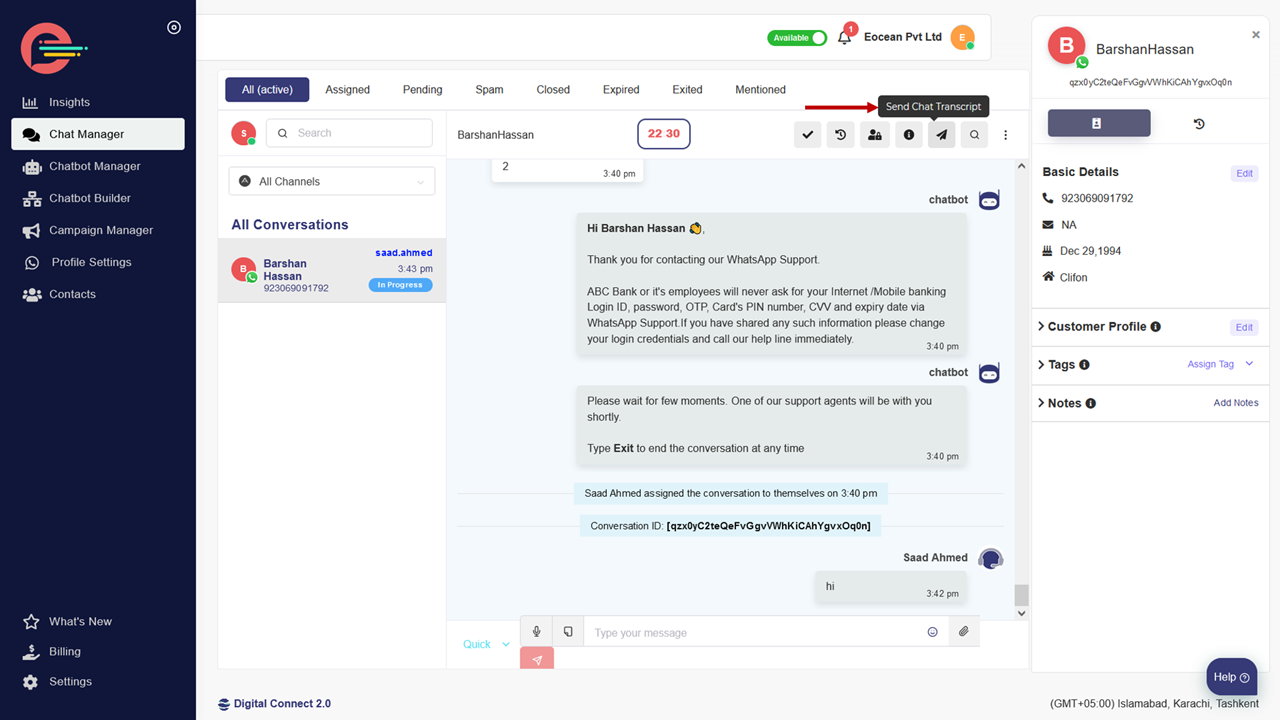
- Click on chat manager in the left navigation menu and then select any conversation
- Navigate to top right of the conversation window and click on Send Chat Transcript button to send email transcripts to authorized email recipients
Automatically email conversation transcript
-
Toggle the bottom icon towards right and Click save changes
All your conversation transcripts will now be automatically emailed to your authorized email recipients once you agent marks the conversation as Closed.
-
configure browser notification
Desktop notifications are extremely convenient if you are using Digital Connect on a modern web browser such as Chrome, Firefox or Edge. When customers initiates a new conversation, Digital Connect will notify you via your browser.
[wpdreams_ajaxsearchlite][mobile_menu]- Help Center
-
Getting Started
[left_menu]How to configure browser notifications for Digital Connect?
Desktop notifications are extremely convenient if you are using Digital Connect on a modern web browser such as Chrome, Firefox or Edge. When customers initiates a new conversation, Digital Connect will notify you via your browser.
Turning on desktop notifications allows you to continue to receive notifications via your web browser — even when the browser is minimized. Receiving notifications is important so you can know exactly when a customer initiates a conversation or a team member forwards a conversation so you respond more quickly to deliver a better customer experience.
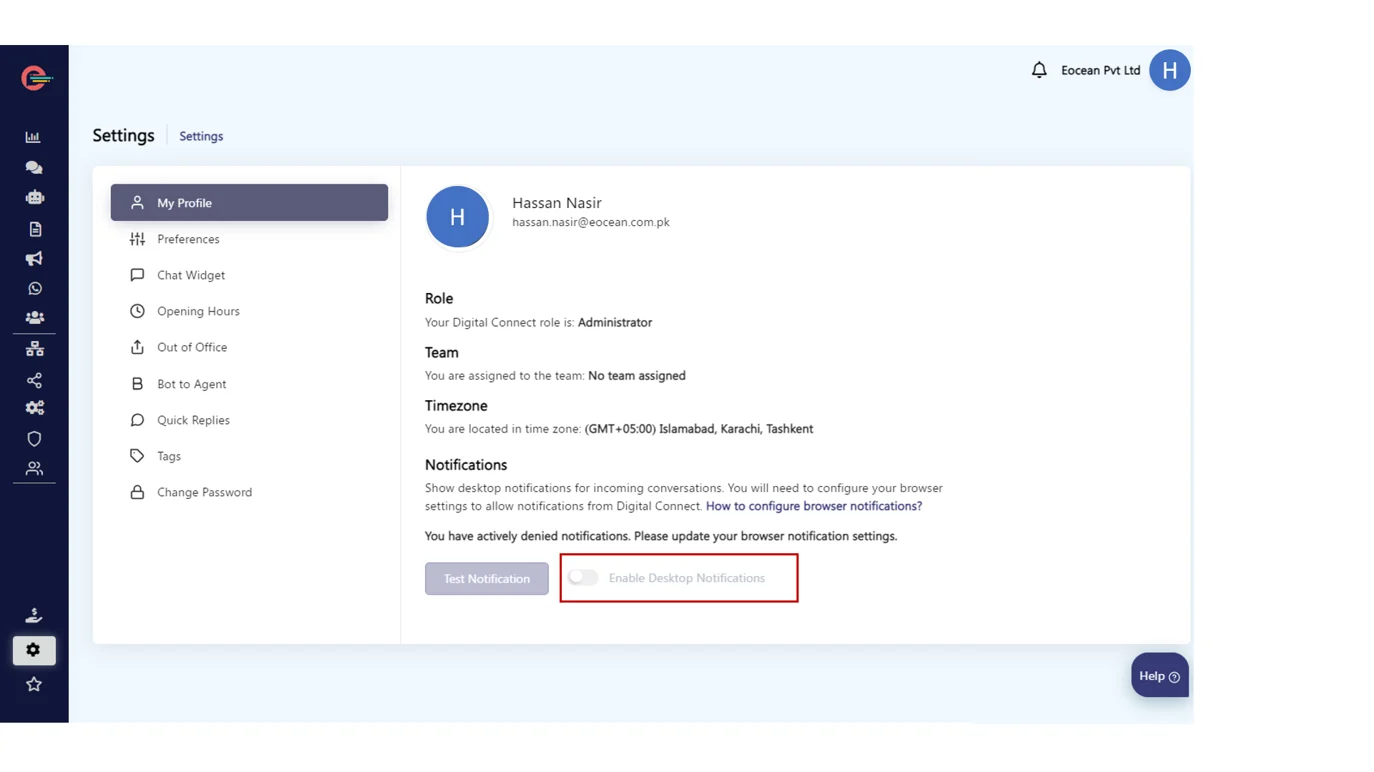
Your agents can enable or disable desktop notifications for their own accounts and it will not affect other accounts.
To edit desktop notification settings
- Click on Settings > My Profile and navigate to Notifications.
- Toggle the Desktop notification button icon and notification sound button to enable desktop notifications.
[feedback_form] [related_articles]In case, notification buttons are disabled, then follow the links below to follow the steps on how you can enable notifications for the most common browsers and how to enable the notifications in the windows action center.